

Record Video Lessons for Students
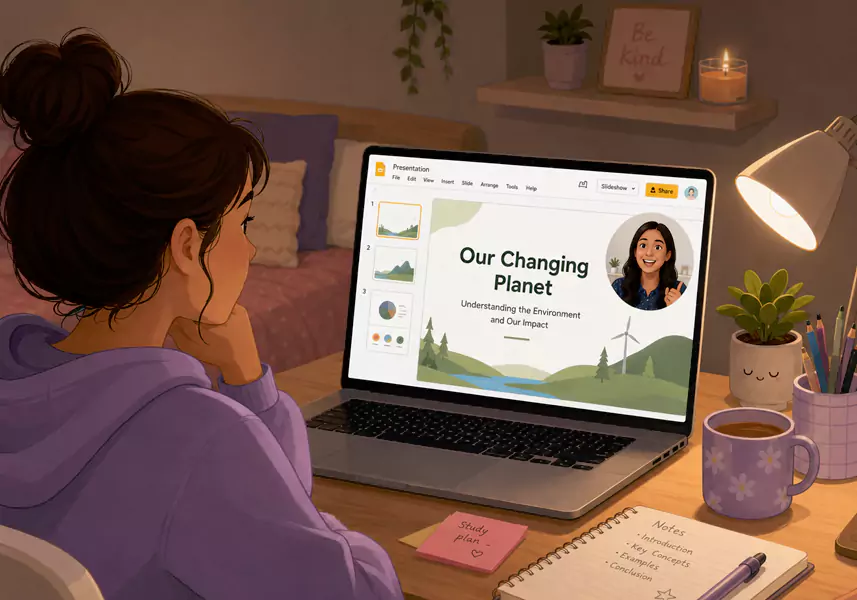
Recording your screen is the absolute fastest way to clone yourself as a teacher. Whether you want to build a whole library of flipped classroom videos for the upcoming semester or just send out a quick lesson recap video for students who missed class, you do not need to spend your weekend learning complex editing software.
With the right setup, you can record classroom lectures right from your desk. The goal is to capture your screen, your voice, and your subject expertise, then get that file straight to your students so they can learn on their own time. This guide will walk you through exactly how to do it without the technical headache.
Why build a library of recorded lessons?
Teachers need technology that gets out of the way. When you record classroom lectures, you stop repeating the same core concepts period after period, year after year. Instead, you create a permanent review lesson video that students can pause, rewind, and rewatch right before a big test.
It completely changes how you use your physical classroom time. You spend less time talking at the front of the room and more time walking the aisles, helping students who are stuck on the actual work. It is the shift from being a lecturer to being a facilitator.
Curious how other teachers set up their digital classrooms? Check out the top screen recorder for education workflows to see what actually works for modern educators.
How to record lessons for students in 5 steps
To send a video support reply, open the exact screen the customer needs, record a short explanation with clear narration, trim dead space, and send the video with a brief written note. The best video support responses are short, specific, and easy to follow.
Step 1: Grab your teaching materials
Pull up your Google Slides, PowerPoint decks, digital whiteboard, or whichever web tabs you need for the lesson. Take a moment to close your email and mute your chat notifications so you do not get interrupted by a random ping mid-sentence.
Step 2: Plot your recording area
Open Flashback and decide what your students need to see. You can capture your entire monitor or just draw a custom box around a specific window.
Audio setup: Toggle on 'Record Microphone' so your students can hear your explanations loud and clear as you click through the slides.
Video setup: Turn on 'Webcam Overlay' to put a small video of your face in the corner of the screen, which helps keep students engaged by letting them read your expressions.
Step 3: Hit record and start teaching
Take a breath and click the big red button. Speak naturally, just like you would to the front row of your class. Pretend you are explaining the concept to just one student sitting across from your desk. If you stumble over a word or click the wrong slide, keep going! You do not need to start over from scratch every time you say 'um'.
Step 4: Trim the rough edges
Once you finish the lesson, stop the recording. You can easily polish it up before anyone sees it using our free screen recorder.
Editing setup: Use the 'Trim' feature to chop off the dead air at the very beginning and end of the clip so your students get straight to the learning material [Human Benefit].
Step 5: Save and share with your class
Export your file as a standard MP4. From there, you can upload it directly to Google Classroom, Canvas, Blackboard, or wherever your students access their daily assignments.
Tools and troubleshooting for teachers
Tech hiccups happen, but they do not have to ruin your lesson plan. Here are a few quick fixes to keep your recordings looking sharp and sounding great.
My students cannot see what I am clicking on
If you have a busy slide or a complex math problem, your tiny white mouse pointer can get lost.
The fix: Enable 'Highlight Cursor' in your settings to add a bright yellow halo around your mouse, making it incredibly easy for students to track your movements.
My audio sounds like I am teaching in a cave
Laptop microphones pick up a lot of room echo and laptop fan noise.
The fix: Plug in a basic USB headset or standalone microphone before you open Flashback. Go into your audio settings and select that specific microphone from the dropdown list. Always do a quick 10-second test recording before you dive into a 20-minute lecture to make sure it sounds crisp.
The video file is too big to upload to my LMS
Some school networks have strict limits on file sizes, and students on slower internet connections might struggle to buffer massive files.
The fix: Adjust the 'Video Quality' slider down a notch before you export to shrink the final file size without making the text on your slides unreadable.
Use-case spotlight: The flipped classroom
If you are tired of running out of time for hands-on activities, the flipped model is your best friend. Instead of spending your valuable class time delivering a new lecture, you record it at home as a flipped classroom video.
Students watch the core material for homework. When they walk into your room the next day, they are already prepped with the foundation. You get to spend the entire period doing the fun stuff: group projects, science labs, or one-on-one tutoring. It flips the workload and puts the active learning right where you can guide it.
Explore more ways to use video in the classroom
Building a video lesson library is just the start. Once you are comfortable capturing your screen, you can use video to solve other common teaching challenges.
Master your presentations: Need to explain a specific deck? Learn how to record Google Slides for lessons so your students can hear your voiceover on every single slide.
Give better feedback: Tired of writing the same comments in the margins of essays? See how to create video feedback for students to save yourself time while giving your students a much more personal, helpful critique.
Download Flashback Express and start building your digital lesson library today.
Frequently Asked Questions
How do I record lessons for students?
Open Flashback, select your screen area, and ensure your microphone is active. Hit record, deliver your lesson, and save the file to share with your class.
What is a flipped classroom video?
It is a pre-recorded lesson that students watch at home so that in-class time can be used for interactive learning and one-on-one support.
How do I make a lesson students can rewatch?
Focus on clarity. Keep your videos short, use a clear microphone, and use the 'highlight cursor' feature in Flashback so students can easily follow your movements on screen.
