

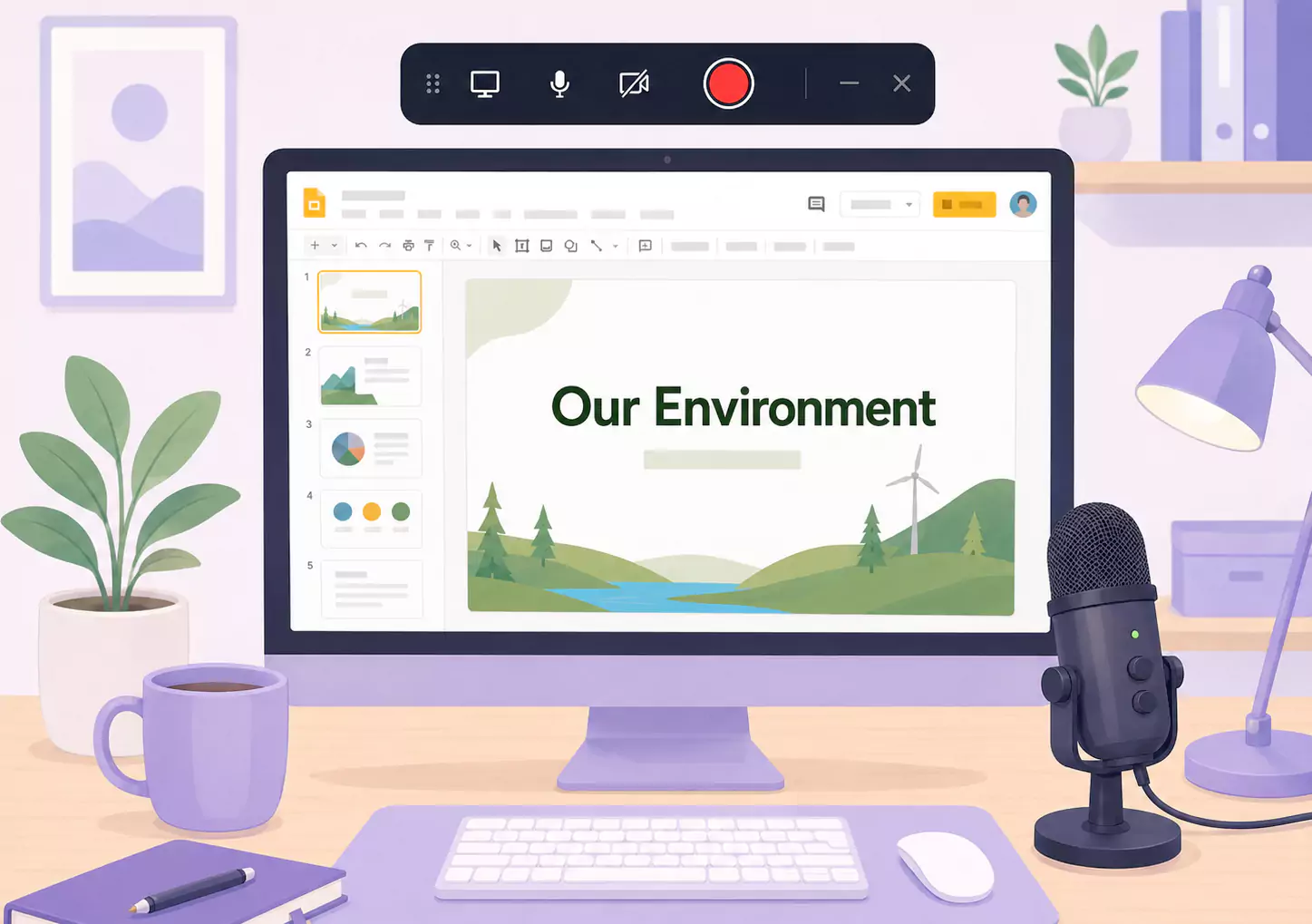
Google Slides works well for teaching because it gives lessons a clear structure. The missing piece is often the explanation. When you record the slides with narration, students do not just see the content. They hear the reasoning behind it, the emphasis, and the next step.
That is what makes slide-based lessons so useful for teachers working with screen recorder for education workflows. You can create a reusable explanation for homework prep, absent students, revision sessions, or flipped classroom teaching without repeating the same walkthrough live.
On Windows, the workflow is simple. Open the deck, tighten the lesson flow, record the slides and your voice together, then trim rough edges before sharing. Flashback Express fits naturally here because it is a free screen recorder with quick setup, no recording time limit, and watermark-free recordings.
What is a Google Slides lesson video?
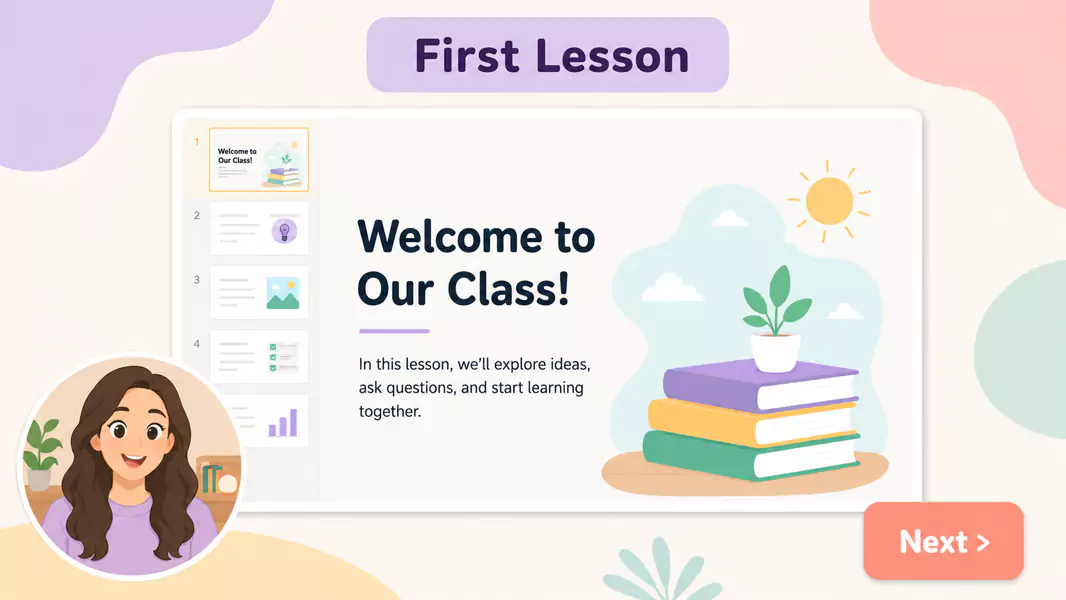
A Google Slides lesson video is a recorded version of your presentation with spoken explanation layered over the slides.
A strong slide lesson is practical. It helps students follow the structure of the topic, hear the explanation at the right pace, and come back to the material when they need it again.
Unlike a deck shared without narration, a recorded slide lesson gives students context, emphasis, and a clearer learning path.
When should you record Google Slides for lessons?
Record Google Slides for lessons when the deck already holds the structure of the lesson and students would benefit from hearing the explanation more than once.
This works well when you need to:
share narrated lesson slides before class
support a flipped classroom video
send a lesson recap after class
help absent students catch up
record review lesson videos before a test
If the lesson is not slide-led and depends more on showing a live workflow, start with video lessons for students instead.
How do you record Google Slides with narration?
To record Google Slides with narration, open the lesson in presentation mode, prepare short speaking notes, record your screen and microphone together, and trim dead space before sharing. The best Google Slides lesson videos are focused, easy to follow, and simple for students to replay.
Step 1: Start with one lesson goal
Before you record, decide what students should learn from this specific deck.
Do not try to cover a whole unit in one recording. Pick one concept, one explanation, or one review outcome.
Ask:
What should students understand after watching?
Which slide matters most?
Where do students usually get stuck?
What should they do next?
That keeps the lesson clear.
Step 2: Tighten the slides before you record
A deck that works in class does not always work well as a recording.
Slides with too much text, weak titles, or too many separate ideas can feel heavy on video. Clean them up first.
Focus on:
one main point per slide
clearer slide titles
less on-screen text
smoother transitions between ideas
This is what makes narrated lesson slides easier to follow.
Step 3: Write talking points, not a full script
Write short notes for each slide.
A full script can make the narration sound stiff. Short talking points usually work better because they let you explain naturally while staying on track.
Use a simple structure:
what this slide is showing
why it matters
what students should notice
what comes next
That is often enough to record slides with narration without sounding robotic.
Step 4: Prepare the Windows recording setup
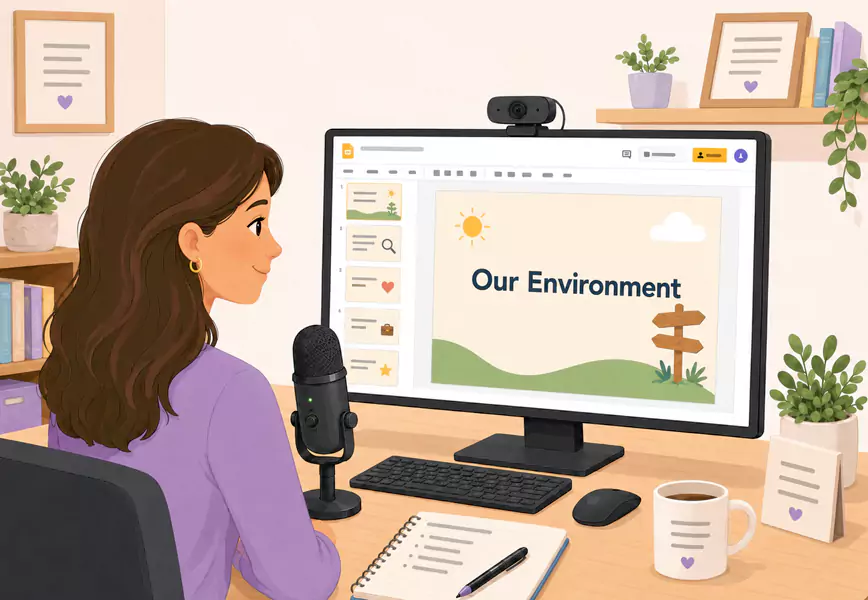
Clean the screen before you start.
Close extra tabs, mute notifications, and open only the deck and anything you truly need for the lesson.
Use full-screen Slides mode so the lesson stays visually clean.
Use readable slide sizing so students can follow labels, examples, and diagrams more easily.
Use checked microphone input so students do not have to fight the audio.
If you want to include webcam, keep it small and out of the way of the slide content.
Step 5: Record the slides and narration together
Start the recording and get into the lesson quickly.
Open with one short line that frames what students are about to learn. For example:
“Today we’re going to look at how this process works, why it matters, and what you should be able to do by the end.”
Then move through the slides in order.
Explain:
what students are looking at
why the point matters
what detail to notice
what they should remember before moving on
That is what makes a Google Slides lesson video feel like teaching, not just reading a deck aloud.
Step 6: Keep the pace steady
Go slow enough to follow, but not so slow that the lesson loses energy.
Pause when the topic changes. If a slide has several elements, point only to the one that matters right now.
If the deck is long, split it into smaller videos. Students usually learn better from shorter recordings they can revisit by topic, especially when those videos sit alongside broader video lessons for students resources.
Step 7: Review and trim the recording
Watch the video back before you share it.
Look for:
repeated explanations
awkward starts
dead time
slides that stay up too long without purpose
moments where the cursor moves before the narration catches up
Trim what weakens the lesson flow. If you edit the recording, do not imply that edited exports are watermark-free.
Use Flashback Express to record narrated Google Slides students can replay whenever they need a refresher.
What makes a good slide-based lesson video?
A good slide-based lesson video is clear, focused, and paced around student understanding.
The strongest lesson videos usually:
teach one concept at a time
explain the why behind each example
keep the slides visually clean
move at a steady pace
end with a clear next step
Why are narrated slide lessons effective?
Narrated slide lessons work because they combine structure with repeatable explanation.
That helps students:
review a concept before class
catch up after missing a lesson
revisit a difficult explanation
prepare for homework or revision
move through the lesson at their own pace
This is why they fit naturally into broader screen recorder for education workflows.
What common mistakes should you avoid?
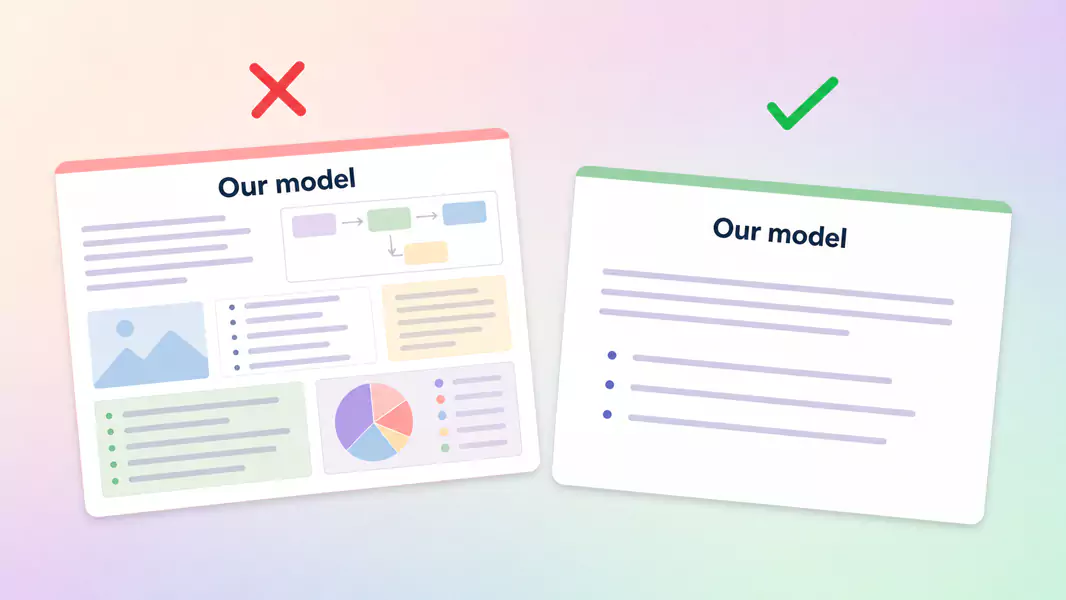
Avoid these common problems:
reading the slide word for word
leaving too much text on screen
moving too quickly through key slides
recording with distracting tabs or alerts visible
ending without telling students what to do next
Why use Flashback Express for Google Slides lessons?
Flashback Express is a practical fit for recording Google Slides on Windows because it lets you record as long as you need, keep the recording watermark-free, and get started without much setup.
That makes it easier to create reusable lesson videos for revision, catch-up, and flipped classroom teaching without turning the process into a heavy production task. It also works neatly alongside video lessons for students for broader lesson capture and video feedback for students for more personal follow-up.
Frequently Asked Questions
How do I record Google Slides with narration?
Open the deck in presentation mode, prepare short talking points, record your screen and microphone together, then trim rough edges before sharing.
Can I add voice to a slide lesson?
Yes. Record the slide presentation while speaking through the lesson, then share the finished video with students.
What is the best way to share recorded slides?
Share them in the place students already use for lessons, homework, or class updates so the video is easy to find again later.
How long should a slide lesson video be?
Long enough to teach one concept clearly, but short enough to keep attention. Smaller, topic-based recordings usually work better than one long lesson.
Should I include webcam in a Google Slides lesson?
Only when it helps. Facecam can add a personal touch, but slides-first usually works better when students need to focus on the lesson content.
