

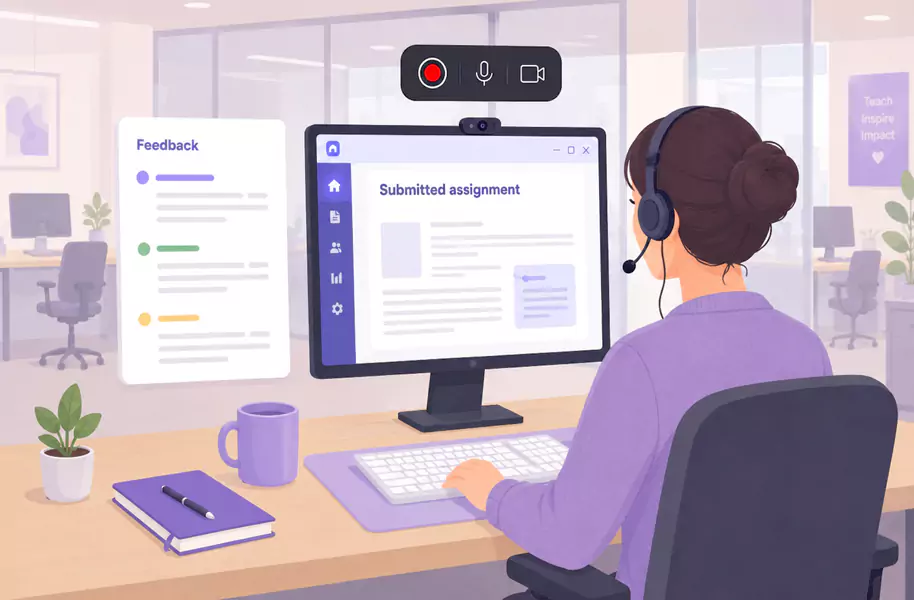
Written comments are useful, but they can miss tone, emphasis, and context. A short video lets you point to the exact part of the work, explain what you noticed, and guide the student through what to improve next.
That is what makes video feedback so helpful in education. It turns a margin note into a walkthrough. Instead of decoding short comments on their own, students can hear the explanation, follow the screen, and come back to the feedback while they revise.
On Windows, the workflow is simple. Open the student work, plan the key points, record your screen and voice together, then trim rough edges before sharing. Flashback Express fits naturally here because it is a free screen recorder with quick setup, no recording time limit, and watermark-free recordings.
What is video feedback for students?
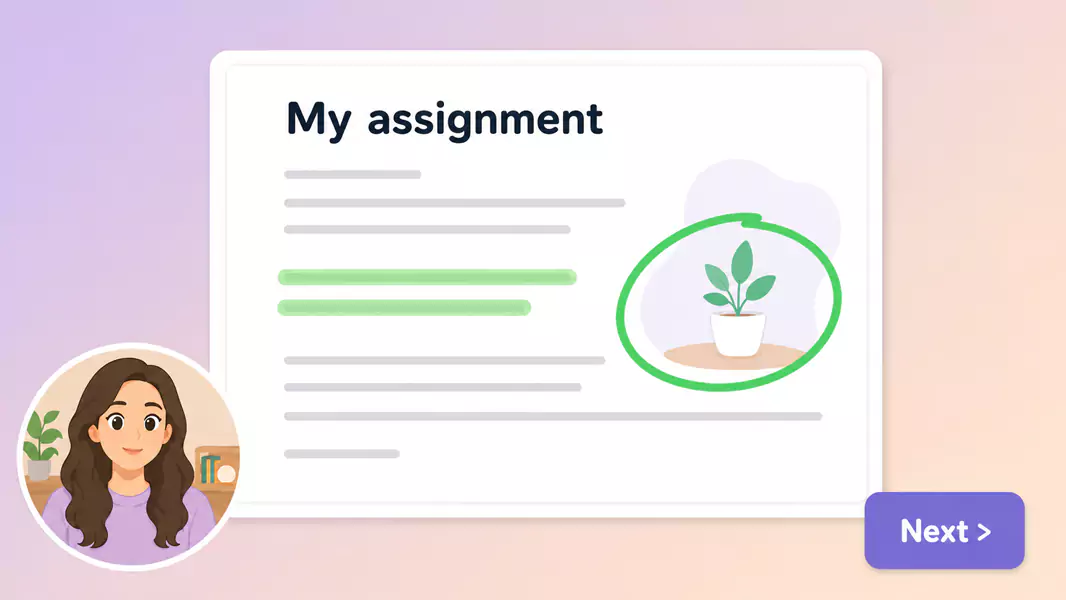
Video feedback for students is recorded teacher feedback that combines on-screen review with spoken explanation.
A strong teacher feedback video is practical. It helps the student see what part of the work you are talking about, hear why it matters, and understand what to improve next.
Unlike a short written comment alone, personalized student feedback in video form gives students more context and a clearer path forward.
When should you create video feedback for students?
Create video feedback when the student will benefit from seeing the exact part of the work you mean and hearing the reasoning behind your comments.
This works well when you need to:
explain feedback on a draft or project
walk through mistakes step by step
give assessment video feedback on recorded or written work
respond to visual work, slides, or digital submissions
help a student revise more confidently
If the goal is teaching the whole class a concept, use video lessons for students instead. If the feedback is based on a slide assignment, a workflow like record Google Slides for lessons may also support the teaching side.
How do teachers give video feedback?
To give video feedback, open the student’s work, decide on the main teaching points, record your screen and voice together, and keep the feedback focused on what the student should notice and do next. The best student feedback videos are clear, specific, and easy to revisit.
Step 1: Start with the learning goal
Before you record, get clear on what the student needs most.
Do not try to comment on every detail in one pass. Pick the points that will help the student improve the most.
Ask:
What is the main strength to reinforce?
What is the most important area to improve?
What misunderstanding needs the clearest explanation?
What should the student do next?
That keeps the feedback useful.
Step 2: Open the work you want to review
Bring up the exact version of the work the student submitted.
If you are reviewing an essay, show the paragraph you are discussing. If it is a slide deck or project, open the exact screen that matches your comments.
This is what makes video feedback easier to follow. The student does not have to guess which sentence, example, or design choice you mean.
Step 3: Prepare the Windows recording setup
Clean the screen before you start.
Close unrelated tabs, mute notifications, and make sure no other student information is visible. Only show the work you are discussing and the tools you need for the feedback.
Use clean desktop setup + less distraction during review so the student stays focused on the feedback.
Use readable zoom and document sizing + clearer on-screen detail so the student can see exactly what you are referencing.
Use checked microphone input + more understandable spoken feedback so your explanation sounds steady and easy to replay.
Step 4: Talk through the feedback like a guide
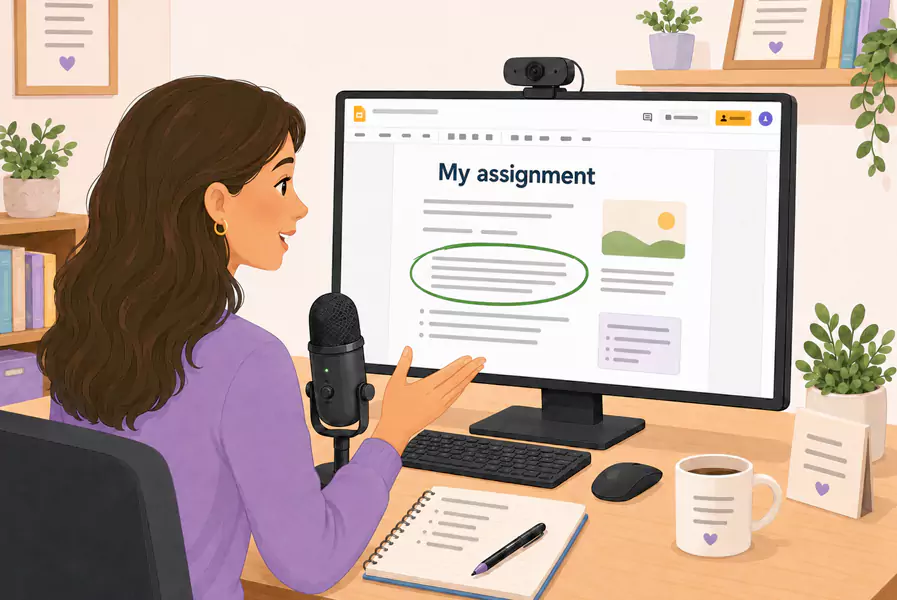
Start with one short framing line.
For example:
“I’ll walk through what is working well here, where the argument gets less clear, and what I’d revise first.”
Then move through the feedback in order.
Explain:
what part of the work you are looking at
what is working or not working
why it matters
what the student should try next
That is what makes a teacher feedback video feel supportive instead of overwhelming.
Step 5: Keep it specific and manageable
A good feedback video should move the student forward, not bury them in corrections.
Focus on the patterns that matter most. If several issues come from the same misunderstanding, explain that root issue clearly instead of repeating the same comment over and over.
Shorter videos usually work better than one long response, especially when students will revisit the feedback while they revise.
Step 6: Review and trim the recording
Watch the feedback back before you send it.
Look for:
repeated comments
long pauses
awkward starts
sections where the cursor moves too fast
places where the next step is not clear enough
Trim what weakens the flow. If you edit the recording, do not imply that edited exports are watermark-free.
Use Flashback Express to record clear student feedback videos learners can replay while they revise.
What should a student feedback video include?
A strong student feedback video usually includes:
a quick summary of the goal
one or two strengths
the main improvement area
an explanation tied to the work on screen
a clear next step for revision
That structure helps the student know what to keep, what to fix, and what to do next.
Why is video feedback effective?
Video feedback works because it combines visual context with spoken explanation.
That helps students:
see exactly what part of the work you mean
understand the tone behind the feedback
revisit comments while revising
catch patterns they might miss in written notes
feel more guided and less lost
This is why it fits naturally into broader screen recorder for education workflows.
What common mistakes should you avoid?
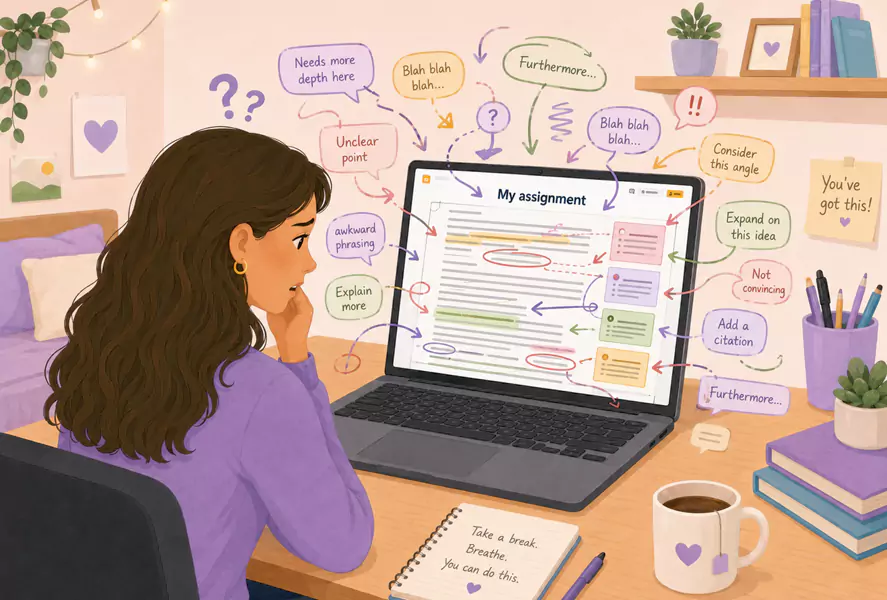
Avoid these common problems:
trying to comment on every small issue
moving too quickly through the work
giving feedback without showing the exact section
recording with unrelated screens or student data visible
ending without a clear next step
Why use Flashback Express for student video feedback?
Flashback Express is a practical fit for student feedback on Windows because it lets you record quickly, keep the recording watermark-free, and explain the work on screen without a heavy setup process.
That makes it easier to create personalized student feedback that feels clear and human. It also works neatly alongside video lessons for students for class-wide teaching and record Google Slides for lessons for slide-based instruction.
Frequently Asked Questions
How do teachers give video feedback?
Open the student’s work, decide on the most important feedback points, record your screen and voice together, and keep the explanation focused on what the student should revise next.
What should student feedback videos include?
Student feedback videos should include what is working, what needs improvement, why it matters, and what the student should do next.
Can I record screen and voice feedback together?
Yes. That is often the best way to make feedback easier to follow because students can see the exact part of the work while hearing your explanation.
How long should a feedback video be?
Long enough to explain the main revision points clearly, but short enough that the student can revisit it easily while working.
Is video feedback better than written comments?
Not always, but it is often stronger when the student needs tone, context, or a walkthrough of specific parts of the work.
Its simple to create useful, watchable videos for students with Flashback Express (free, unrestricted recording).
