

Send Video Support Replies
Answer tricky support questions faster with short videos customers can watch, replay, and follow on their own.
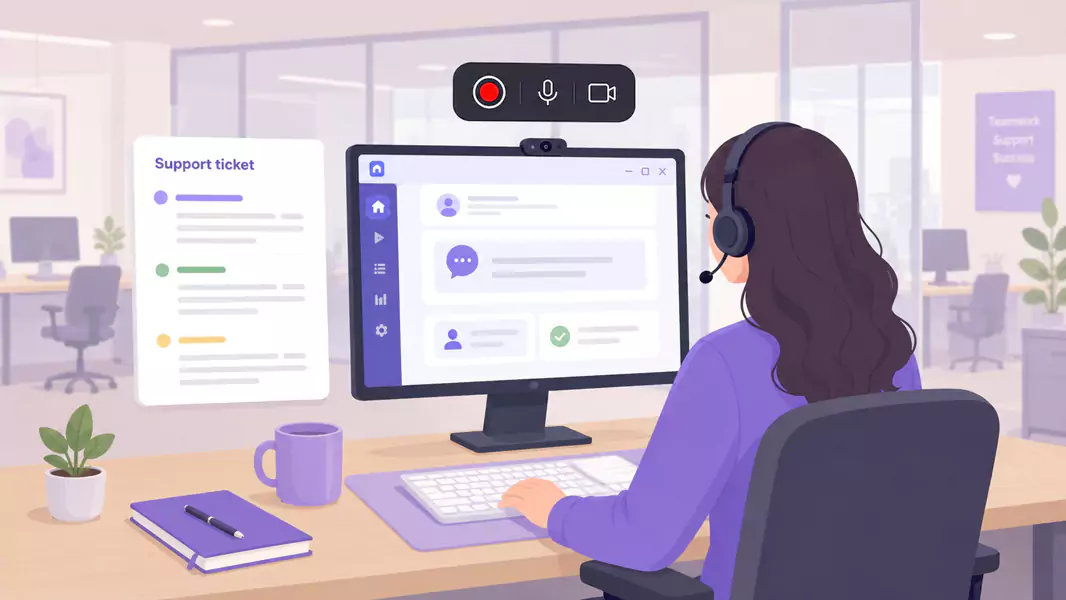
Some support issues are faster to show than write. A short video can cut through a long thread, show the exact screen, and help the customer follow the fix without guessing what your text means.
That is where video support responses work best. Instead of describing every click in email, you guide the customer through the answer once and give them something they can replay when they try it themselves. For teams building a broader customer support video workflow, this is one of the clearest one-to-one use cases.
On Windows, the workflow is simple. Open the right screen, record the fix with clear narration, trim the rough edges, and send it with a short note. Flashback Express fits naturally here because it is a free screen recorder with quick setup, no recording time limit, and watermark-free recordings.
What are video support replies?
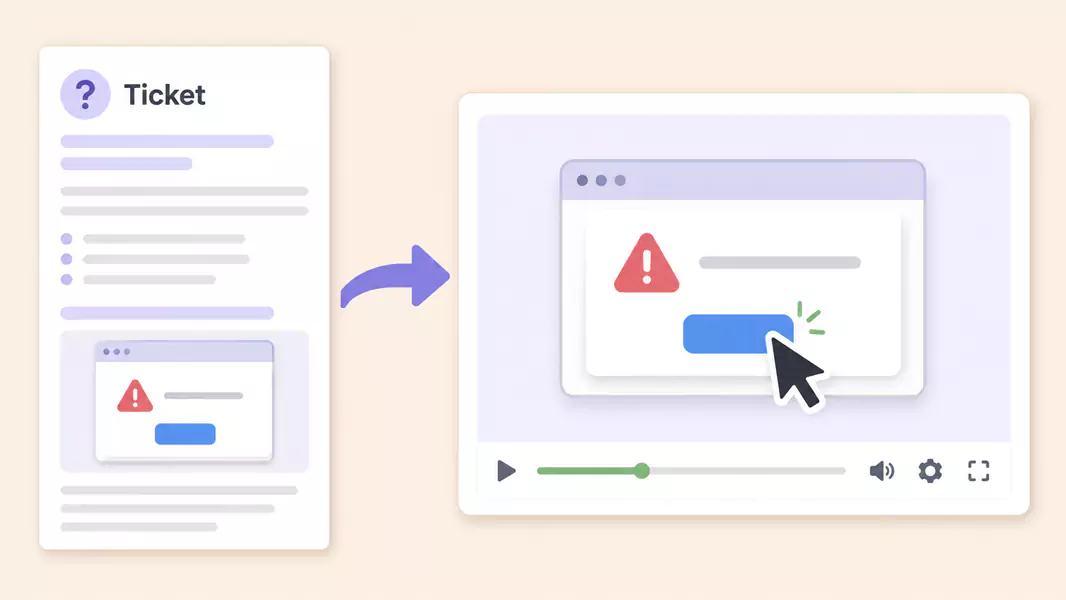
Video support replies are one-to-one support answers recorded on screen to help a customer understand a fix, workflow, or next step.
A good support response video is practical. It shows the exact screen, explains the exact action, and gives the customer a clearer path than a long written reply.
Unlike reusable help center videos, video customer support replies are usually tied to one customer question or one specific support case.
When is video better than email support?
Use video when the issue is easier to show than explain.
This works well when you need to:
show where a setting lives
explain a multi-step fix
walk through a confusing workflow
confirm what the customer should see on screen
reduce back-and-forth on a visual issue
Video is especially useful when timing, cursor movement, or screen state matter. If the answer depends on “click here, then look for this,” a support response video is usually clearer than email.
How do you send a video support reply?
To send a video support reply, open the exact screen the customer needs, record a short explanation with clear narration, trim dead space, and send the video with a brief written note. The best video support responses are short, specific, and easy to follow.
Step 1: Start with the actual customer question
Before you record, narrow the issue.
Do not answer the whole product. Answer the question in the ticket.
Ask:
What is the customer trying to do?
Where are they getting stuck?
What screen do they need to see?
What should work by the end of the video?
That keeps the reply focused.
Step 2: Recreate the issue or the solution path
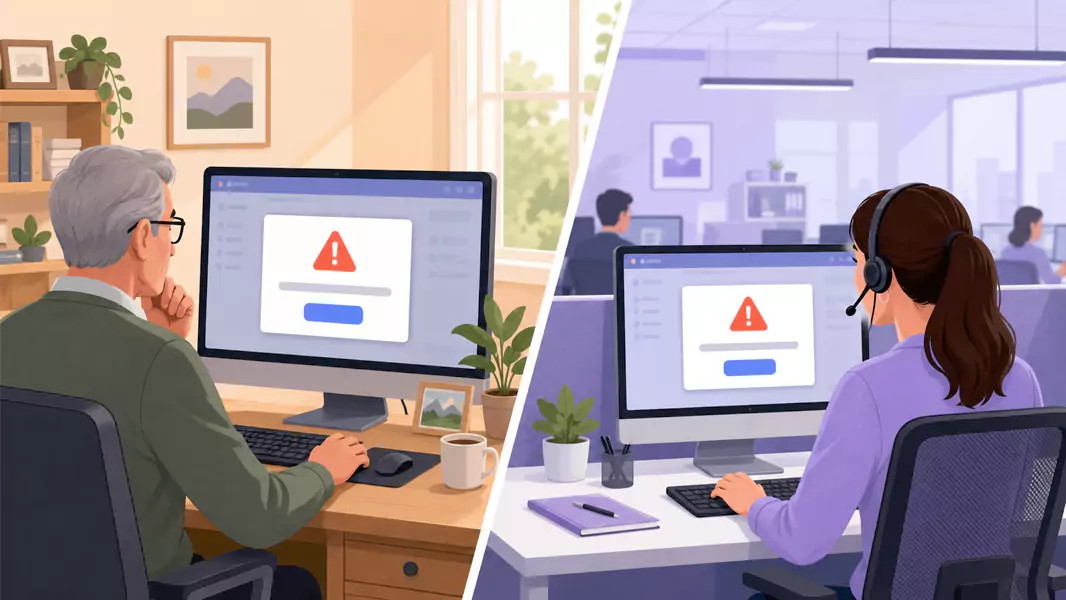
Open the product to the exact place the customer needs.
If possible, recreate the same state they are seeing. If not, show the closest clean version and explain the difference.
This is what makes a support response video more useful than a generic answer. The customer can follow the same path on their own screen.
If the issue turns out to be a product defect, that recording can also support bug repro videos for your internal team.
Step 3: Prepare the Windows recording setup
Clean the screen before you hit record.
Close unrelated tabs, mute notifications, and hide any private customer or account data you do not need to show.
Use clean support workspace + less visual noise so the customer can track the answer easily.
Use readable interface size + clearer product detail so buttons, fields, and menus stay visible.
Use the right product state + fewer follow-up questions so the customer sees the exact moment that matters.
Step 4: Record the reply like a teammate helping
Start with one short line that frames the answer.
For example:
“Here’s the quickest way to update this setting and confirm it saved correctly.”
Then walk through the fix in order.
Explain:
what screen they are looking at
what action to take
what to expect next
how to confirm it worked
That is what makes video customer support feel helpful instead of rushed.
Step 5: Keep it short
A support reply video should solve one issue well.
If the question branches into several different workflows, split it up or turn the reusable part into help center videos.
Shorter replies are easier to watch, easier to send, and easier for the customer to follow step by step.
Step 6: Review and trim the recording
Watch the video back before you send it.
Look for:
dead time
repeated explanations
awkward starts
extra tabs on screen
sections where the cursor moves too fast
Trim what slows the answer down. If you edit the recording, do not imply that edited exports are watermark-free.
Use Flashback Express to turn a confusing ticket into a clear video answer your customer can replay anytime.
What should a support reply video include?
A strong support response video usually includes:
a quick restatement of the issue
the exact screen the customer needs
the fix or workflow in order
what success looks like
the next step if the issue continues
Why are video support replies effective?
Video support replies work because they combine visual context with spoken explanation.
That helps when the customer needs to:
find the right setting
follow a multi-step fix
see what a completed step looks like
retry the workflow without another live call
solve the issue faster with less back-and-forth
This is why they fit so naturally into broader customer support video workflows.
What common mistakes should you avoid?

Avoid these common problems:
answering too many questions in one video
recording with sensitive data visible
talking too long before showing the screen
moving through the fix too quickly
sending the video without a short written summary
Why use Flashback Express for video support replies?
Flashback Express is a practical fit for video support replies on Windows because it lets you record quickly, keep the recording watermark-free, and show the fix without heavy setup.
That makes it easier for support teams to send clear one-to-one answers and reduce long email threads. It also fits neatly alongside help center videos for reusable answers and bug repro videos when support needs to escalate an issue internally.
Frequently Asked Questions
How do I send a video support reply?
Open the exact screen the customer needs, record a short explanation of the fix, trim rough edges, and send the video with a short note in the ticket.
When is video better than email support?
Video is better when the issue is visual, multi-step, or easier to show than explain in text.
What should a support reply video include?
A support reply video should include the issue, the correct screen, the fix in order, and what success looks like.
How long should a support response video be?
Long enough to solve one issue clearly, but short enough to watch without friction. In most cases, shorter is better.
Should support teams reuse reply videos?
Yes, when the issue comes up often. That is usually the point where one-off replies should grow into help content.
Use Flashback Express (free, unrestricted recording) to turn a tricky support ticket into a clear video answer your customer can replay whenever they need it.
