

How to Record Product Walkthrough Videos
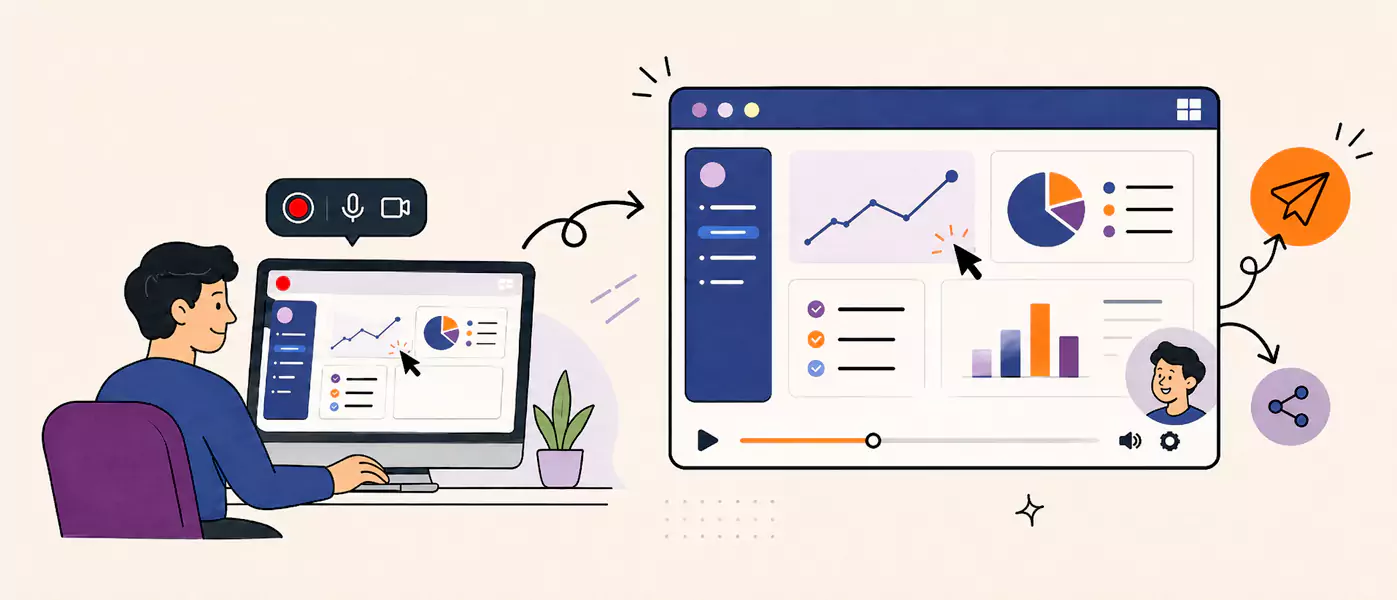
A good product walkthrough video shows what the product does, why it matters, and what the viewer should notice next. If you need a fast way to record one on Windows, a free screen recorder can help you capture the flow, trim the rough edges, and share a cleaner explanation without adding much production overhead.
Read on to learn:
What is a product walkthrough video?
When to use a feature walkthrough video
How to record a product walkthrough video on Windows
What makes a walkthrough easier to follow
Which mistakes make walkthroughs harder to trust
What is a product walkthrough video?
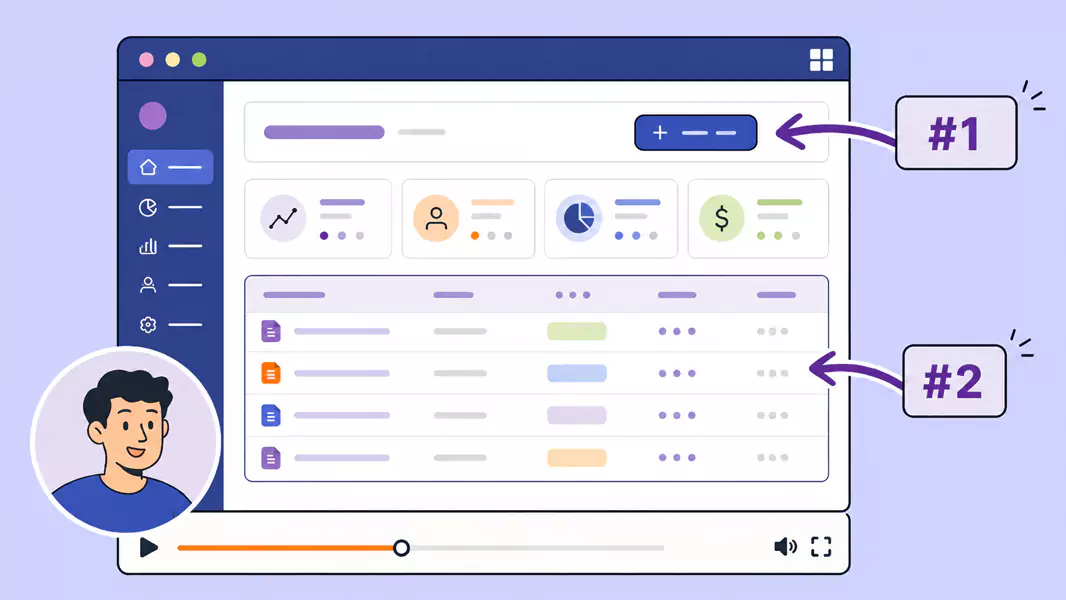
A product walkthrough video is a recorded explanation of how a product works, usually shown on-screen with spoken guidance. It is often used to explain a feature, show a workflow, or help a viewer understand the product in context.
Unlike a broad promo video, a product walkthrough video is practical. It helps the viewer see the interface, follow the steps, and understand the value behind what you are showing.
Teams often use product walkthrough videos for:
Sales follow-up
Stakeholder reviews
Launch communication
Onboarding and enablement
Feature introductions
If your team uses video to explain products to prospects or customers, this page fits into a wider set of sales and marketing video software workflows.
When should you record a product walkthrough video?
Record a feature walkthrough video when a live explanation would help, but a meeting is not necessary.
This works well when you need to:
Show a new feature without scheduling a call
Walk a prospect through a relevant use case
Explain a workflow to stakeholders
Share a launch video internally or externally
Give customers a reusable explanation they can revisit later
Recorded walkthroughs are especially helpful when the viewer needs time to absorb what they are seeing. Rather than rushing through a live demo, you can provide them with a cleaner explanation they can pause, replay, and share.
How do you record a product walkthrough video?
To record a product walkthrough video, decide what the viewer needs to see, tighten the flow, record your screen with clear narration, then trim the video before sharing it.
Step 1: Start with one viewer and one goal
Before you hit record, decide who the walkthrough is for.
For a prospect, a product walkthrough should sound different from one for an internal stakeholder or an existing customer. To make the explanation useful, keep the audience narrow.
Ask:
What does this viewer care about most?
Which feature or workflow should I focus on?
What action should they take after watching?
If you try to explain everything, the walkthrough becomes harder to follow. A tighter focus usually makes the video more persuasive.
Step 2: Choose the workflow, not the whole product
The best product walkthrough videos skip the "guided tour" of every button and focus on a single, high-value path. By guiding the viewer through one workflow from start to finish, you make the content easier to watch and much easier to remember. Try focusing your next walkthrough on:
creating a report
setting up a feature
solving one common problem
completing one core task
This approach keeps your narration tied to real-world outcomes.
Step 3: Prepare the screen before you record
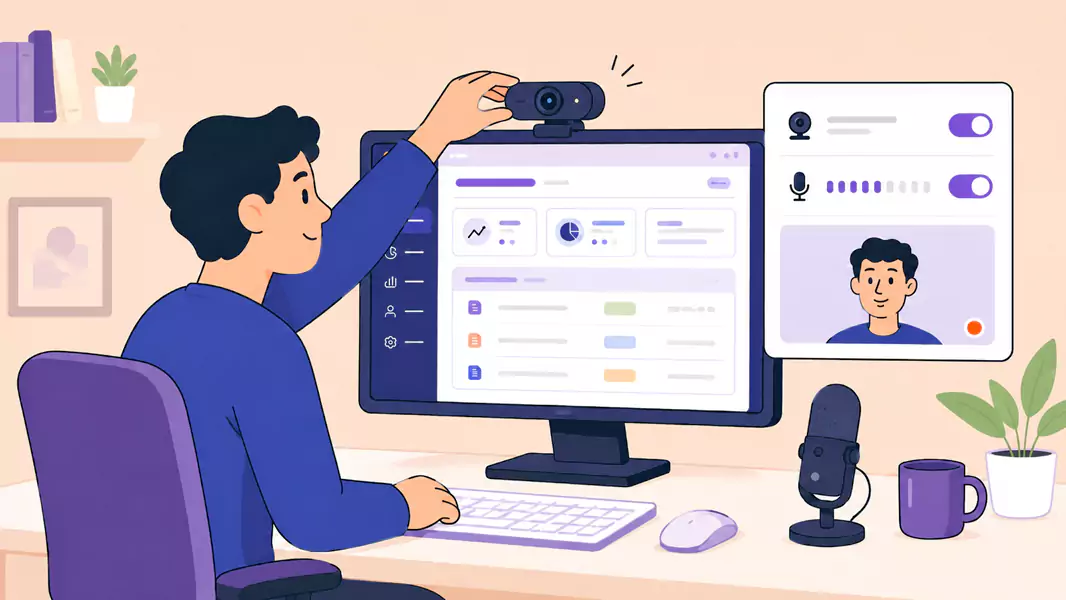
Clean up the screen before you start.
Close unrelated tabs, silence notifications, and open only the windows you need. If you are showing a feature walkthrough video, make sure the data on screen is relevant and easy to understand.
A quick setup checklist:
enlarge the browser or app window
hide private or distracting information
test your microphone
decide whether to include webcam
open the exact screens you plan to show
If you want the walkthrough to feel more personal, adding facecam can help.
Step 4: Talk through the “why,” not just the clicks
When you record, don’t narrate every mouse movement.
Instead, explain:
What the viewer is looking at
Why this part matters
What outcome the step creates
What they should notice before you move on
This what makes a product walkthrough video feel useful instead of mechanical.
Step 5: Keep the pace steady
Keep your pace steady enough to track, but fast enough to keep the momentum. Pause when the big moments hit, and if a feature has multiple toggles, point out only what matters to your audience, the goal is clarity, not coverage. Shorter walkthroughs usually land better.
Step 6: Review and trim the recording
Watch the video back before you send it.
Look for:
Rushed transitions
Repeated explanations
Dead time
Awkward starts
Places where the cursor moves before the narration catches up
If you need to tighten the opening or cut extra seconds at the end, use a video editor to make the walkthrough feel more polished.
For advanced editing and export control, check Flashback pricing.
Use Flashback Express to turns complex workflows into clear, shareable guides.
What makes a good feature walkthrough video?
A good feature walkthrough video is easy to follow, focused on one outcome, and paced around the viewer’s understanding.
The strongest walkthroughs usually do five things well:
They start with context: The viewer immediately understands what problem or task the video covers.
They stay focused: One walkthrough should explain one workflow clearly.
They sound human: Natural narration builds trust faster than scripted-sounding delivery.
They show the product in context: The viewer sees how the feature helps, not just where it lives in the UI.
They end with a clear next step: The viewer knows what to try, share, or do next.
Why are product walkthrough videos effective?
People can better understand a product through product walkthrough videos because they combine visual context with spoken explanation.
It matters when a viewer is evaluating a feature, reviewing a launch, or trying to understand a workflow without booking time on a calendar.
A strong walkthrough can help you:
reduce follow-up questions
explain product value more clearly
support sales conversations after the meeting
share launch context across teams
give customers a reusable reference
If your team also records one-to-one demos, see personalized sales demo videos.
What common mistakes should you avoid?
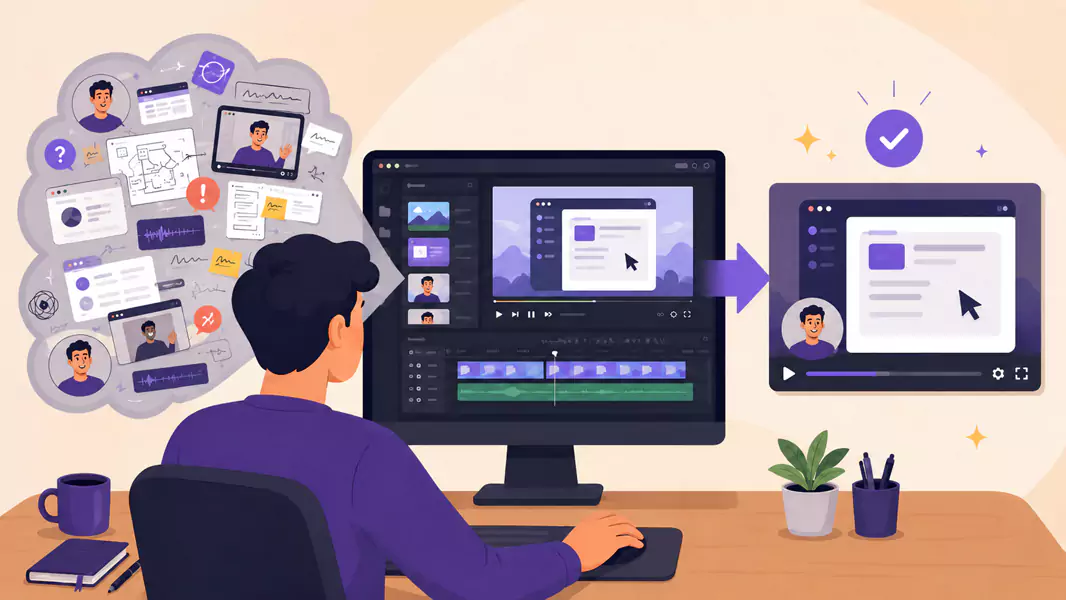
The fastest way to weaken a walkthrough is to make it do too much.
Avoid these common problems:
Showing the whole product: A walkthrough works better when it stays focused on one use case or feature set.
Explaining every click: The viewer needs meaning, not a play-by-play.
Moving too fast: If the screen changes before the point lands, the explanation feels harder to trust.
Recording without a plan: Even a short outline makes the walkthrough smoother.
Skipping the cleanup: A few trimmed seconds can make the whole video feel more intentional.
Another mistake is to make the video sound like a generic presentation. A good launch video or stakeholder walkthrough should feel like one person guiding another through what matters.
Why use Flashback Express for product walkthrough videos?
Flashback Express enables you to record a walkthrough quickly on Windows without dealing with watermark restrictions or recording limits.
It gives you a practical way to:
record your screen for as long as you need
capture microphone audio for narration
include webcam when it helps the explanation
trim the recording before sharing
That makes it a perfect fit for product walkthrough videos, feature walkthrough videos, and stakeholder walkthroughs or any low-friction workflow where speed and clarity matter.
Ready to take your next demo to the next level?
Explore more sales and marketing video software workflows, or
jump in and download a free screen recorder to start your first walkthrough.
Frequently Asked Questions
How long should a product walkthrough video be?
Long enough to explain one workflow clearly, but short enough to stay focused. In many cases, a shorter walkthrough is easier to watch and easier to share.
What is the difference between a product walkthrough video and a demo?
A demo often aims to persuade. A product walkthrough video is usually more instructional. In practice, many teams use the formats interchangeably, but walkthroughs tend to be more focused on showing how something works.
Should I include webcam in a feature walkthrough video?
Sometimes. Webcam can make the video feel more personal, especially in sales or stakeholder communication, but it is not required for every walkthrough.
Can I record a launch video the same way?
Yes. A launch video often uses the same structure: introduce the feature, show the workflow, explain the value, and end with the next step.
What should I say in a stakeholder walkthrough?
Focus on what changed, why it matters, and what the viewer should take away. Keep the explanation tied to outcomes, not just interface details.
