

How to Record a Microsoft Teams Meeting on Windows
Learn how to record a Teams meeting on Windows using the built-in recording controls or a dedicated screen recording tool
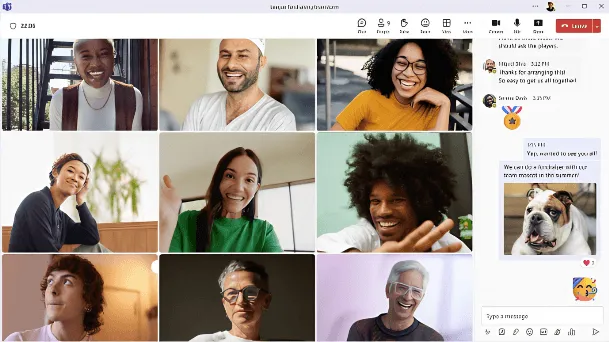
That is the quickest method when your Teams account has recording permission. If the option is unavailable, you may need help from the meeting organizer or your IT administrator. You can also use a Windows screen recorder when local recording is permitted.
This guide covers each method, where to find the finished video and what to check when the recording button is missing.
Before You Record a Teams Meeting
Tell everyone that you plan to record and explain how the video will be used. Although Teams displays a notification when its built-in recorder starts, giving people advance notice avoids surprises.
Recording and consent requirements vary between locations and organizations. Check the applicable laws, your employer’s policies, confidentiality requirements, retention rules and who will be allowed to access the video.
Do not use a separate recorder to avoid an organizer’s restrictions or capture sensitive content without permission.
How to Record a Teams Meeting With the Built-In Recorder
Microsoft Teams has its own cloud recorder. It is usually the best option because it notifies participants automatically and keeps the recording within your organization’s Microsoft 365 environment.
1. Start or Join the Meeting
Open Microsoft Teams on your Windows computer and join from your calendar, invitation link or Teams channel.
You can use the desktop app or web version. Check that your microphone, camera and speakers are working before the meeting begins.
2. Start Recording
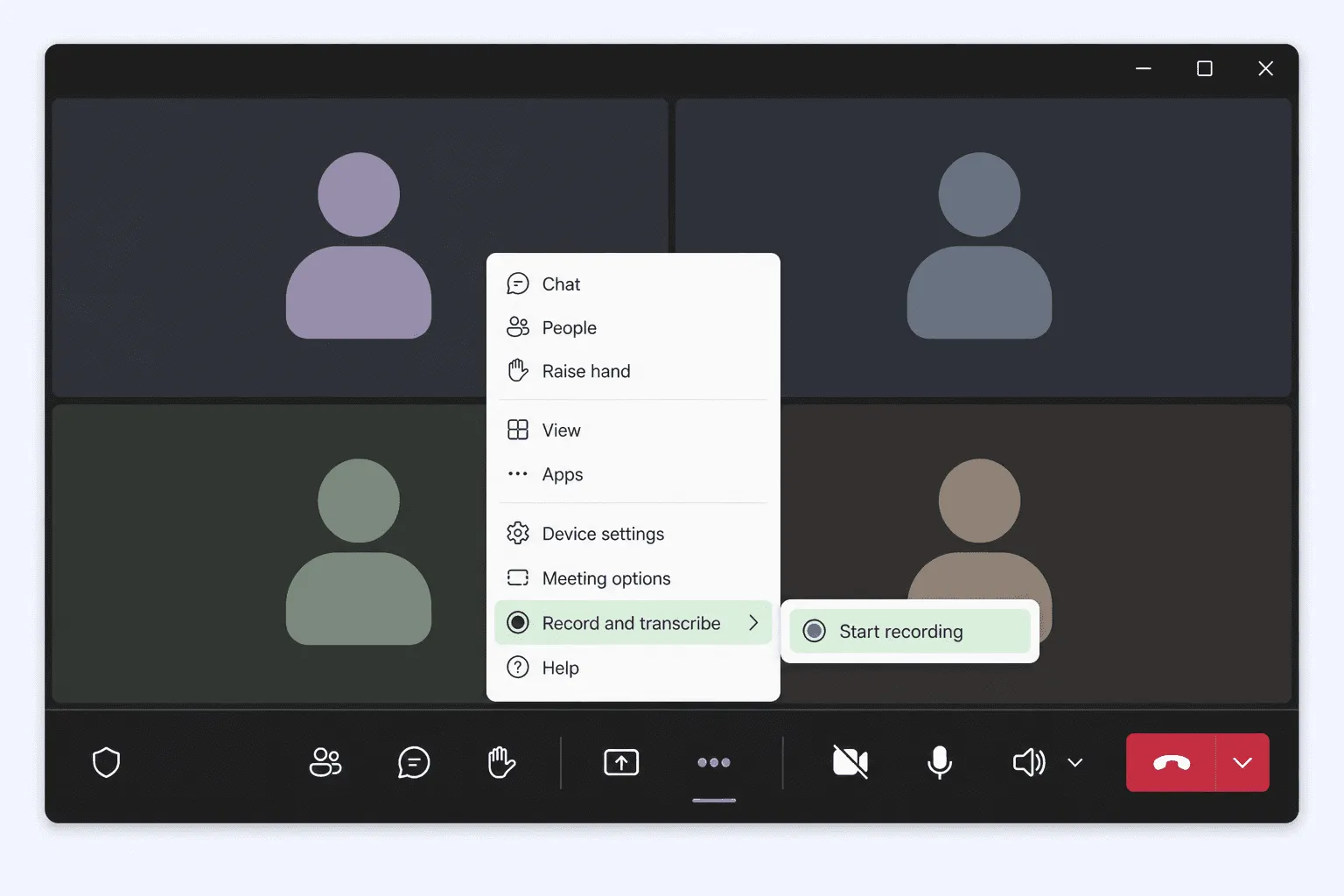
In the meeting controls, select More actions > Record and transcribe > Start recording, then select Confirm.
Everyone will see a notification that recording and transcription have started. Only one person can record the meeting at a time.
3. Stop the Recording
Return to More actions > Record and transcribe > Stop recording.
You can stop transcription separately while allowing the video recording to continue. Recording also stops when the meeting ends.
Teams will process the video and add it to the meeting chat, channel or meeting details.
What Does a Teams Meeting Recording Include?
The built-in Teams recorder captures meeting audio, participant video, shared screens and the current meeting layout.
Microsoft notes that recordings may not capture more than four participant video streams at once, whiteboards, annotations, shared notes, content shared by an app, or videos and animations embedded in PowerPoint Live.
Save important whiteboards, notes and supporting files separately after the meeting.
How to Record a Teams Meeting Automatically
Meeting organizers can set Teams to begin recording as soon as the meeting starts:
1. Open Calendar in Teams.
2. Select the scheduled meeting.
3. Open Meeting options.
4. Select Recording & transcription.
5. Turn on Record and transcribe automatically.
6. Apply and save the change.
Automatic recording is useful for recurring training sessions, interviews and project meetings. Participants will still be notified when recording begins.
Who Can Record a Microsoft Teams Meeting?
Recording permissions depend on the participant’s role, Microsoft 365 license, meeting settings and IT policies.
The organizer and co-organizers can usually record. Eligible presenters from the organizer’s organization may also record when the meeting settings allow it.
Guests, anonymous attendees and people joining from another organization generally cannot start a built-in recording.
Why Can’t I Record a Teams Meeting?
You Are an Attendee
The organizer may have limited recording to organizers, co-organizers or presenters. Ask to be made a presenter or ask an authorized participant to record.
You Joined as a Guest
External and anonymous participants generally cannot use the built-in recorder. Ask someone from the organizer’s organization to record and share the video.
Recording Is Disabled
An IT administrator or meeting organizer may have disabled recording. If you are using a work or school account, contact the organizer or Microsoft 365 administrator.
Someone Is Already Recording
Only one recording can run at a time. The option will be unavailable if another participant has already started it.
The Meeting Is Protected
Some Teams Premium meetings use screen-capture protection, which can block built-in and third-party recording. Do not try to work around this restriction.
Where Are Teams Meeting Recordings Saved?
Standard Teams Meetings
Non-channel recordings are saved in the organizer’s OneDrive for Business, usually inside the Recordings folder. The recording also appears in the meeting chat or Shared tab.
Channel Meetings
Channel recordings are stored in the channel’s SharePoint site and can usually be found under Files or Shared. Access follows the permissions applied to the file. Recordings may expire after a period set by your organization, so check the expiration date if the video needs to be retained.
How to Record a Teams Meeting With Xbox Game Bar
Windows 10 and 11 include Xbox Game Bar, which can record an open app and its audio. Get permission from everyone before using it.
1. Join the meeting in the Teams desktop app.
2. Press Windows + G.
3. Under Settings > Capturing, select All to include system audio.
4. Press Windows + Alt + R to start recording.
5. Press Windows + Alt + M to toggle your microphone.
6. Press Windows + Alt + R again to stop.
Windows saves the MP4 in Videos > Captures.
Game Bar works for a quick local copy but offers less control over the recording area, webcam and editing. It also does not provide the same Teams notification, so tell everyone directly.
How to Record a Teams Meeting With Flashback Express
A dedicated Windows recorder is helpful when you need more control over the capture area, audio sources, webcam or saved file.
Flashback Express can capture the Teams window, your full screen or a selected region. It can also record system audio, microphone and webcam together.

1. Open Flashback Express before joining Teams.
2. Choose the Teams window, screen or recording region.
3. Enable System audio to capture the meeting.
4. Enable Microphone if your voice should be included.
5. Turn on Webcam if you want to record your camera.
6. Start Flashback, then begin the meeting.
7. Stop the recording and export it as an MP4.
Flashback saves the recording locally and supports longer sessions without a recording time limit. Only use it when recording is permitted. It cannot override Teams screen-capture protection.
For audio help, read how to screen record with audio on Windows.
Which Teams Recording Method Should You Use?
Use the built-in Teams recorder for automatic notifications, transcription and Microsoft 365 storage.
Use Xbox Game Bar for a quick local recording of the Teams desktop app.
Use Flashback Express when you need a local MP4, more capture control, simultaneous system and microphone audio, or webcam recording.
Whichever method you choose, make a short test first to check the picture, audio and available storage.
Frequently Asked Questions
Can I record a Teams meeting if I am not the host?
You may be able to record if you are a co-organizer or eligible presenter. The organizer’s settings and your organization’s policies determine whether the control is available.
Can I record a Teams meeting as a guest?
Guests and external attendees generally cannot start the built-in recording. Ask the organizer or an authorized participant to record it.
Can I record only the meeting audio?
Yes. Open the additional options in the Teams recording dialog and select Audio only.
Does Teams record meetings automatically?
Not by default. The organizer must enable Record and transcribe automatically in the meeting options.
Does Teams notify people when recording starts?
Yes. Teams displays a notification when its built-in recording begins. Separate screen recorders may not, so you must inform everyone yourself.
Record Meetings in a Way That's Best For Your Flow
For most people, the built-in Teams recorder is the best place to start. It handles notifications, transcription, cloud storage and access inside Microsoft 365.
When you need more control over a local Windows recording, download Flashback Express to capture your meeting screen, audio and webcam.
