

Videosupport-Antworten senden
Beantworten Sie schwierige Support-Fragen schneller mit kurzen Videos, die Ihre Kunden selbst ansehen, wiederholen und nachvollziehen können.
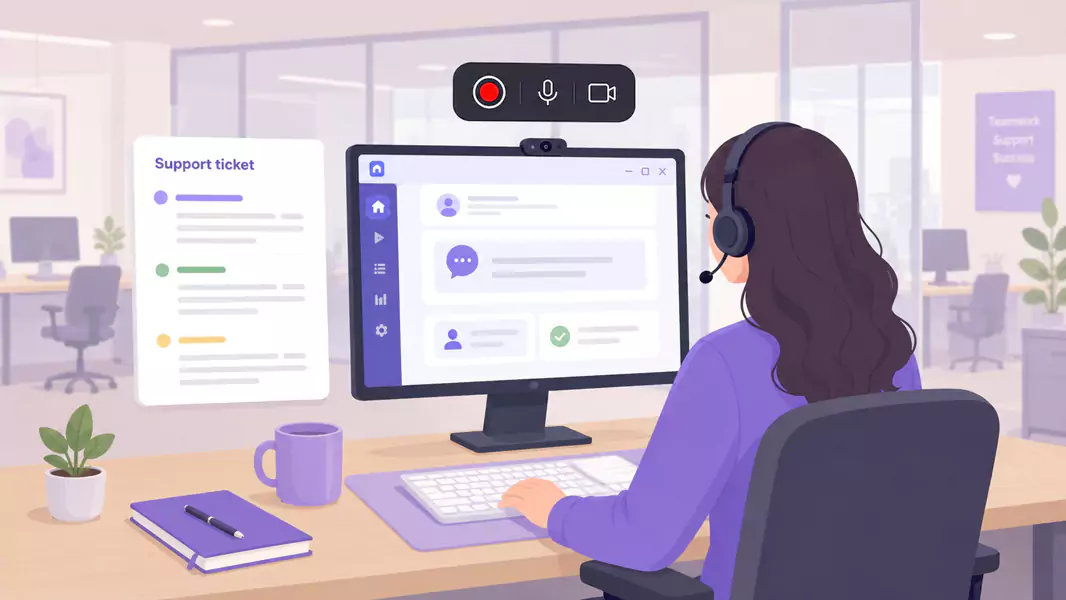
Einige Support-Probleme lassen sich schneller zeigen als beschreiben. Ein kurzes Video kann einen langen E-Mail-Thread abkürzen, den genauen Bildschirm zeigen und dem Kunden helfen, die Lösung direkt nachzuvollziehen – ohne das Rätselraten, was Ihr Text bedeuten könnte.
Genau hier bieten sich Video-Support-Antworten an. Anstatt jeden Klick mühsam per E-Mail zu beschreiben, führen Sie den Kunden einmal durch die Lösung und geben ihm ein Dokument an die Hand, das er beim Ausprobieren beliebig oft abspielen kann. Für Teams, die einen umfassenderen Workflow für Kundensupport-Videos aufbauen, ist dies einer der klarsten Anwendungsfälle für den direkten Austausch.
Unter Windows ist dieser Ablauf denkbar einfach: Öffnen Sie den entsprechenden Bildschirm, zeichnen Sie die Lösung mit einem klaren Kommentar auf, schneiden Sie die unschönen Stellen heraus und senden Sie das Ergebnis mit einer kurzen Nachricht ab. Flashback Express fügt sich hier ideal ein, da es sich um einen kostenlosen Screen Recorder handelt, der schnell eingerichtet ist, kein Limit bei der Aufnahmezeit hat und ohne Wasserzeichen aufzeichnet.
Was sind Video-Support-Antworten?
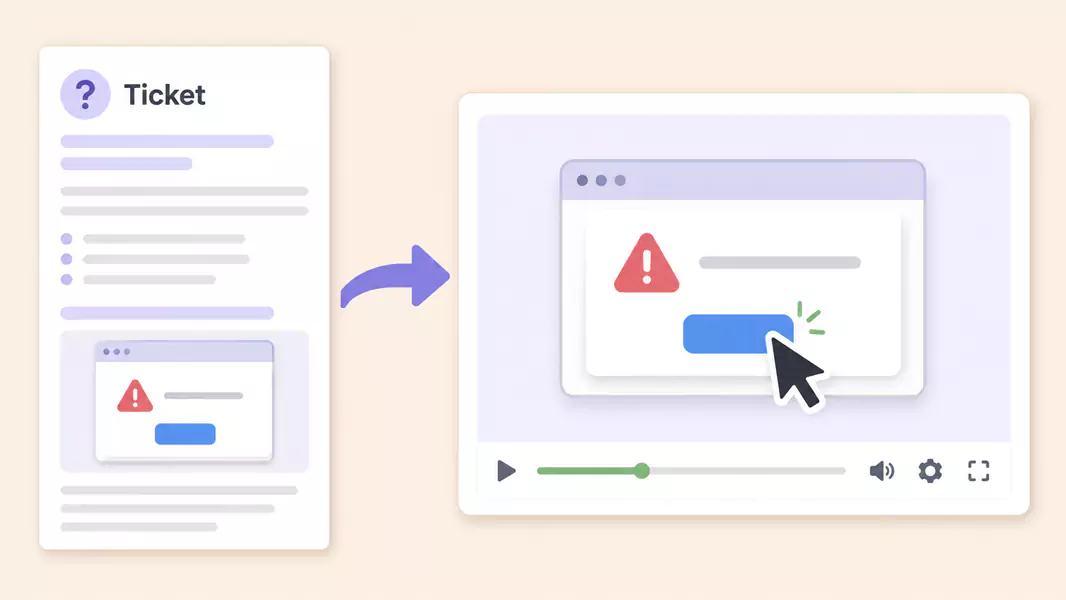
Support-Antworten per Video sind persönliche, direkt auf dem Bildschirm aufgezeichnete Erklärungen, die Kunden eine Lösung, einen Workflow oder den nächsten Schritt veranschaulichen.
Ein gutes Support-Video ist vor allem praktisch. Es zeigt den exakten Bildschirm, erklärt den genauen Vorgang und bietet dem Kunden eine verständlichere Lösung als ein langer, geschriebener Text.
Im Gegensatz zu universell einsetzbaren Hilfe-Center-Videos sind Video-Support-Antworten in der Regel maßgeschneidert für eine einzige Kundenfrage oder einen spezifischen Support-Fall.
Wann ist Video-Support besser als eine E-Mail?
Nutzen Sie Videos, wenn sich ein Problem einfacher zeigen als erklären lässt.
Dies ist besonders in folgenden Fällen ratsam:
zeigen, wo sich eine Einstellung befindet
eine mehrstufige Lösung erklären
durch einen unübersichtlichen Workflow führen
bestätigen, was der Kunde auf dem Bildschirm sehen sollte
Rückfragen bei visuellen Problemen reduzieren
Videos sind besonders dann nützlich, wenn es auf Timing, Cursorbewegungen oder den Zustand des Bildschirms ankommt. Hängt die Antwort von Schritten wie „hier klicken, dann darauf achten“ ab, ist ein Support-Video meist deutlich verständlicher als eine E-Mail.
Wie senden Sie eine Video-Support-Antwort?
Übermitteln Sie Video-Support-Antworten schnell und präzise: Öffnen Sie den genauen Bildschirm, den Ihr Kunde benötigt, und nehmen Sie eine kurze Erklärung mit klarer Sprachausgabe auf. Schneiden Sie unnötige Pausen einfach weg und senden Sie das Video mit einer kurzen schriftlichen Notiz. Die besten Video-Support-Antworten sind kurz, präzise und leicht verständlich.
Schritt 1: Beginnen Sie mit der tatsächlichen Frage des Kunden.
Grenzen Sie das Problem ein, bevor Sie mit der Aufnahme beginnen.
Erklären Sie nicht das gesamte Produkt. Beantworten Sie gezielt die Frage aus dem Ticket.
Fragen Sie sich:
Was möchte der Kunde erreichen?
An welcher Stelle kommt er nicht weiter?
Welchen Bildschirm muss der Kunde sehen?
Was muss am Ende des Videos funktionieren?
So bleibt Ihre Antwort präzise und fokussiert.
Schritt 2: Rekonstruieren Sie das Problem oder den Lösungsweg
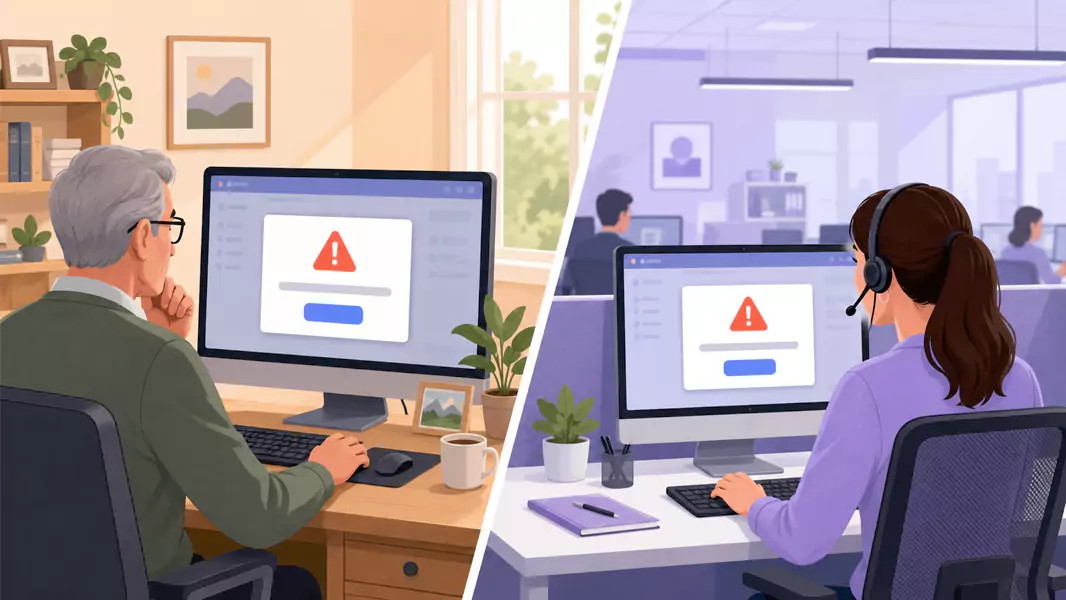
Öffnen Sie das Produkt genau an der Stelle, die der Kunde benötigt.
Stellen Sie nach Möglichkeit genau den Zustand wieder her, den der Kunde sieht. Falls das nicht machbar ist, zeigen Sie die ähnlichste, fehlerfreie Version und erklären Sie den Unterschied.
Genau das macht ein Support-Video so viel wertvoller als eine standardisierte Antwort. Der Kunde kann denselben Pfad direkt auf seinem eigenen Bildschirm nachvollziehen.
Sollte sich das Problem als Produktfehler herausstellen, eignet sich diese Aufzeichnung auch hervorragend als Video zur Fehlerreproduktion für Ihr internes Team.
Schritt 3: Windows-Aufnahme-Einstellungen vorbereiten
Ru00e4umen Sie den Bildschirm auf, bevor Sie die Aufnahme starten.
Schlieu00dfen Sie irrelevante Tabs, stummschalten Sie Benachrichtigungen und blenden Sie alle privaten Kunden- oder Kontodaten aus, die nicht gezeigt werden mu00fcssen.
Nutzen Sie einen aufgeru00e4umten Support-Arbeitsbereich mit weniger visuellem Rauschen, damit der Kunde der Antwort mu00fchelos folgen kann.
Nutzen Sie eine lesbare Oberflu00e4chengru00f6u00dfe fu00fcr klarere Produktdetails, damit Schaltflu00e4chen, Felder und Menu00fcs optimal sichtbar bleiben.
Verwenden Sie den passenden Produktstatus fu00fcr weniger Ru00fcckfragen, damit der Kunde genau den Moment sieht, auf den es ankommt.
Schritt 4: Nehmen Sie die Antwort auf wie ein Teamkollege, der unterstützt
Beginnen Sie mit einer kurzen Zeile, die die Antwort einleitet.
Zum Beispiel:
„So aktualisieren Sie diese Einstellung am schnellsten und weisen die erfolgreiche Speicherung nach.“
Führen Sie den Kunden dann Schritt für Schritt durch die Lösung.
Erklären Sie:
welchen Bildschirm sie gerade sehen
welche Aktion als Nächstes erforderlich ist
was daraufhin passiert
wie sie den Erfolg der Aktion überprüfen
Genau das macht Video-Kundensupport wirklich hilfreich und nimmt ihm jede Hektik.
Schritt 5: Fassen Sie sich kurz
Ein Video als Support-Antwort sollte genau ein Problem optimal lu00f6sen.
Fu00fchrt die Frage zu verschiedenen Workflows, teilen Sie die Antwort auf oder verwandeln Sie den wiederverwendbaren Teil in Hilfe-Center-Videos.
Ku00fcrzere Antworten sind einfacher anzusehen, schneller zu versenden und fu00fcr Kunden Schritt fu00fcr Schritt leichter nachzuvollziehen.
Schritt 6: Die Aufnahme sichten und schneiden
Schauen Sie sich das Video an, bevor Sie es versenden.
Achten Sie auf:
unnötige Pausen
wiederholte Erklärungen
holprige Anfänge
zusätzliche Tabs auf dem Bildschirm
Abschnitte, in denen sich der Cursor zu schnell bewegt
Kürzen Sie alles, was die Antwort verlangsamt. Wenn Sie die Aufnahme bearbeiten, weisen Sie darauf hin, dass auch bearbeitete Exporte ein Wasserzeichen enthalten.
Nutzen Sie Flashback Express, um aus einem unklaren Ticket eine verständliche Video-Antwort zu machen, die Kunden jederzeit abspielen können.
Was sollte ein Video für die Support-Antwort beinhalten?
Ein professionelles Support-Video enthält in der Regel folgende Elemente:
eine kurze Zusammenfassung des Problems
die genaue Ansicht auf dem Bildschirm, die der Kunde benötigt
die korrekte Behebung oder den genauen Workflow Schritt für Schritt
die Darstellung des erfolgreichen Ergebnisses
den nächsten Schritt, falls das Problem weiterhin besteht
Warum sind Video-Antworten im Support so effektiv?
Support-Antworten per Video sind deshalb so erfolgreich, weil sie visuellen Kontext mit gesprochener Erklärung verbinden.
Das hilft Ihren Kunden vor allem dann, wenn sie:
die richtige Einstellung finden müssen
eine mehrstufige Fehlerbehebung ausführen
sehen wollen, wie ein abgeschlossener Schritt aussieht
den Workflow ohne weiteren Live-Call wiederholen möchten
das Problem schneller und mit weniger Rückfragen lösen wollen
Aus diesem Grund fügen sie sich so nahtlos in umfassendere Workflows für Kundensupport-Videos ein.
Welche typischen Fehler sollten Sie unbedingt vermeiden?

Vermeiden Sie diese häufigen Fehler:
zu viele Fragen in einem einzigen Video zu beantworten
Aufnahmen zu machen, bei denen sensible Daten sichtbar sind
zu lange zu sprechen, bevor der Bildschirm gezeigt wird
die Lösung zu schnell durchzugehen
das Video ohne eine kurze schriftliche Zusammenfassung zu senden
Warum Flashback Express für Video-Support-Antworten nutzen?
Flashback Express eignet sich hervorragend für Video-Support-Antworten unter Windows. Sie können damit schnell aufnehmen, die Aufzeichnung wasserzeichenfrei halten und die Lösung ohne aufwendige Konfiguration demonstrieren.
Das erleichtert es Support-Teams, klare, persönliche Antworten zu senden und lange E-Mail-Verläufe zu reduzieren. Es lässt sich zudem hervorragend mit Videos für das Hilfe-Center für wiederverwendbare Antworten kombinieren sowie mit Videos zur Fehlerexzession, wenn der Support ein Problem intern eskalieren muss.
Häufig gestellte Fragen
Wie sende ich eine Video-Support-Antwort?
Öffnen Sie genau den Bildschirm, den Ihr Kunde benötigt, nehmen Sie eine kurze Erklärung des Fixes auf, schneiden Sie unnötige Sequenzen ab und senden Sie das Video mit einer kurzen Notiz direkt im Ticket.
Wann ist Video-Support besser als eine E-Mail?
Videos sind immer dann überlegen, wenn Probleme visueller Natur sind, mehrere Schritte umfassen oder sich visuell einfach schneller erklären lassen als durch Text.
Was sollte ein Video für die Support-Antwort beinhalten?
Ein Support-Antwortvideo sollte das Problem, den richtigen Bildschirm, die schrittweise Lösung und das gewünschte Ergebnis zeigen.
Wie lange sollte ein Support-Video sein?
Lang genug, um ein Problem klar zu lösen, aber kurz genug, um es ohne Hürden anzusehen. In den meisten Fällen ist kürzer einfach besser.
Sollten Support-Teams Video-Antworten wiederverwenden?
Ja, sobald dieses Problem häufiger auftritt. Das ist genau der Punkt, an dem aus einmaligen Antworten strukturierte Hilfe-Inhalte entstehen sollten.
Nutzen Sie Flashback Express (kostenlose, unbegrenzte Aufnahme), um ein kompliziertes Support-Ticket in eine klare Video-Antwort zu verwandeln. Ihre Kunden können sich diese jederzeit wieder ansehen.
