

Erstellen Sie professionelle Hilfe-Center-Videos
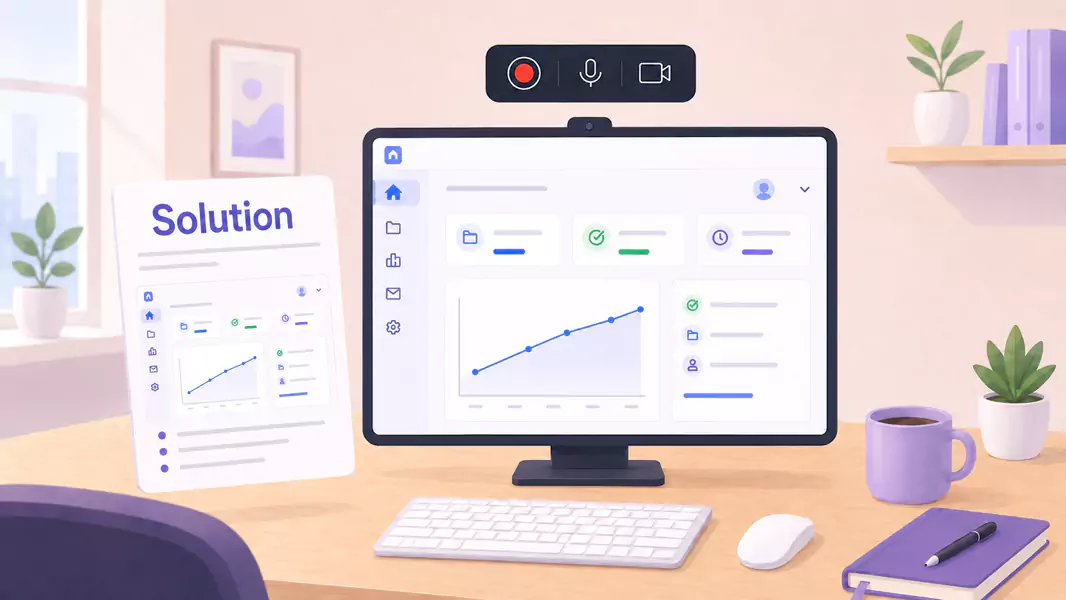
Einige Support-Fragen sollten nicht in Tickets gefangen bleiben. Wenn Kunden immer wieder fragen, wie sie eine Einstellung finden, einen Workflow abschließen oder denselben Fehler beheben können, ist es meist sinnvoller, ein einziges, aussagekräftiges Hilfecenter-Video zu erstellen und dieses wiederzuverwenden.
Genau hier beweisen Kundensupport-Videos ihren Wert. Sie verwandeln eine Support-Antwort, die bisher nur einem einzelnen Kunden half, in eine Ressource für Ihren gesamten Kundenstamm. Anstatt dieselben Schritte immer wieder neu aufzuschreiben, bieten Sie Ihren Kunden ein klares Video, das sie selbst ansehen, anhalten und Schritt für Schritt nachvollziehen können.
Unter Windows ist der Workflow denkbar einfach: Wählen Sie eine wiederkehrende Frage aus, skizzieren Sie den direktesten Weg zur Lösung, nehmen Sie den Bildschirm auf und schneiden Sie das Video vor der Veröffentlichung zu. Flashback Express eignet sich dafür ideal, denn es ist ein kostenloser Screen Recorder, der schnell eingerichtet ist, kein Zeitlimit bei der Aufnahme hat und ohne Wasserzeichen aufnimmt.
Was sind Help-Center-Videos?
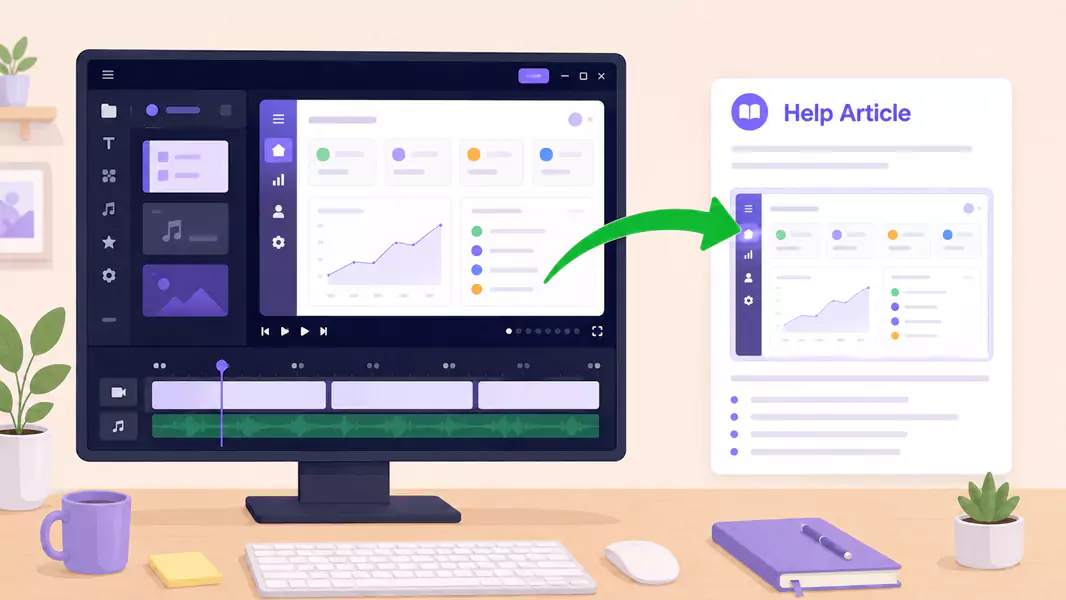
Hilfe-Center-Videos sind wiederverwendbare Support-Videos, die in Hilfeartikel, Wissensdatenbanken oder Kundenportale eingebettet werden.
Ein gutes Erklärvideo zu einem Produkt-Feature ist praxisnah. Es zeigt den Bildschirm, erklärt die Schritte und hilft Kunden dabei, ein bestimmtes Problem zu lösen oder einen Workflow zu verstehen – ganz ohne Support-Ticket.
Im Gegensatz zu individuellen Video-Support-Antworten sind Bildschirmaufnahmen für Hilfe-Center für den wiederholten Einsatz konzipiert. Sie sollten ein wiederkehrendes Problem so klar beantworten, dass zahlreiche Kunden dasselbe Video erfolgreich nutzen können.
Wann sollten Sie Videos für Ihr Help Center erstellen?
Erstellen Sie Help-Center-Videos, wenn dieselbe Support-Frage häufig auftritt und die Antwort visuell einfacher zu erklären ist als durch reinen Text.
Dies eignet sich besonders gut, wenn Sie:
die Nutzung einer Funktion erklären möchten
zeigen möchten, wo sich eine Einstellung befindet
Kunden durch einen wiederholbaren Workflow führen wollen
wiederkehrende Tickets zur gleichen Frage reduzieren möchten
eine häufige Support-Antwort in wiederverwendbare Inhalte verwandeln wollen
Wenn das Problem nur einen einzelnen Kunden betrifft, starten Sie mit Video-Support-Antworten. Tritt die Frage wiederholt auf, machen Sie daraus ein dauerhaftes Help-Center-Video.
Wie erstellen Sie professionelle Hilfecenter-Videos?
Übermitteln Sie Video-Support-Antworten schnell und präzise: Öffnen Sie den genauen Bildschirm, den Ihr Kunde benötigt, und nehmen Sie eine kurze Erklärung mit klarer Sprachausgabe auf. Schneiden Sie unnötige Pausen einfach weg und senden Sie das Video mit einer kurzen schriftlichen Notiz. Die besten Video-Support-Antworten sind kurz, präzise und leicht verständlich.
Schritt 1: Beginnen Sie mit der tatsächlichen Frage des Kunden.
Grenzen Sie das Thema ein, bevor Sie mit der Aufnahme beginnen.
Versuchen Sie nicht, das gesamte Produkt in einem einzigen Video zu erklären. Konzentrieren Sie sich auf ein konkretes Kundenproblem, eine Funktion oder ein Support-Thema.
Stellen Sie sich folgende Fragen:
Welche Frage taucht immer wieder auf?
Welchen Bildschirm muss der Kunde genau sehen?
Was soll der Kunde nach dem Anschauen tun können?
Welcher Schritt sorgt meistens für Verwirrung?
So geben Sie Ihrem Video ein klares, messbares Ziel.
Schritt 2: Rekonstruieren Sie das Problem oder den Lösungsweg
Wählen Sie den kürzesten Weg von der Unklarheit zur Lösung.
Ein gutes Support-Tutorial-Video sollte nicht abschweifen. Zeigen Sie nur die Bildschirme und Aktionen, die zur Lösung des Problems erforderlich sind.
Das bedeutet in der Regel:
Starten auf dem richtigen Bildschirm
Darstellen eines Workflows in der richtigen Reihenfolge
Überspringen irrelevanter Optionen
Beenden mit dem Erfolgsstatus
Je präziser der Pfad, desto einfacher lässt sich das Video wiederverwenden.
Schritt 3: Windows-Aufnahme-Einstellungen vorbereiten
Ru00e4umen Sie den Bildschirm auf, bevor Sie starten.
Schlieu00dfen Sie irrelevante Tabs, stummschalten Sie Benachrichtigungen und entfernen Sie private Kontodaten oder Beispieldaten, die nicht im Help Center erscheinen sollen.
Nutzen Sie eine strukturierte Produktansicht mit Fokus auf das Wesentliche, damit Ihre Kunden dem Workflow mu00fchelos folgen ku00f6nnen.
Nutzen Sie eine gut lesbare Zoom- und Fenstergru00f6u00dfe fu00fcr optimale Bildschirmdetails, damit Schaltflu00e4chen, Beschriftungen und Menu00fcs stets pru00e4sent bleiben.
Pru00e4sentieren Sie exakt den Funktionsstatus, den Sie vermitteln mu00f6chten. Das vermindert spu00e4tere Support-Anfragen nachhaltig, da Kunden von Beginn an die richtige Version sehen.
Schritt 4: Zeichnen Sie die Produktführung präzise und professionell auf.

Benennen Sie die Aufgabe zunächst in einfachen Worten.
Ein Beispiel:
„So aktualisieren Sie diese Einstellung und prüfen, ob die Änderung korrekt gespeichert wurde.“
Gehen Sie dann die Lösung Schritt für Schritt durch.
Erklären Sie dabei:
welchen Bildschirm der Kunde sieht
welche Aktion erforderlich ist
worauf zu achten ist
woran man erkennt, dass der Schritt erfolgreich war
Das macht Hilfe-Videos zu Funktionen anschaulich und nimmt ihnen die sterile, mechanische Wirkung.
Schritt 5: Halten Sie das Video im Hochformat
Ein Hilfe-Center-Video sollte ein einzelnes Problem optimal lösen.
Wenn Sie versuchen, drei verwandte Fragen in einer einzigen Aufnahme zu beantworten, werden Kunden Schwierigkeiten haben, den benötigten Abschnitt zu finden. Meistens ist es besser, mehrere kürzere Bildschirmaufnahmen für das Hilfe-Center zu erstellen als eine einzige, überladene Anleitung.
Schritt 6: Überprüfen und für die Wiederverwendung zuschneiden
Sehen Sie sich das Video vor der Veröffentlichung noch einmal an.
Achten Sie auf Folgendes:
lange Pausen
wiederholte Erklärungen
überflüssige Fenster oder Tabs
zu schnelle Cursorbewegungen
Abschnitte, die eine präzisere Erklärung erfordern
Kürzen Sie alles, was den Lesefluss stört. Wenn Sie die Aufnahme bearbeiten, weisen Sie nicht darauf hin, dass bearbeitete Exporte wasserzeichenfrei sind. Für einen noch professionelleren Feinschliff vor der Veröffentlichung kann Ihnen ein Video-Editor helfen.
Nutzen Sie Flashback Express für die Erstellung klar verständlicher Hilfecenter-Videos. So lösen Ihre Kunden Fragen direkt selbst, statt ein weiteres Ticket zu eröffnen.
Was sollte ein Video zu einer Produktfunktion beinhalten?
Ein überzeugendes Hilfevideo zu einer Funktion umfasst in der Regel:
die Frage oder Aufgabe, die gelöst wird
den genauen Bildschirm, den der Kunde benötigt
die genaue Reihenfolge der Schritte
wie ein erfolgreiches Ergebnis aussieht
die nächsten Schritte, falls weitere Unterstützung benötigt wird
Diese Struktur stellt sicher, dass das Video im gesamten Hilfe-Center nützlich bleibt – nicht nur für ein einzelnes Ticket.
Warum sind Help-Center-Videos so effektiv?
Support-Videos sind so effektiv, weil sie visuellen Kontext mit präzisen, wiederholbaren Anleitungen kombinieren.
Ihre Kunden profitieren davon auf vielfältige Weise:
Probleme werden sofort gelöst – ganz ohne Wartezeiten
Die richtige Einstellung wird deutlich schneller gefunden
Workflows lassen sich mühelos Schritt für Schritt nachvollziehen
Kunden sehen sofort, ob sie sich an der richtigen Stelle befinden
Prozesse können flexibel im eigenen Tempo wiederholt werden
Aus diesem Grund lassen sie sich perfekt in umfassende Workflows für Kundenservice-Videos integrieren.
Welche typischen Fehler sollten Sie unbedingt vermeiden?

Vermeiden Sie diese häufigen Fehler:
Zu viele Fragen in einem einzigen Video zu behandeln
Aufnahmen mit sichtbaren privaten oder ungeordneten Daten
Zu lange Erklärungen, bevor die eigentliche Funktion gezeigt wird
Zu schnelles Durchgehen des entscheidenden Schrittes
Veröffentlichung des Videos ohne eine kurze schriftliche Zusammenfassung
Warum Flashback Express für Help-Center-Videos nutzen?
Flashback Express ist die praktische Lösung für Videos im Hilfe-Center unter Windows. Sie können schnell aufnehmen, die Aufnahme bleibt wasserzeichenfrei und Sie erfassen komplette Arbeitsabläufe ohne großen Aufwand.
So können Support-Teams wiederkehrende Antworten ganz einfach in wiederverwendbare Inhalte verwandeln. Das Tool eignet sich zudem ideal für Video-Antworten im direkten Kundensupport sowie für Videos zur Fehlerreproduktion, wenn der Support Produktprobleme intern eskalieren muss.
Häufig gestellte Fragen
Wie erstelle ich professionelle Hilfe-Videos?
Wählen Sie eine wiederkehrende Kundenfrage aus, zeichnen Sie den genauen Arbeitsablauf auf dem Bildschirm mit klarer Vertonung auf, schneiden Sie unsaubere Stellen heraus und veröffentlichen Sie das Video mit einer kurzen schriftlichen Zusammenfassung.
Was sollte ein Video zu einer Produktfunktion beinhalten?
Ein Video zur Funktionshilfe sollte die Aufgabe, den passenden Bildschirm, die genauen Schritte in der richtigen Reihenfolge und das erfolgreiche Endergebnis für den Kunden zeigen.
Wie erstelle ich wiederverwendbare Support-Videos?
Halten Sie jedes Video fokussiert auf ein einzelnes Thema. Nutzen Sie einen übersichtlichen Bildschirm, erklären Sie die Schritte klar und speichern Sie das Video so, dass Ihre Kunden es mühelos finden.
Wie lang sollten Help-Center-Videos sein?
Lang genug, um ein Problem klar zu lösen, aber kurz genug, um es mühelos anzusehen. In den meisten Fällen ist kürzer einfach besser.
Sollten Videos im Hilfe-Center schriftliche Hilfe-Artikel ersetzen?
Nicht unbedingt. Am besten wirken sie in Kombination mit kurzen schriftlichen Anleitungen, damit Ihre Kunden selbst entscheiden können, wie sie am liebsten lernen.
Nutzen Sie Flashback Express (kostenlose, unbeschränkte Aufnahme), um wiederkehrende Fragen in anschauliche Help-Center-Videos zu verwandeln. So finden Kunden direkt Antworten, ohne ein neues Ticket zu erstellen.
