

Vorlage für Software-Fehlerberichte mit Video
Schreiben Sie präzise Bug-Reports, die Ihr Team sofort umsetzen kann – mit einer klaren Vorlage und einer kurzen Bildschirmaufnahme, die den Fehler exakt zeigt.
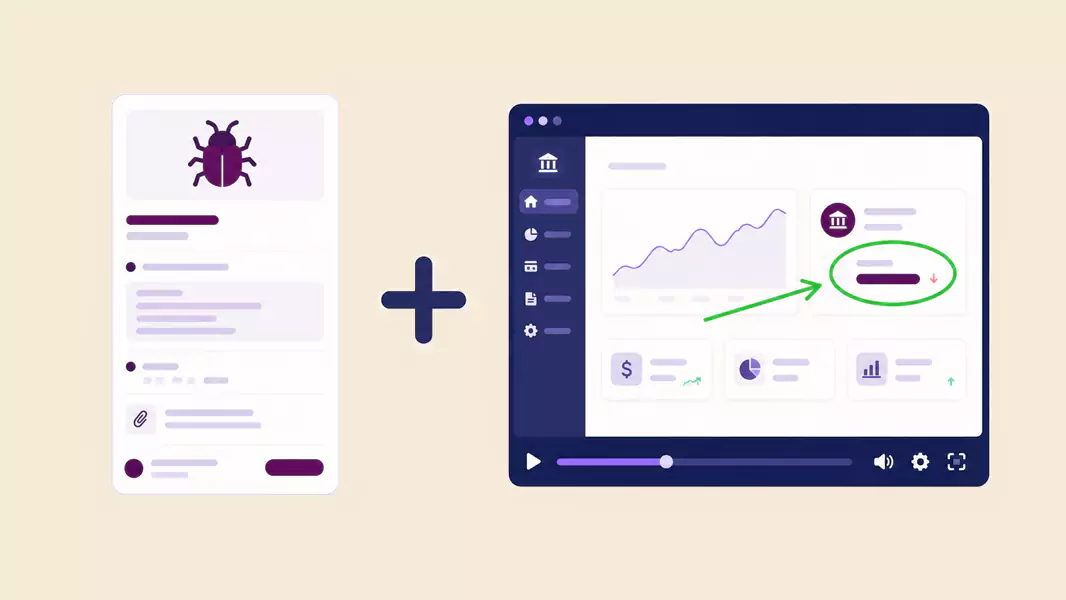
Ein guter Software-Fehlerbericht sollte Ihrem Team mitteilen, was passiert ist, was hätte passieren sollen, wie sich das Problem reproduzieren lässt und wie schwerwiegend es ist.
Der schnellste Weg für einen wirklich klaren Bericht ist die Kombination einer einfachen schriftlichen Vorlage mit einem kurzen Video-Fehlerbericht, der das Problem direkt auf dem Bildschirm zeigt.
Fehlerberichte scheitern oft an vagen Schritten, nicht definierten Umgebungen oder nicht reproduzierbaren Problemen, die eine Behebung unmöglich machen. Für messbare Ergebnisse benötigen wir eine einfache Struktur, damit das Team Probleme schnell dokumentieren, rekonstruieren und direkt mit der Fehlerbehebung beginnen kann.
Videos sind die ultimative Abkürzung, da sie langwierige Rückfragen überflüssig machen. Eine kurze Aufnahme erfasst das Timing, das UI-Verhalten und all jene komplexen Sonderfälle, die sich nur schwer in Textform erklären lassen. Wenn Ihr Team bereits an einem wiederholbaren Workflow mit einem Screen-Recorder für die Softwareentwicklung arbeitet, ist dies einer Ihrer klarsten Anwendungsfälle.
Unter Windows lässt sich dieser Workflow mühelos umsetzen. Kombinieren Sie einfach eine schriftliche Vorlage mit einem Recorder, mit dem Sie das Problem schnell und ohne Zeitlimit aufzeichnen können. Flashback Express fügt sich hier perfekt ein: Die Aufnahmen sind wasserzeichenfrei, die Einrichtung ist schnell und Sie können ungenutzte Passagen vor dem Teilen einfach herausschneiden.
Sind Sie bereit, Ihren ersten Bug aufzuzeichnen?
Nutzen Sie Flashback Express, um Ihren Fehlerbericht in ein klares, aussagekräftiges Video zu verwandeln.
Schnelle Antwort: Was gehört in einen Software-Bugreport?
Die beste Vorlage für Software-Fehlerberichte enthält einen kurzen Titel, Details zur Umgebung, Schritte zur Reproduktion, das erwartete sowie das tatsächliche Ergebnis, die Priorität und Belege. Mit einem kurzen Video-Fehlerbericht sieht Ihr Team den Fehler sofort, anstatt zu raten. Das macht den Bericht schneller verständlich und einfacher zu verifizieren.
Vorlage für Software-Fehlerberichte: Einfach kopieren und nutzen
Nutzen Sie diese Vorlage, um Software-Fehler präzise und verständlich zu dokumentieren.
Bug-Titel: Eine prägnante Zeile, die das Problem benennt.
Umgebung: App-Version, Windows-Version, Browser und Gerätedetails.
Zusammenfassung: Zwei bis drei Zeilen über die genaue Fehlfunktion.
Schritte zur Reproduktion: Die exakten Schritte der Reihe nach auflisten.
Erwartetes Ergebnis: Was eigentlich hätte passieren sollen.
Tatsächliches Ergebnis: Was stattdessen passiert ist.
Häufigkeit: Tritt der Fehler permanent oder nur sporadisch auf?
Priorität: Blockiert der Fehler die Arbeit oder handelt es sich um ein kosmetisches Detail?
Anhänge: Fügen Sie Screenshots, Protokolle und einen kurzen Video-Bug-Report hinzu.
Beispiel eines Fehlerberichts
Hier ist eine einfache Vorlage für einen Fehlerbericht, die Sie ganz leicht anpassen können.
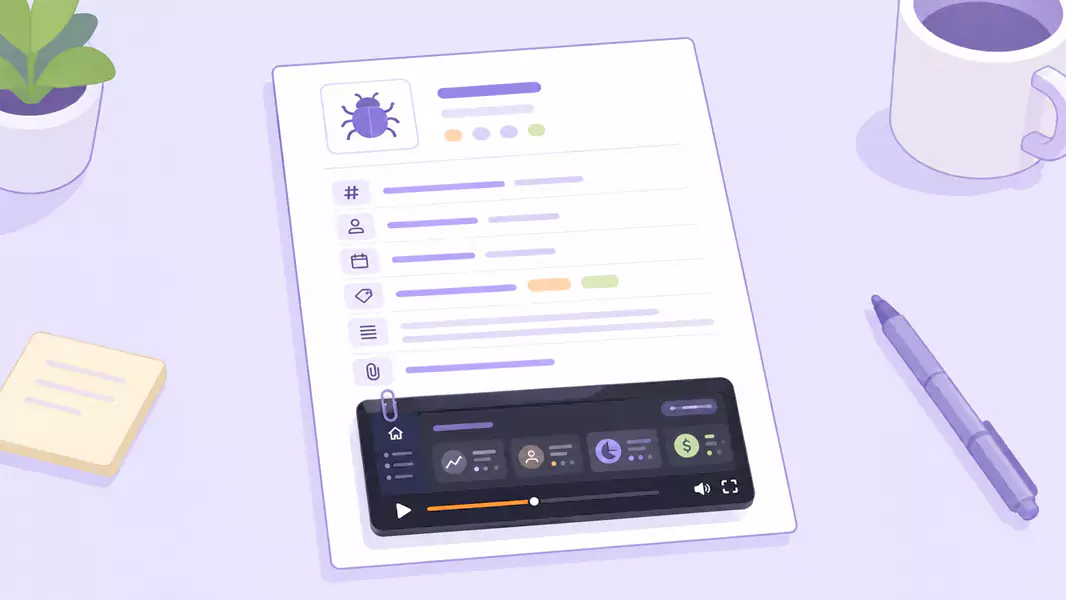
Fehlertitel
Die Schaltfläche zum Speichern bleibt nach dem Bearbeiten des Profilnamens deaktiviert
Systemumgebung
App-Version 4.8.2
Windows 11 Pro
Chrome 137
Benutzerrolle: Admin
Zusammenfassung
Nachdem Sie den Profilnamen in den Kontoeinstellungen bearbeitet haben, bleibt die Schaltfläche „Speichern“ deaktiviert – selbst wenn sich der Wert im Eingabefeld ändert.
Schritte zur Reproduktion
Als Administrator anmelden
Kontoeinstellungen öffnen
Profilnamen ändern
Außerhalb des Feldes klicken
Auf Speichern klicken
Erwartetes Ergebnis
Die Schaltfläche „Speichern“ wird aktiv, sobald das Feld bearbeitet wird.
Tatsächliches Ergebnis
Die Schaltfläche „Speichern“ bleibt deaktiviert, sodass die Änderung nicht übernommen werden kann.
Häufigkeit
Dies tritt unter Windows 11 in Chrome jedes Mal auf.
Prioritätsstufe
Mittel. Blockiert Profilaktualisierungen, bietet jedoch eine Umgehung über einen anderen Browser.
Anhänge
Die Bildschirmaufnahme zeigt den vollständigen Reproduktionspfad und den deaktivierten Zustand der Speichern-Schaltfläche.
Was ein aussagekräftiger Bugreport enthalten sollte
Eindeutige Schritte zur Reproduktion
Schreiben Sie präzise Schritt-für-Schritt-Anleitungen, die absolut eindeutig sind. Wenn Sie Klicks, Feldbezeichnungen oder Setup-Bedingungen auslassen, kann der Fehler möglicherweise nicht reproduziert werden.
Umgebungsdetails
Erfassen Sie die relevante Konfiguration. Nennen Sie bei Bedarf App-Version, Windows-Version, Browser, Benutzerrolle, Feature-Flag oder Netzwerkbedingungen.
Soll- und Ist-Zustand im Vergleich
Hier schlägt das Herz des Berichts. Ihr Team muss die Diskrepanz zwischen dem beabsichtigten Verhalten und dem tatsächlichen Ergebnis auf dem Bildschirm sehen.
Schweregrad und Auswirkungen
Beschreiben Sie genau, welche Auswirkungen der Fehler hat. Blockiert er den Bezahlvorgang? Verzögert er die Qualitätssicherung? Konfuses Nutzerverhalten, bei dem die Arbeit dennoch fortgesetzt werden kann? Diese Angaben helfen Teams bei der effizienten Priorisierung.
Referenzen & Belege
Fügen Sie einen Nachweis hinzu. Screenshots helfen. Videos sind meistens besser, wenn das Problem Bewegungen, Timing, Hover-Zustände, mehrstufige Abläufe oder unregelmäßiges Verhalten betrifft. Wenn Ihr Team bereits Videos zur Fehlerreproduktion aufzeichnet, binden Sie diese Gewohnheit direkt in den Reporting-Flow ein.
So dokumentieren Sie Software-Bugs Schritt für Schritt
Fehler sofort erfassen: Schreiben Sie den Bericht direkt, um den genauen Ablauf und die Bedingungen festzuhalten, bevor Details verloren gehen.
Systemumgebung dokumentieren: Listen Sie Ihr Setup auf – Windows-Version, Browser und App-Version –, damit Ihr Team sofort den passenden Kontext für die Tests hat.
Reproduktionsschritte definieren: Beschreiben Sie den kürzesten Weg zum Bug. Ein Schritt pro Zeile sorgt für maximale Übersicht.
Soll- und Ist-Zustand trennen: Vermischen Sie die beiden Zustände nicht. Ein klarer Kontrast beschleunigt die Fehlerpriorisierung (Triage) erheblich.
Kurze Video-Fehlermeldung aufnehmen: Nutzen Sie einen sichtbaren Cursor, damit Ihr Team jedem Klick und jeder Bewegung mühelos folgen kann. Erfassen Sie den gesamten Ablauf in einer einzigen Aufnahme.
Ablenkungen herausschneiden: Nutzen Sie Tools zum schnellen Trimmen, um ungenutzte Wartezeit zu entfernen. So bleibt die Aufnahme knackig und lässt sich schneller analysieren.
Anhängen und versenden: Fügen Sie den schriftlichen Bericht und das Video im selben Ticket zusammen. Das liefert dem Team schnelle Notizen zum Überfliegen und den präzisen visuellen Beweis auf dem Bildschirm.
Best Practices
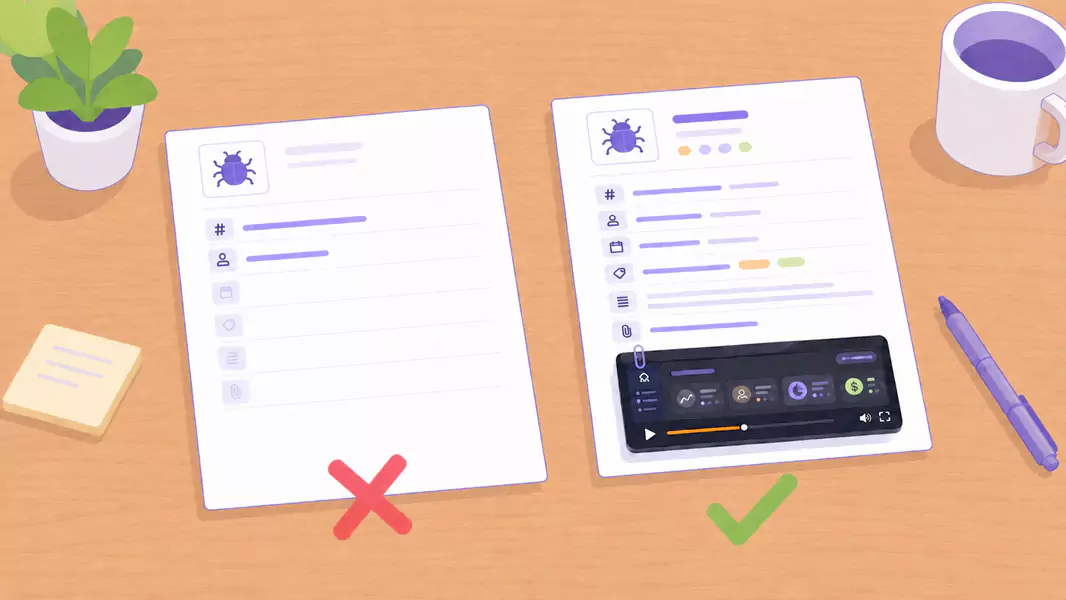
Wählen Sie einen präzisen Titel
Schlecht: „Einstellungsfehler“
Besser: „Speichern-Button bleibt nach Bearbeitung des Profilnamens deaktiviert“Halten Sie die Schritte kurz
Eine Aktion pro Zeile ist einfacher zu testen als ein langer Absatz.Zeigen Sie den gesamten Pfad
Starten Sie das Video nicht erst mitten im Problem. Zeigen Sie den Weg dorthin.Kommentieren Sie nur bei Bedarf
Ist der Fehler im Bild offensichtlich, lassen Sie das Video stumm. Erklären Sie kurz, wenn der Kontext wichtig ist.Zeigen Sie bei Bedarf die Systemumgebung
Hängt der Fehler von Version, Browser oder Benutzerrolle ab, zeigen Sie dieses Setup frühzeitig im Bericht oder in der Aufnahme.
Typische Fehler
Unpräzise Titel verfassen
Vage Titel verlangsamen den gesamten Prozess. Benennen Sie den Fehler, den Ort des Auftretens und das fehlerhafte Verhalten klar.Setup-Details auslassen
Ein Bericht ohne Informationen zur Umgebung führt oft zu der Rückmeldung „nicht reproduzierbar“.Reproduktionsschritte aus dem Gedächtnis aufschreiben
Dabei schleichen sich leicht fehlende Schritte ein. Führen Sie den Workflow erneut aus und dokumentieren Sie die tatsächlichen Schritte.Screenshots bei dynamischen Fehlern anhängen
Screenshots erfassen keine Timing-Probleme, Hover-Zustände, Animationsfehler oder mehrstufigen Störungen. Ein Video-Bugreport ist hier deutlich aussagekräftiger.Zu lange Aufnahmen erstellen
Ein zehnminütiger Clip erschwert die Fehleranalyse. Zeigen Sie das Setup, die Reproduktion sowie das fehlerhafte Ergebnis und beenden Sie dann die Aufnahme.
Warum Flashback perfekt in diesen Workflow passt
Wenn Sie einen kostenlosen Bildschirmrekorder für Windows suchen, ist Flashback Express der perfekte Einstieg. Sie erhalten Aufnahmen ohne Wasserzeichen und ohne Zeitlimit – ein echter Lebensretter, wenn man einige Versuche braucht, um einen Fehler zu reproduzieren.
Ausgelöst wird der Fehler nur zu bestimmten Zeiten? Nutzen Sie einfach die geplante Aufnahme, um diesen Moment genau abzufangen, ohne permanent den Bildschirm überwachen zu müssen. So wird die Fehlersuche von einer zeitraubenden Aufgabe zu einem schnellen, gemeinsamen Erfolg für das gesamte Team.
Fehlerberichte mühelos erfassen
Erfassen Sie das Problem, zeigen Sie die einzelnen Schritte und liefern Sie Ihrem Team eine sofort umsetzbare Lösung.
Häufig gestellte Fragen
Was gehört in einen professionellen Software-Bugreport?
Ein aussagekräftiger Titel, Angaben zur Systemumgebung, eine Zusammenfassung, Schritte zur Reproduktion, erwartete und tatsächliche Ergebnisse sowie Anhänge.
Wie sieht eine wirklich überzeugende Vorlage für Fehlerberichte aus?
Einen, der kurz und reproduzierbar ist und es anderen ermöglicht, das Problem ohne zusätzliche Meetings zu beheben.
Wie hängen Sie ein Video an einen Fehlerbericht an?
Zeichnen Sie den gesamten Vorgang lückenlos auf, kürzen Sie unproduktive Wartezeiten und laden Sie die Datei oder einen Freigabelink direkt in Ihr Ticket hoch.
Wann ist ein Video-Fehlerbericht besser als ein Screenshot?
Nutzen Sie Videos bei Timing-Problemen, Animationen oder mehrstufigen Abläufen, wenn ein statisches Bild nicht die ganze Geschichte erzählt.
