

So erstellen Sie professionelle Schulungsvideos
Erstellen Sie Schulungsvideos, die Ihren Mitarbeitern wirklich helfen – statt langer Aufnahmen, die schon nach der Hälfte abgebrochen werden.
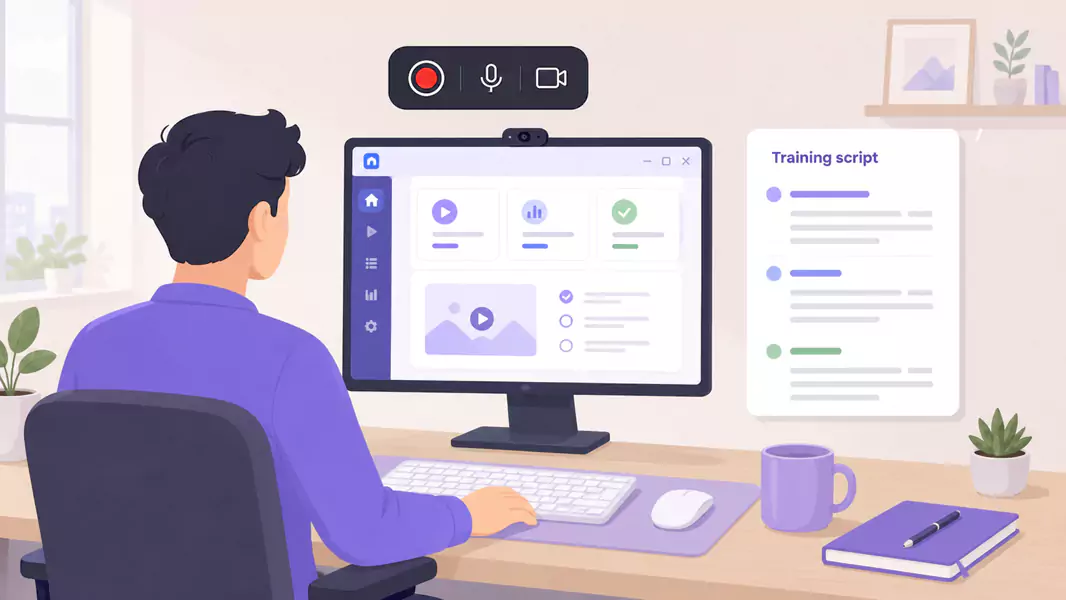
Gute Schulungsvideos helfen Anwendern, eine Sache klar zu lernen und direkt anzuwenden. Das klingt einfach, doch viele Schulungsinhalte blähen sich schnell auf. Wir versuchen zu viel zu erklären, fügen zu viele Randnotizen hinzu und enden mit einem langen Video, das niemand mehr ansehen möchte.
Ein besserer Workflow ist fokussierter. Wählen Sie ein Thema, zeigen Sie den genauen Prozess, erklären Sie die Relevanz und geben Sie dem Zuschauer einen klaren nächsten Schritt. Das macht wiederverwendbare Schulungsinhalte wirklich wertvoll. Für Teams, die in Software für Schulungsvideos investieren, bietet diese Seite den pragmatischsten Workflow im gesamten Themenbereich.
Unter Windows ist die Einrichtung unkompliziert. Wählen Sie die Lektion, planen Sie den Ablauf, nehmen Sie den Bildschirm mit klarer Vertonung auf und schneiden Sie unsaubere Stellen vor dem Teilen heraus. Flashback Express eignet sich hierfür ideal, da es sich um einen kostenlosen Screen Recorder mit schneller Einrichtung, unbegrenzter Aufnahmezeit und wasserzeichenfreien Aufnahmen handelt.
Was sind Trainingsvideos?
Schulungsvideos sind Anleitungsvideos, die dabei helfen, eine bestimmte Aufgabe, einen Prozess oder einen Workflow reproduzierbar zu erlernen.
Ein überzeugendes Schulungsvideo zeichnet sich durch einen klaren Fokus aus. Es vermittelt eine Lektion präzise, veranschaulicht den Prozess auf dem Bildschirm und gibt dem Zuschauer im Anschluss eine praktische Übung an die Hand.
Im Gegensatz zu einer einmaligen Besprechungsaufzeichnung ist ein wiederverwendbares Schulungsvideo speziell darauf ausgelegt, mehrfach angesehen zu werden.
Wann ist der richtige Zeitpunkt, um Schulungsvideos aufzuzeichnen?
Zeichnen Sie Schulungsvideos auf, wenn eine Lektion häufig wiederholt werden muss, visuell dargestellt werden soll oder teamübergreifend konsistent vermittelt wird.
Dies eignet sich hervorragend, um:
wiederkehrende Arbeitsabläufe zu vermitteln
ortsunabhängiges und asynchrones Lernen zu unterstützen
wiederverwendbare Schulungsinhalte aufzubauen
wiederholte Live-Sitzungen zu reduzieren
Microlearning-Videos für spezifische Aufgaben zu erstellen
Wenn Ihr Ziel eine schnelle Einarbeitung ist, starten Sie mit Onboarding-Videos. Wenn Sie eine wiederholbare Prozessgenauigkeit anstreben, kombinieren Sie das Training mit SOP-Videos.
Wie erstelle ich professionelle Schulungsvideos?
Für effektive Schulungsvideos wählen Sie eine einzelne Lektion, planen den direkten Weg durch den Inhalt, zeichnen Ihren Bildschirm mit klarer Moderation auf und kürzen alles, was das Tempo bremst. Die besten Schulungsvideos sind fokussiert, vielseitig wiederverwendbar und laden zum schnellen Nachschlagen ein.
Schritt 1: Wählen Sie eine Lektion aus
Grenzen Sie das Thema ein, bevor Sie mit der Aufnahme beginnen.
Ein einzelnes Video sollte eine zentrale Frage beantworten, einen bestimmten Workflow vermitteln oder ein wiederkehrendes Problem lösen. So bleibt der Inhalt leicht verständlich und lässt sich flexibler wiederverwenden.
Schritt 2: Erstellen Sie eine einfache Gliederung
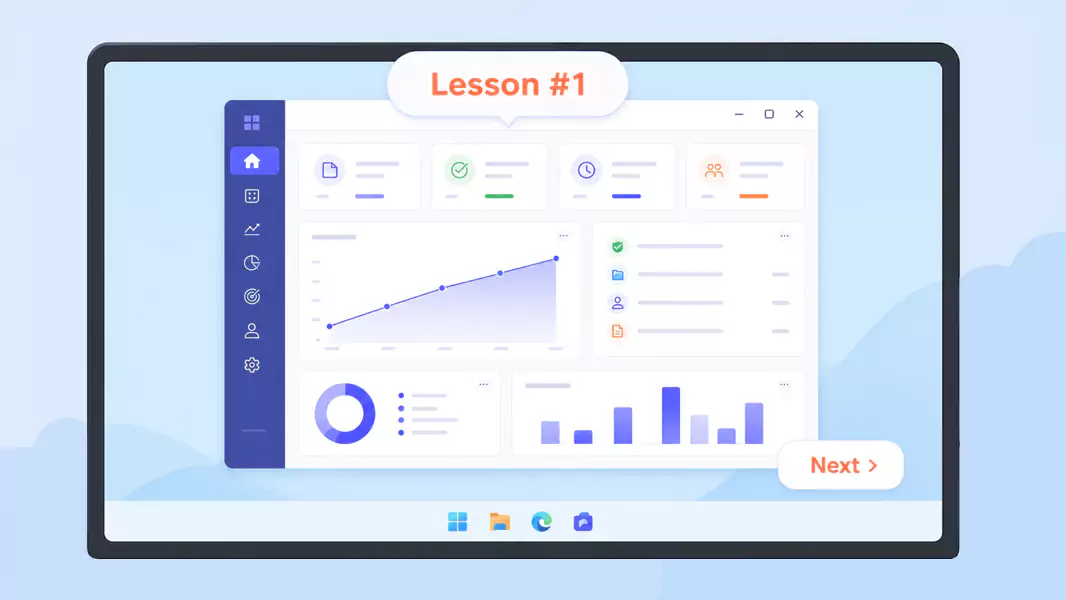
Planen Sie die Lektion, bevor Sie auf Aufnahme drücken.
Ein kurzer Entwurf hilft Ihnen, Abschweifungen zu vermeiden, und hält das Schulungsvideo kompakt.
Nutzen Sie eine einfache Struktur:
Was die Lektion beinhaltet
Warum es wichtig ist
Der Arbeitsablauf oder die Aufgabe
Ein Fehler, den es zu vermeiden gilt
Was der Lernende als Nächstes tun sollte
Schritt 3: Vorbereitung der Trainingsumgebung
Richten Sie den Bildschirm genau so ein, wie die Lernenden ihn sehen sollen.
Schließen Sie irrelevante Tabs, stummschalten Sie Benachrichtigungen und öffnen Sie nur die für die Lektion benötigten Fenster.
Nutzen Sie ein sauberes Aufnahme-Setup + weniger visuelle Unruhe, damit die Lernenden dem Ablauf mühelos folgen können.
Nutzen Sie einen lesbaren Zoom und eine optimale Fenstergröße + klarere Instruktionsdetails, damit Texte und Steuerelemente stets gut lesbar bleiben.
Nutzen Sie den realen Workflow-Status + einen reibungsloseren Übergang zur Live-Arbeit, damit die Lernenden den Prozess genau so erleben, wie er in der Praxis abläuft.
Schritt 4: Nehmen Sie die Lektion präzise auf
Beginnen Sie mit einer kurzen Einleitung und gehen Sie dann direkt zum Prozess über.
Erklären Sie:
was die Lernenden gerade sehen
welcher Schritt als Nächstes folgt
warum dieser Schritt wichtig ist
woran sie erkennen, dass sie es richtig gemacht haben
An diesem Punkt verlieren viele Schulungsvideos ihre Zuschauer. Sie kommentieren jeden einzelnen Klick, erklären aber nicht die Hintergründe.
Schritt 5: Komplexe Themen in kurze Videos aufteilen
Wenn die Lektion zu umfangreich wird, teilen Sie sie auf.
Microlearning-Videos funktionieren meist besser als eine einzige lange Aufnahme. Sie lassen sich einfacher zuweisen, später schneller wiederfinden und bei Prozessänderungen mühelos aktualisieren.
Schritt 6: Überprüfen und für die Wiederverwendung zuschneiden
Sehen Sie sich das Schulungsvideo an, bevor Sie es veröffentlichen.
Achten Sie auf Folgendes:
wiederholte Erklärungen
langsame Einstiege
tote Winkel und Pausen
überladene Bildschirme
Schritte, die eine klarere Erklärung erfordern
Kürzen Sie alles, was dem Lernenden keinen direkten Mehrwert bringt.
Nutzen Sie Flashback Express für kristallklare Schulungsvideos, die Ihr Team ganz einfach pausieren, wiederholen und zum Lernen nutzen kann.
Was zeichnet ein wirklich gutes Mitarbeiterschulungsvideo aus?
Ein gutes Mitarbeiterschulungsvideo ist leicht verständlich, konzentriert sich auf eine einzige Lektion, passt sich dem Lerntempo an und basiert auf einem praxistauglichen Workflow.
Die effektivsten Schulungsvideos zeichnen sich in der Regel durch folgende Eigenschaften aus:
Sie vermitteln jeweils nur ein Thema.
Sie erklären den Hintergrund des jeweiligen Arbeitsschritts.
Sie zeigen die tatsächliche Aufgabe direkt auf dem Bildschirm.
Sie sind kurz genug, um sie problemlos zu Ende zu sehen.
Sie enden mit einer klaren Handlungsaufforderung.
Warum sind Schulungsvideos so effektiv?
Schulungsvideos sind deshalb so erfolgreich, weil sie visuellen Kontext mit gesprochenen Erklärungen kombinieren.
Das ist besonders wichtig, wenn Lernende:
den Arbeitsablauf sehen müssen
die Gründe für die einzelnen Schritte verstehen wollen
den Prozess später noch einmal ansehen möchten
unabhängig von Live-Sitzungen flexibel lernen wollen
durch Wiederholung Vertrauen aufbauen möchten
Welche typischen Fehler sollten Sie unbedingt vermeiden?
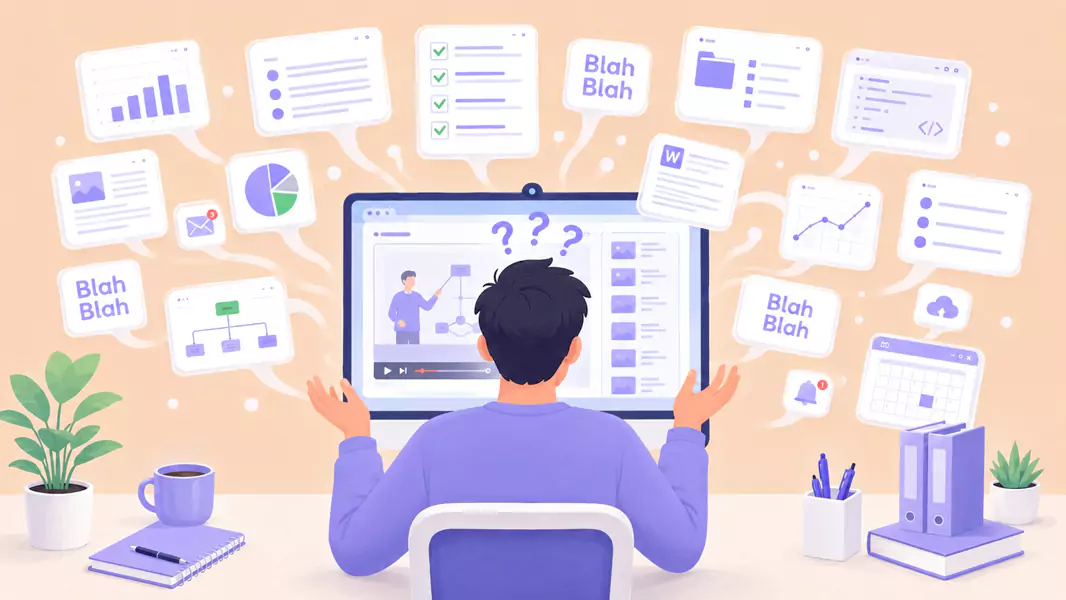
Vermeiden Sie diese häufigen Fehler:
Zu viele Workflows in einem einzigen Video zu kombinieren.
Wichtige Voraussetzungen bei der Einrichtung zu überspringen.
Entscheidende Schritte zu schnell zu erklären.
Aufnahmen mit sichtbaren, sensiblen Daten zu erstellen.
Das Video an Orten zu speichern, an denen es später niemand mehr findet.
Warum Flashback Express für Schulungsvideos nutzen?
Flashback Express eignet sich hervorragend fu00fcr Trainingsvideos auf Windows. Sie nehmen damit zeitlich unbegrenzt und ohne Wasserzeichen auf. Zudem beseitigen Sie grobe Fehler noch vor der Freigabe.
So erstellen Sie ganz einfach wiederverwendbare Schulungsinhalte ohne grou00dfen Produktionsaufwand. Das Tool lu00e4sst sich perfekt mit Onboarding-Videos fu00fcr eine schnelle Einarbeitung und Screencasts standardisierter Prozesse verknu00fcpfen.
Häufig gestellte Fragen
Wie erstelle ich professionelle Schulungsvideos?
Wählen Sie eine Lektion aus und skizzieren Sie den Ablauf. Nehmen Sie Ihren Bildschirm mit klarer Vertonung auf, schneiden Sie unnötige Pausen heraus und speichern Sie das fertige Video an einem für Lernende leicht zugänglichen Ort.
Was zeichnet ein wirklich gutes Mitarbeiterschulungsvideo aus?
Ein gutes Schulungsvideo ist fokussiert, praxisnah, leicht verständlich und auf ein klares Ergebnis ausgerichtet.
Wie kann ich Schulungsvideos universell wiederverwendbar machen?
Halten Sie jedes Video kurz und fokussiert, benennen Sie es eindeutig, speichern Sie es am richtigen Ort und vermeiden Sie es, zu viele Themen in einer einzigen Aufnahme zusammenzufassen.
Sollte ich lieber Microlearning-Videos statt längerer Lektionen erstellen?
In den meisten Fällen ja. Kürzere Videos lassen sich einfacher ansehen, zuweisen und aktualisieren.
Wie lang sollten Schulungsvideos sein?
Lang genug, um eine Lektion klar zu vermitteln, aber kurz genug, um die Aufmerksamkeit zu fesseln und vielseitig wiederverwendbar zu bleiben.
Nutzen Sie Flashback Express, um Wissen in praktische, teilbare Tutorials zu verwandeln, die dauerhaft überzeugen.
