

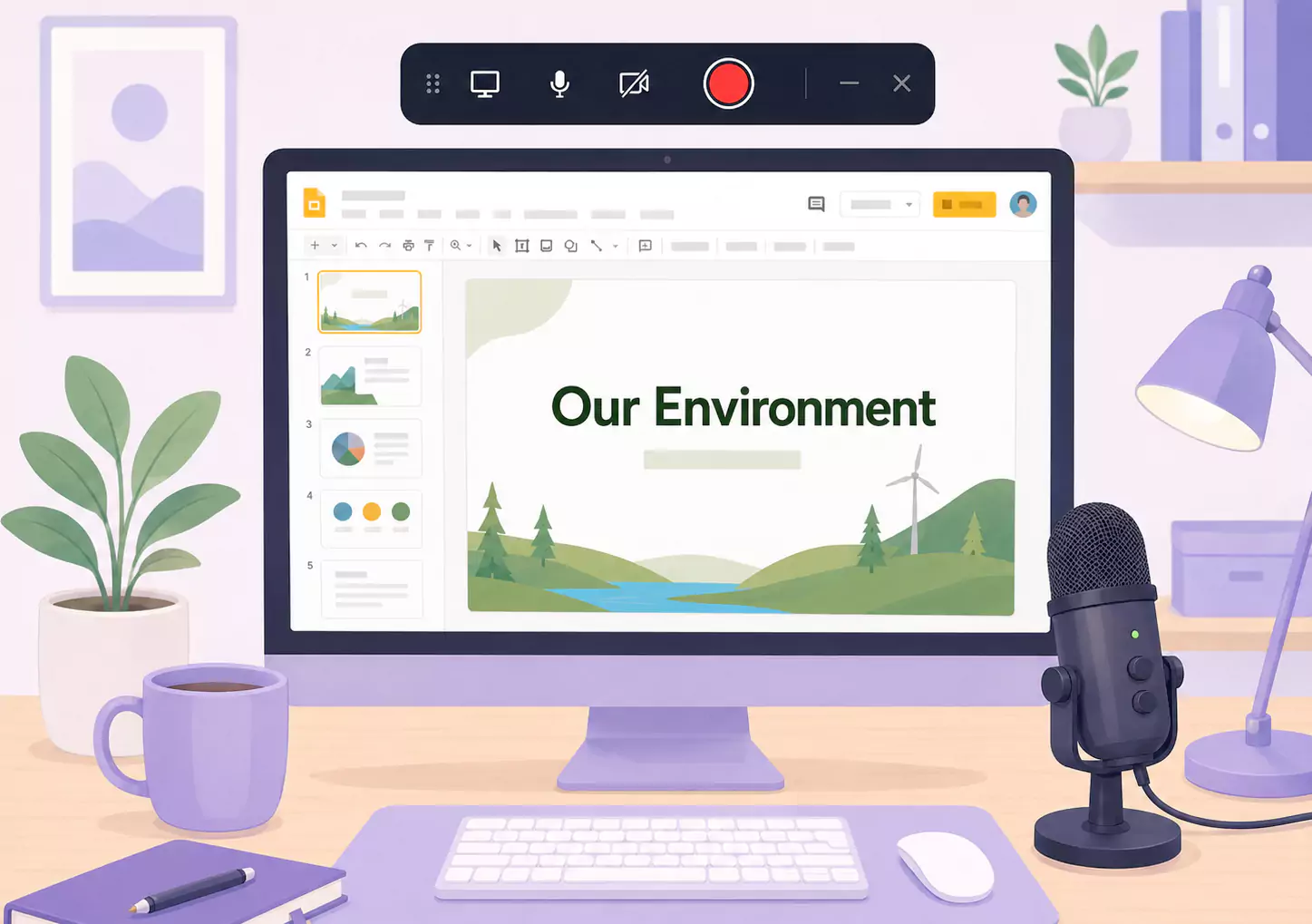
Google Slides eignet sich hervorragend für den Unterricht, da es Lehrinhalten eine klare Struktur verleiht. Das fehlende Bindeglied ist jedoch oft die persönliche Erklärung. Wenn Sie Ihre Präsentationen vertonen, sehen Schüler nicht nur den Inhalt. Sie verstehen auch die Argumentation, die Betonung und die nächsten Schritte.
Genau das macht folienbasierte Lektionen so wertvoll für Lehrkräfte, die mit Bildschirmrekordern für den Bildungsbereich arbeiten. So erstellen Sie eine wiederverwendbare Erklärung für die Hausaufgabenunterstützung, abwesende Schüler, Wiederholungseinheiten oder den umgedrehten Unterricht (Flipped Classroom) – ohne dieselbe Erklärung immer wieder live wiederholen zu müssen.
Unter Windows ist der Ablauf denkbar einfach. Öffnen Sie Ihre Präsentation, optimieren Sie den roten Faden, nehmen Sie die Folien parallel zu Ihrer Stimme auf und schneiden Sie kleine Fehler vor dem Teilen heraus. Flashback Express fügt sich hier perfekt ein, denn es ist ein kostenloser Bildschirmrekorder, der schnell einsatzbereit ist, kein Zeitlimit hat und Aufnahmen ohne Wasserzeichen liefert.
Was ist ein Google Slides-Lektionsvideo?
Ein Google Slides-Lektionsvideo ist eine aufgezeichnete Version Ihrer Präsentation, bei der die Folien mit einer gesprochenen Erklärung unterlegt sind.
Eine überzeugende Folien-Lektion ist praxisnah. Sie hilft Schülern, der Struktur des Themas zu folgen, die Erklärung im richtigen Tempo zu hören und bei Bedarf wieder auf das Material zuzugreifen.
Im Gegensatz zu Präsentationen, die ohne Tonspur geteilt werden, bietet eine aufgezeichnete Folien-Lektion den Schülern Kontext, klare Schwerpunkte und einen strukturierten Lernweg.
Wann sollten Sie Google Slides für Ihren Unterricht aufzeichnen?
Nehmen Sie Google Slides für Ihren Unterricht auf, wenn die Präsentation bereits die Struktur der Lektion vorgibt und Ihre Schüler davon profitieren, die Erklärung mehrmals zu hören.
Dies eignet sich besonders gut, wenn Sie:
kommentierte Unterrichtsfolien vor dem Unterricht teilen möchten
ein Video für den umgedrehten Unterricht (Flipped Classroom) bereitstellen möchten
eine Zusammenfassung der Lektion nach dem Unterricht senden möchten
abwesenden Schülern helfen möchten, den Stoff nachzuholen
Wiederholungsvideos vor einer Prüfung aufnehmen möchten
Wenn der Unterricht nicht auf Folien basiert, sondern die Demonstration eines Live-Arbeitsablaufs erfordert, starten Sie stattdessen mit Videolektionen für Schüler.
Wie nehmen Sie Google Slides mit Begleitkommentar auf?
Um Google Slides mit Kommentar aufzuzeichnen, öffnen Sie die Präsentation, bereiten Sie kurze Notizen vor und nehmen Sie Bildschirm und Mikrofon gleichzeitig auf. Schneiden Sie Pausen vor dem Teilen einfach weg. Die besten Präsentationsvideos sind fokussiert, leicht verständlich und für Ihre Zuschauer mühelos abrufbar.
Schritt 1: Starten Sie mit einem einzigen Lernziel.
Legen Sie vor der Aufnahme fest, was die Studierenden mit diesem speziellen Foliensatz lernen sollen.
Versuchen Sie nicht, eine ganze Lerneinheit in einer einzigen Aufnahme zu behandeln. Konzentrieren Sie sich auf ein einzelnes Konzept, eine Erklärung oder ein bestimmtes Wiederholungsziel.
Fragen Sie sich:
Was sollen die Studierenden nach dem Anschauen verstanden haben?
Welche Folie ist am wichtigsten?
An welchen Stellen kommt es meistens zu Verständnisproblemen?
Was ist der nächste Schritt für die Studierenden?
So bleibt Ihre Lerneinheit klar und fokussiert.
Schritt 2: Fixieren Sie die Folien, bevor Sie aufnehmen
Ein Foliensatz, der im Unterricht funktioniert, eignet sich nicht immer auch für eine Videoaufnahme.
Folien mit zu viel Text, schwachen Titeln oder zu vielen unterschiedlichen Ideen wirken im Video oft überladen. Bringen Sie diese zuerst auf Vordermann.
Konzentrieren Sie sich auf:
einen Hauptpunkt pro Folie
klarere Folientitel
weniger Text auf dem Bildschirm
fließendere Übergänge zwischen den Gedanken
So werden vertonte Unterrichtsfolien deutlich verständlicher.
Schritt 3: Formulieren Sie Stichpunkte, kein komplettes Skript
Schreiben Sie kurze Stichpunkte für jede Folie.
Ein vollständiges Skript lässt die Vertonung oft steif wirken. Kurze Redepunkte funktionieren meist besser, da Sie so natürlich erklären und dennoch auf dem roten Faden bleiben.
Nutzen Sie eine einfache Struktur:
Was diese Folie zeigt
Warum es wichtig ist
Worauf Lernende achten sollten
Was als Nächstes kommt
Das reicht meist völlig aus, um Folien lebendig und professionell einzusprechen – ganz ohne roboterhaften Klang.
Schritt 4: So bereiten Sie Ihre Windows-Aufnahmeumgebung optimal vor
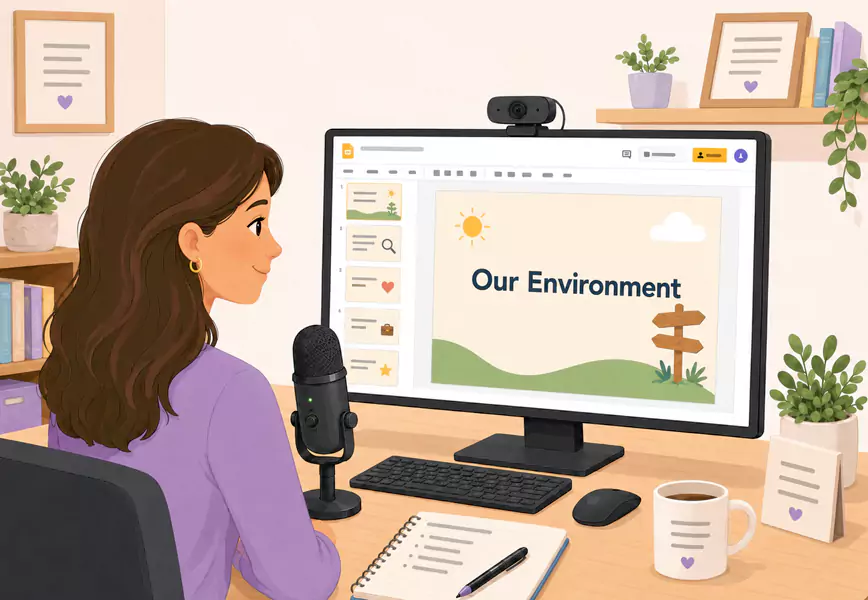
Reinigen Sie den Bildschirm, bevor Sie beginnen.
Schließen Sie überflüssige Tabs, stummschalten Sie Benachrichtigungen und öffnen Sie nur die Präsentation sowie Dokumente, die Sie wirklich für den Unterricht benötigen.
Nutzen Sie den Vollbildmodus für Folien, um eine visuell ansprechende und ruhige Umgebung zu schaffen.
Verwenden Sie eine gut lesbare Foliengröße, damit Schüler Beschriftungen, Beispielen und Diagrammen mühelos folgen können.
Prüfen Sie Ihren Mikrofoneingang vorab, damit Ihre Schüler von einer optimalen Audioqualität profitieren.
Falls Sie Ihre Webcam zuschalten möchten, halten Sie das Bild klein und platzieren Sie es außerhalb des Folieninhalts.
Schritt 5: Nehmen Sie die Folien und den Kommentar gemeinsam auf
Starten Sie die Aufnahme und steigen Sie direkt in die Lektion ein.
Beginnen Sie mit einem kurzen Satz, der den Lerninhalt der Schüler auf den Punkt bringt. Zum Beispiel:
„Heute sehen wir uns an, wie dieser Prozess funktioniert, warum er wichtig ist und was Sie am Ende können sollten.“
Gehen Sie dann die Folien der Reihe nach durch.
Erklären Sie:
was die Schüler vor sich sehen
warum dieser Punkt wichtig ist
auf welches Detail sie besonders achten sollten
was sie im Gedächtnis behalten sollten, bevor es weitergeht
Genau das macht den Unterschied aus: So fühlt sich ein Google Slides-Lektionsvideo wie echter Unterricht an und nicht wie das bloße Vorlesen einer Präsentation.
Schritt 6: Halten Sie das Tempo konstant
Gehen Sie langsam genug vor, damit man Ihnen folgen kann, aber nicht so langsam, dass die Lektion an Dynamik verliert.
Machen Sie eine Pause, wenn das Thema wechselt. Wenn eine Folie mehrere Elemente enthält, weisen Sie nur auf dasjenige hin, das im Moment wichtig ist.
Teilen Sie lange Präsentationen in kleinere Videos auf. Lernende profitieren meist von kürzeren Aufnahmen, die sie gezielt nach Thema wiederholen können – besonders dann, wenn diese Videos durch umfassendere Ressourcen für Videolektionen für Schüler und Studenten ergänzt werden.
Schritt 7: Aufnahme prüfen und schneiden
Schauen Sie sich das Video an, bevor Sie es teilen.
Achten Sie auf Folgendes:
wiederholte Erklärungen
unbeholfene Einstiege
Leerlaufzeiten
Folien, die unnötig lange im Bild bleiben
Momente, in denen sich der Cursor bewegt, bevor der Kommentar einsetzt
Kürzen Sie alles, was den Fluss der Lerneinheit stört. Wenn Sie die Aufnahme bearbeiten, weisen Sie bitte nicht darauf hin, dass bearbeitete Exporte frei von Wasserzeichen sind.
Nutzen Sie Flashback Express, um vertonte Google Slides aufzunehmen, die Schüler bei Bedarf jederzeit zur Wiederholung abspielen können.
Was zeichnet ein wirklich gutes folienbasiertes Unterrichtsvideo aus?
Ein gutes, folienbasiertes Lernvideo ist klar, fokussiert und orientiert sich am Verständnis der Schüler.
Die besten Lernvideos zeichnen sich meist durch Folgendes aus:
Sie vermitteln nur ein Konzept auf einmal.
Sie erklären das Warum hinter jedem Beispiel.
Sie halten die Folien visuell übersichtlich.
Sie bewegen sich in einem gleichmäßigen Tempo.
Sie enden mit einem klaren nächsten Schritt.
Warum sind vertonte Folienpräsentationen so effektiv?
Narrierte Folienpräsentationen sind äußerst effektiv, da sie eine klare Struktur mit beliebig wiederholbaren Erklärungen kombinieren.
Das hilft Ihren Schülern und Studenten dabei:
Lerninhalte bereits vor dem Unterricht vorzubereiten
verpasste Unterrichtsstunden mühelos nachzuholen
komplexe Erklärungen nochmals anzusehen
sich optimal auf Hausaufgaben oder Prüfungen vorzubereiten
die Lektion im eigenen Tempo durchzugehen
Aus diesem Grund fügen sie sich perfekt in umfassendere Konzepte für Bildschirmrekorder im Bildungsbereich ein.
Welche typischen Fehler sollten Sie unbedingt vermeiden?
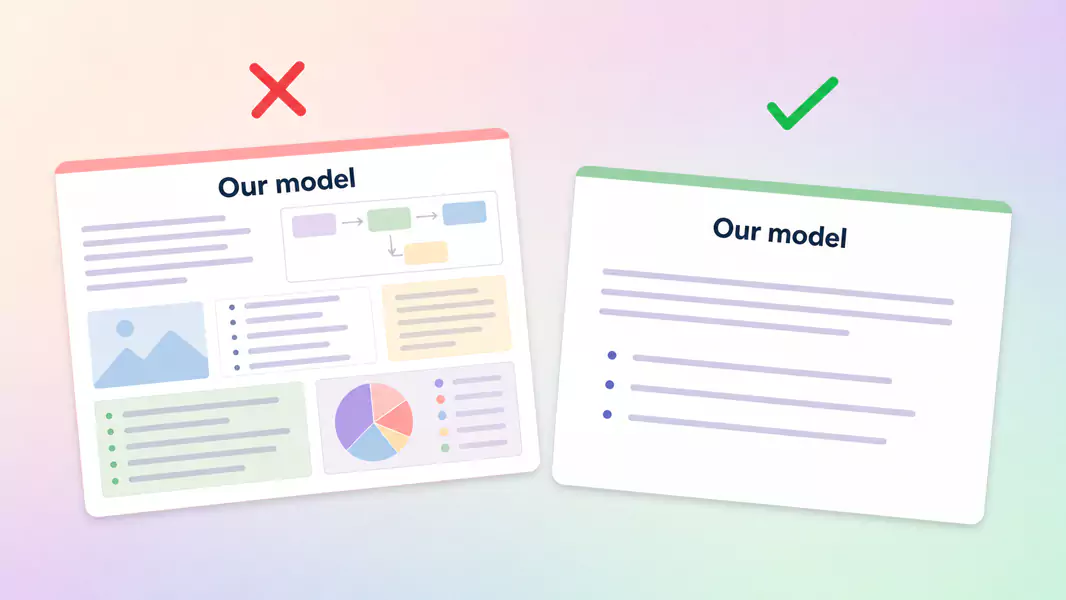
Vermeiden Sie diese häufigen Fehler:
Folien Wort für Wort abzulesen
zu viel Text auf dem Bildschirm anzuzeigen
zu schnell über wichtige Folien hinwegzugehen
mit ablenkenden Tabs oder sichtbaren Benachrichtigungen aufzunehmen
die Präsentation zu beenden, ohne klare nächste Schritte aufzuzeigen
Warum eignet sich Flashback Express ideal für den Unterricht mit Google Slides?
Flashback Express ist die ideale Wahl für die Aufzeichnung von Google Slides unter Windows. Sie können unbegrenzt aufnehmen, erhalten ein Ergebnis ganz ohne Wasserzeichen und können ohne großen Einrichtungsaufwand direkt starten.
So erstellen Sie mühelos wiederverwendbare Unterrichtsvideos für Wiederholungen, Nachholunterricht und Flipped-Classroom-Modelle, ohne dass die Erstellung zu einem Mammutprojekt wird. Zudem lässt es sich perfekt mit Videolektionen für Schüler für eine umfassende Unterrichtserfassung und mit Videofeedback für Schüler für ein persönlicheres Follow-up kombinieren.
Häufig gestellte Fragen
Wie nehme ich Google Slides mit Kommentar auf?
Öffnen Sie die Präsentation im Vollbildmodus, bereiten Sie kurze Stichpunkte vor und nehmen Sie Bildschirm und Mikrofon gleichzeitig auf. Schneiden Sie anschließend ungenaue Stellen einfach heraus, bevor Sie das Video teilen.
Kann ich eine Folienpräsentation vertonen?
Ja. Nehmen Sie die Folienpräsentation auf, während Sie den Unterrichtstoff einsprechen, und teilen Sie das fertige Video anschließend mit Ihren Schülern.
Wie lassen sich aufgezeichnete Folien am besten teilen?
Teilen Sie diese direkt dort, wo Ihre Schüler bereits lernen, Hausaufgaben erledigen oder Updates erhalten. So ist das Video später mühelos wiederauffindbar.
Wie lange sollte ein Video für eine Folienpräsentation sein?
Lang genug, um ein Konzept klar zu vermitteln, aber kurz genug, um die Aufmerksamkeit hochzuhalten. Kürzere, themenbezogene Aufnahmen funktionieren meist besser als eine einzige lange Lektion.
Sollte ich eine Webcam in eine Google Slides-Präsentation einbinden?
Nur dann, wenn es wirklich hilft. Eine Facecam kann eine persönliche Note verleihen, aber der Fokus auf die Folien ist meist effektiver, wenn sich die Studierenden ganz auf den Lerninhalt konzentrieren sollen.
