

So nehmen Sie personalisierte Demo-Videos für Ihren Vertrieb auf
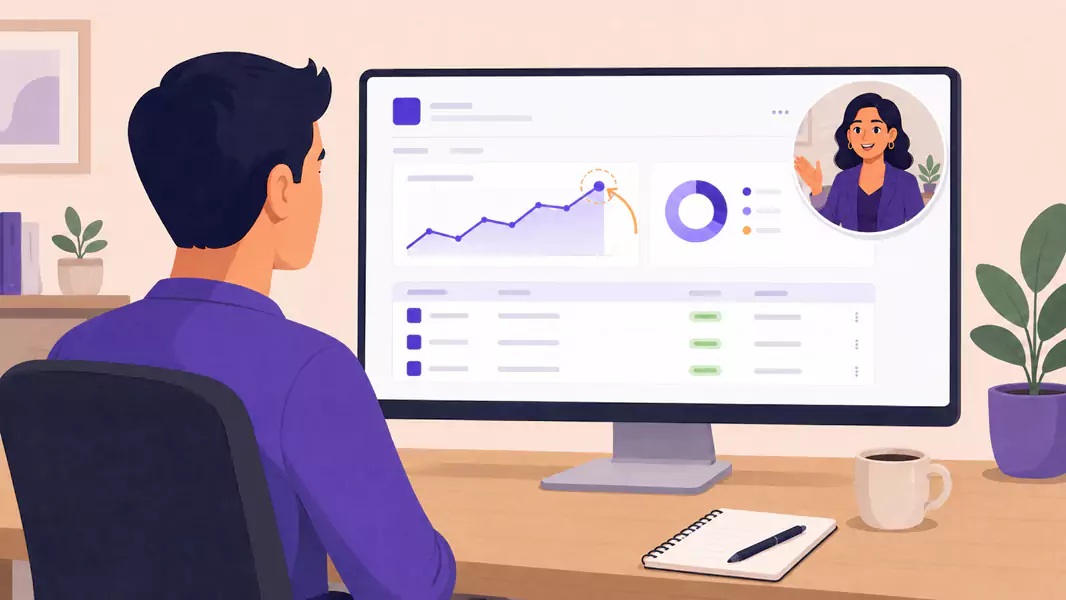
Bei einer personalisierten Sales-Demo geht es darum, das Wesentliche auf den Punkt zu bringen und genau das zu zeigen, was Ihren Käufer wirklich interessiert. Statt auf Standard-Aufnahmen zu hoffen, liefern Sie ein wirkungsvolles Video, das eine konkrete Frage beantwortet oder einen speziellen Anwendungsfall löst.
Wenn Sie Windows nutzen und schnell Ergebnisse brauchen, ist ein kostenloser Screen Recorder der einfachste Weg, um Ihren Bildschirm aufzunehmen, Versprecher herauszuschneiden und eine maßgeschneiderte Präsentation zu teilen.
Erfahren Sie im Folgenden:
Was ist eine personalisierte Sales-Demo?
Wann Sie One-to-One-Demo-Videos einsetzen sollten
So nehmen Sie eine personalisierte Sales-Demo unter Windows auf
Was in Follow-up-Demo-Videos nicht fehlen darf
Häufige Fehler, die Sie vermeiden sollten
Was ist eine personalisierte Sales-Demo?
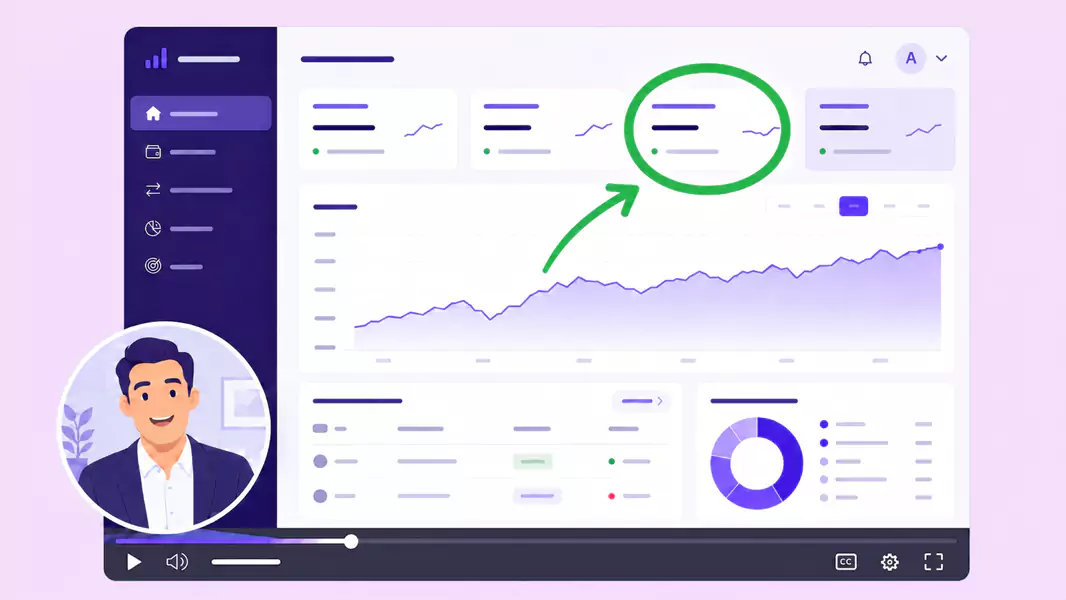
Eine personalisierte Sales-Demo ist ein Video, das speziell für einen bestimmten Prospect, Account oder eine konkrete Kaufsituation erstellt wird.
Anstatt das gesamte Produkt zu zeigen, konzentriert es sich auf den Workflow, das Feature oder das Ergebnis, das für den jeweiligen Betrachter am wichtigsten ist. Eine gute personalisierte Produkt-Demo wirkt von Anfang an relevant.
Teams nutzen personalisierte Sales-Demos besonders häufig für:
das Follow-up nach Gesprächen
das Teilen mit Stakeholdern
die Einwandbehandlung
account-spezifische Walkthroughs
den Fortschritt im Sales-Prozess
Wenn dies Teil eines größeren kommerziellen Workflows ist, fügt es sich nahtlos in eine Video-Software für Vertrieb und Marketing ein.
Wann ist der richtige Zeitpunkt für die Aufnahme einer personalisierten Sales-Demo?
Nehmen Sie personalisierte Demo-Videos auf, wenn der Käufer eine präzisere Antwort wünscht, aber kein weiteres Meeting vereinbaren möchte.
Dies eignet sich hervorragend, wenn Sie:
ein Live-Gespräch zusammenfassen möchten
eine bestimmte Funktion im Kontext demonstrieren wollen
eine konkrete Produktfrage beantworten müssen
zusätzlichen Stakeholdern einen Workflow erklären möchten
die Dynamik zwischen den Meetings aufrechterhalten wollen
Eine personalisierte Demo bietet dem Käufer einen echten Mehrwert, den er sich jederzeit wieder ansehen und intern weiterleiten kann. Das ist besonders nützlich, wenn weitere Personen das Produkt prüfen müssen, bevor das Geschäft abgeschlossen werden kann.
Wie nehmen Sie eine personalisierte Sales-Demo auf?
Wählen Sie für eine personalisierte Vertriebsdemo eine bestimmte Zielgruppe aus, präsentieren Sie einen relevanten Workflow und richten Sie die Erklärung konsequent am Nutzen für den Käufer aus.
Schritt 1: Starten Sie mit dem Kontext des Käufers
Bevor Sie mit der Aufnahme beginnen, sollten Sie sich im Klaren darüber sein, für wen das Video bestimmt ist.
Fragen Sie sich:
Worauf legt dieser Käufer den größten Wert?
Welcher Anwendungsfall ist jetzt gerade entscheidend?
Welche Frage beantworte ich hier?
Was soll nach dem Anschauen des Videos passieren?
Das sorgt für eine fokussierte Demo. Gleichzeitig wird verhindert, dass das Video zu einer unpersönlichen Produktpräsentation wird.
Schritt 2: Zeigen Sie einen konkreten Anwendungsfall
Die besten personalisierten Verkaufsdemos sind fokussiert.
Zeigen Sie genau einen Workflow, einen Schmerzpunkt oder ein Ergebnis. Das kann sein:
eine Funktion, die perfekt zum Prozess des Teams passt
ein Workflow, der ein konkret genanntes Problem löst
ein spezifischer Anwendungsfall aus dem Verkaufsgespräch
eine schnelle Antwort auf einen Einwand
Wer zu viel zeigt, riskierte eine unübersichtliche Demo. Halten Sie es einfach.
Schritt 3: Bereiten Sie Ihren Bildschirm optimal auf die Aufnahme vor
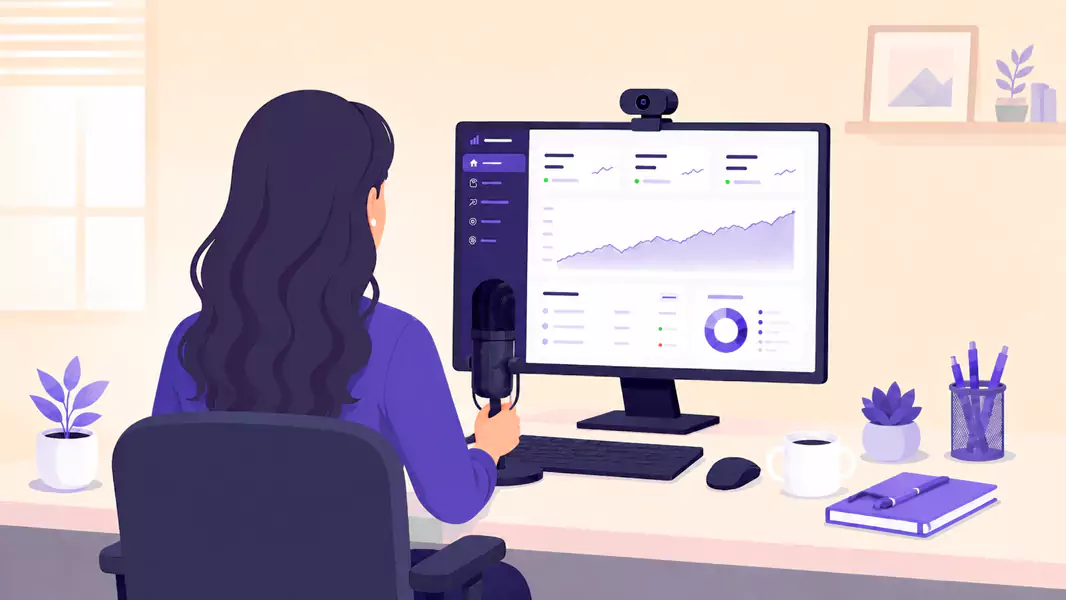
Ru00e4umen Sie Ihren Bildschirm auf, bevor Sie starten.
Schlieu00dfen Sie irrelevante Tabs, entfernen Sie Ablenkungen und u00f6ffnen Sie nur die Fenster, die Sie tatsu00e4chlich benu00f6tigen. Wenn Sie mit Beispieldaten arbeiten, stellen Sie sicher, dass diese Ihre Botschaft optimal unterstu00fctzen.
Schnelle Checkliste:
u00d6ffnen Sie exakt die Fenster, die Sie zeigen mu00f6chten
Testen Sie Ihr Mikrofon
Blenden Sie private oder irrelevante Inhalte aus
Entscheiden Sie, ob eine Webcam sinnvoll ist
Notieren Sie die zwei bis drei Kernbotschaften, die Sie vermitteln wollen
Wenn Sie Ihr Video persu00f6nlicher gestalten mu00f6chten, nutzen Sie einen Screen Recorder mit Webcam-Funktion.
Schritt 4: Schaffen Sie maximale Relevanz
Personalisierung bedeutet nicht nur, den Namen des potenziellen Kunden einzufügen.
Sie entsteht dadurch, dass Sie den passenden Workflow zeigen, den richtigen Kontext nutzen und erklären, warum dies für genau diesen Käufer wichtig ist.
Beachten Sie bei der Aufnahme:
Beziehen Sie sich direkt auf den konkreten Anwendungsfall.
Zeigen Sie den relevantesten Teil des Produkts.
Erklären Sie das Resultat, nicht nur die Klicks.
Halten Sie die Story eng an deren Ausgangssituation.
Genau das lässt eine personalisierte Verkaufsdemo nützlich statt generisch wirken.
Schritt 5: Fassen Sie sich kurz
Ein Follow-up-Demovideo sollte einfach anzuschauen und unkompliziert zu teilen sein.
Halten Sie das Tempo konstant. Schneiden Sie alles heraus, was dem Käufer nicht hilft, den Punkt zu verstehen. In den meisten Fällen ist ein kürzeres Video besser, da es die Zeit des Zuschauers respektiert.
Wenn Sie mehrere Ideen erklären müssen, nehmen Sie separate Videos auf, anstatt alles in ein einziges zu zwingen.
Schritt 6: Vor dem Senden prüfen und schneiden
Schauen Sie sich die Aufnahme vor dem Versenden noch einmal an.
Achten Sie auf Folgendes:
Lange Einstiege
Wiederholungen
Unangenehme Pausen
Irrelevante Abschnitte
Momente, in denen der Kommentar dem Bild vorausläuft
Ein kurzer Feinschliff lässt Ihre Demo sofort professioneller wirken. Nutzen Sie bei Bedarf einen Video-Editor, um die Aufnahme vor dem Teilen zu kürzen.
Für erweiterte Bearbeitungsfunktionen und volle Exportkontrolle informieren Sie sich über die Flashback Preise.
Was sollten Follow-up-Demovideos beinhalten?
Follow-up-Demovideos müssen die nächste Frage des Käufers klar und schnell beantworten.
In den meisten Fällen bedeutet das:
Eine kurze Einführung mit Kontext
Ein relevanter Workflow oder ein bestimmtes Feature
Eine klare Erklärung des konkreten Mehrwerts
Ein einfacher nächster Schritt
Sie müssen nicht das gesamte Produkt zeigen. Präsentieren Sie gezielt den Teil, der den Käufer wirklich weiterbringt.
Warum funktionieren personalisierte Sales Demos?
Personalisierte Verkaufsdemos wirken, weil sie das Wesentliche auf den Punkt bringen.
Anstatt Käufer mit einer langatmigen Präsentation zu langweilen, führen Sie sie direkt zu den Funktionen, die für sie relevant sind. Das macht Ihre Demo leicht verständlich und vereinfacht die Weitergabe an andere Entscheider.
Eine überzeugende personalisierte Verkaufsdemo hilft Ihnen dabei:
Die Dynamik zwischen den Terminen hochzuhalten
Die Relevanz Ihres Produkts spürbar zu machen
Einwände direkt im passenden Kontext zu entkräften
Interne Fürsprecher gezielt zu unterstützen
Käufern wertvolles und wiederverwendbares Material an die Hand zu geben
Falls Ihr Team auch allgemeinere Produktführungen aufzeichnet, werfen Sie einen Blick auf Produkt-Walkthrough-Videos.
Welche typischen Fehler sollten Sie unbedingt vermeiden?
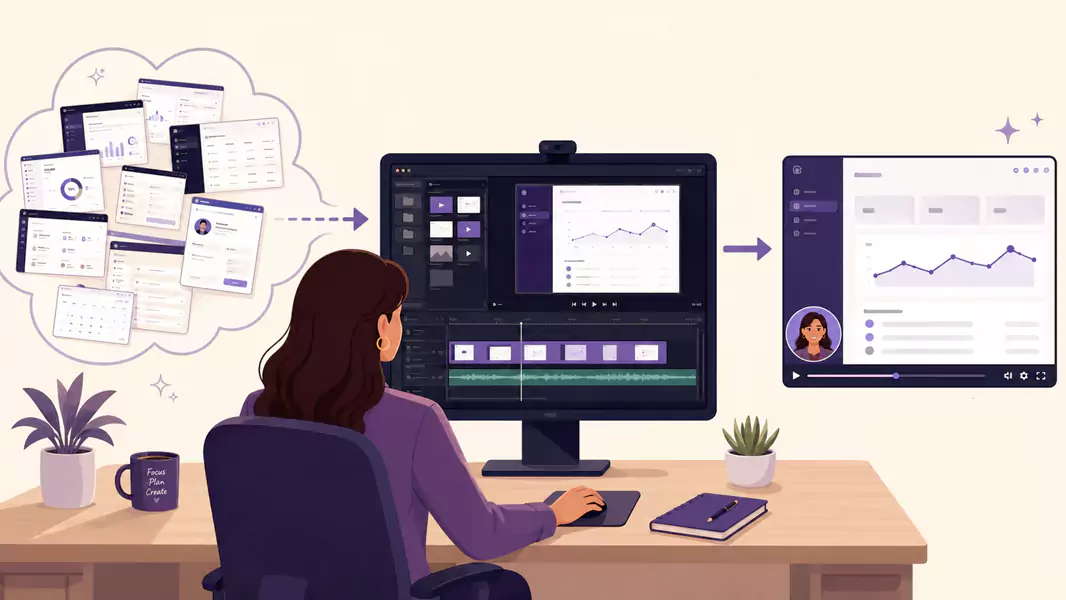
Der größte Fehler ist eine Demo, die zu unpersönlich wirkt.
Vermeiden Sie Folgendes:
Zu viel vom Produkt zu zeigen
Das gesamte Live-Gespräch zu wiederholen
Mit Funktionen statt mit dem Käuferkontext zu starten
Das Video zu lang zu machen
Es ungeschnitten zu versenden
Ein weiterer häufiger Fehler ist ein zu stark vorgegebenes Skript für die Vertonung. Eine personalisierte Produktdemo muss klar und direkt klingen, nicht steif.
Warum sollten Sie Flashback Express für Ihre personalisierten Sales-Demo-Videos nutzen?
Flashback Express ist ideal, wenn Sie schnell eine Vertriebsdemo unter Windows aufnehmen möchten – ganz ohne Wasserzeichen oder Zeitbegrenzung.
Damit erhalten Sie eine praktische Lösung für folgende Aufgaben:
Bildschirmaufnahmen ohne zeitliches Limit erstellen
Kommentare über das Mikrofon aufzeichnen
Die Webcam bei Bedarf flexibel hinzufügen
Das Video vor dem Teilen passgenau zuschneiden
Das macht die Software zur perfekten Besetzung für personalisierte Vorführungen, Follow-up-Demos und andere reibungslose Vertriebsprozesse.
Möchten Sie Ihren gesamten Workflow optimieren? Starten Sie mit unserer Video-Software für Vertrieb und Marketing oder testen Sie direkt den kostenlosen Screen Recorder.
Häufig gestellte Fragen
Wie lange sollte eine personalisierte Sales-Demo sein?
Lang genug, um eine klare Frage zu beantworten, und kurz genug, um die Aufmerksamkeit zu fesseln. In den meisten Fällen gilt: Kürzer ist besser.
Was ist der Unterschied zwischen einer personalisierten und einer Standard-Demo?
Eine Standard-Demo ist breiter gefasst. Eine personalisierte Sales-Demo ist exakt auf einen Käufer, ein Unternehmen oder einen bestimmten Anwendungsfall zugeschnitten.
Sollte ich mein Webcambild in persönlichen Demo-Videos zeigen?
Manchmal schon. Eine Webcam kann das Video persönlicher wirken lassen. Sie sollte jedoch Ihre Botschaft unterstützen und nicht davon ablenken.
Was sollte ich in Follow-up-Demovideos sagen?
Fokussieren Sie sich auf den Anwendungsfall des Käufers, den relevantesten Workflow und den nächsten Schritt. Bleiben Sie konkret.
Kann ich eine personalisierte Produktdemo senden, anstatt ein weiteres Meeting zu vereinbaren?
Ja. In vielen Fällen lassen sich so Fragen schneller beantworten, die Dynamik aufrechterhalten und dem Käufer direkt Materialien an die Hand geben, die er intern teilen kann.
