

So vertonen Sie Ihr Pitch Deck Video überzeugend
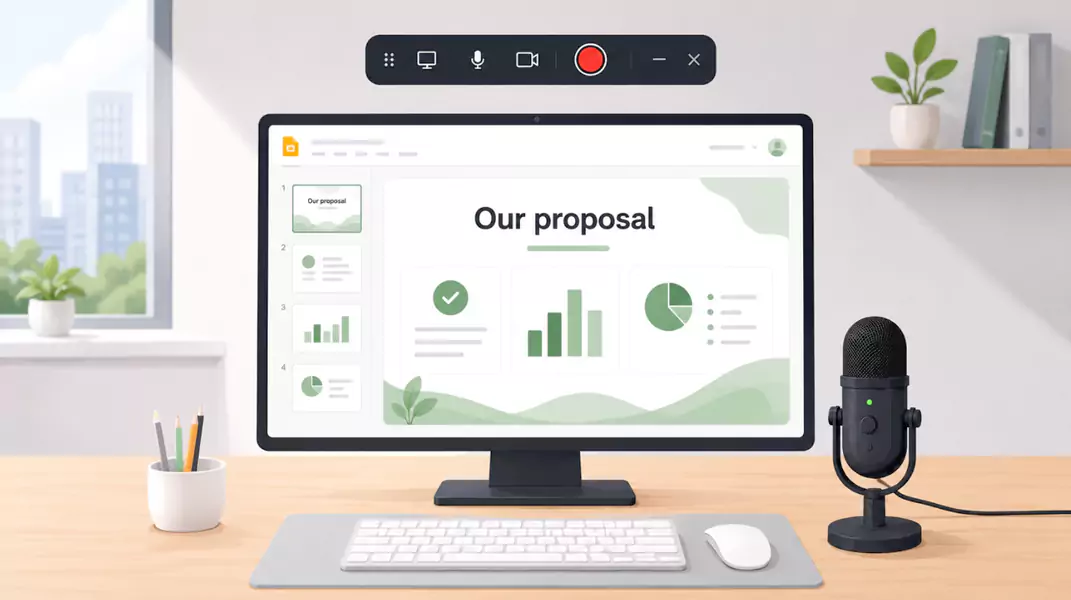
Vertonte Pitch Decks helfen Ihnen, die Geschichte hinter Ihren Folien zu erklären, anstatt sie nur zu zeigen. Wenn Sie Ihren Kommentar auf Windows aufnehmen, können Sie das Tempo natürlich halten und Ihre Zuschauer durch die Präsentation führen. So verstehen Interessenten, Stakeholder und Teammitglieder Ihre Botschaft weitaus besser.
Dieser Workflow ist ein echter Game-Changer für Teams, die Video-Software für Vertrieb und Marketing nutzen, um Ideen schneller umzusetzen. Anstatt eine statische Datei zu senden und die Daumen zu drücken, führen Sie Ihr Publikum mit Ihrer eigenen Stimme durch das Deck. Der beste Weg, um sicherzustellen, dass jedes wichtige Detail genau so ankommt, wie Sie es beabsichtigt haben.
Erfahren Sie im Folgenden:
Was ist ein vertontes pitch deck Video
Warum es besser funktioniert als statische Folien allein
Fünf Schritte zur Aufnahme unter Windows
Was ein deck Video effektiver macht
Profi-Tipps, um Ihre Präsentation klarer und überzeugender zu gestalten
Was ist ein vertontes Pitch-Deck-Video?
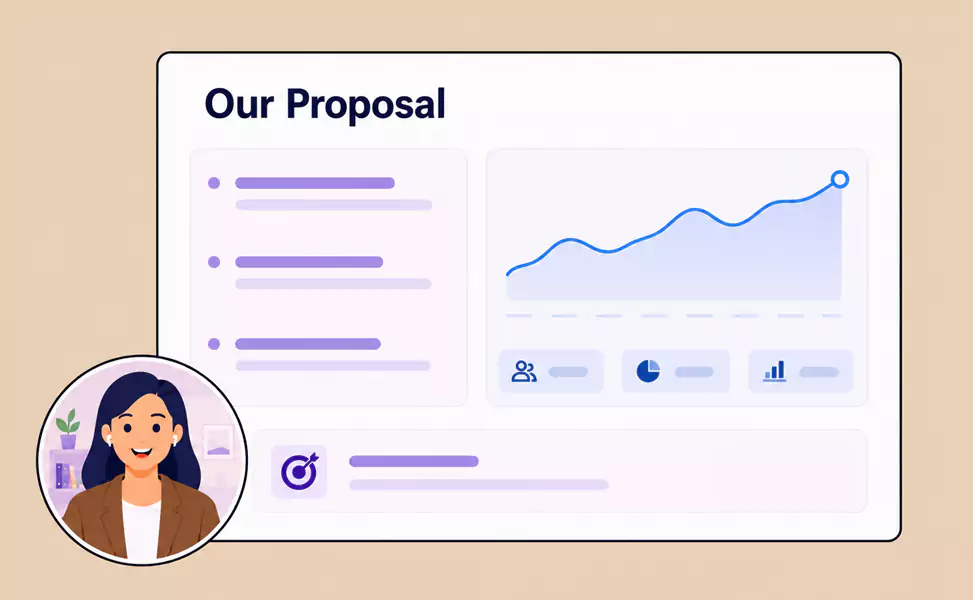
Ein vertontes Pitch-Deck-Video ist der beste Begleiter für Ihre Präsentation. In dieser aufgezeichneten Präsentation legen Sie eine gesprochene Erklärung über Ihre Folien. So führen Sie Ihr Publikum verständlich durch das „Warum“ hinter den Daten. Folgendes können Sie aufnehmen:
Nur Folien und Stimme: Halten Sie den Fokus auf den visuellen Inhalten, während Sie Ihre Geschichte erzählen.
Folien, Stimme und Webcam: Verleihen Sie Ihrem Pitch eine persönliche Note, indem Sie Ihr Gesicht zeigen, während Sie präsentieren.
Eine kurze asynchrone Tour: Perfekt für ein schnelles Follow-up oder ein unverbindliches Review, das sich Teammitglieder jederzeit ansehen können.
Eine Foliendatei zeigt Überschriften, Diagramme und Strukturen. Eine vertonte Führung erklärt dem Zuschauer, worauf es wirklich ankommt, warum es wichtig ist und wie die einzelnen Punkte zusammenhängen.
Warum Sie eine Pitch-Präsentation vertonen sollten
Eine gesprochene Vertonung verwandelt statische Folien in eine geführte Präsentation. Statt Ihr Publikum mit den Folien allein zu lassen, vermitteln Sie Tonlage, Tempo, Betonung und die Dynamik eines Live-Vortrags. Für vielbeschäftigte Teams bedeutet das: weniger Rückfragen, schnellere asynchrone Abstimmungen und Ideen, die sofort beim ersten Mal überzeugen.
Wie vertonen Sie ein Pitch-Deck-Video unter Windows?
Die Aufnahme Ihres Pitches unter Windows muss keine technische Herausforderung sein. Egal, ob Sie Flashback Express fu00fcr eine kurze Demo oder fu00fcr das perfekt ausgearbeitete, finale Video nutzen u2013 das Ziel bleibt eine dynamische Pru00e4sentation.

Schritt 1: Optimieren Sie Ihre Präsentation vor der Aufnahme
Beginnen Sie damit, Ihre Folien zu vereinfachen. Entfernen Sie alles, was sich wiederholt, zu detailliert ist oder sich auf ein Gespräch bezieht, das der Zuschauer später nicht hören wird. Jede Folie sollte genau eine klare Botschaft vermitteln. So kann Ihr Publikum mühelos folgen, ohne überfordert zu werden. Wenn eine Folie zu viel will, überfordert das den Sprecher. Cleanere Folien machen Ihre Aufnahme verständlicher, ansprechender und glaubwürdiger.
Expertentipp:
Wenn Sie eine Folie nicht in ein oder zwei kurzen Sätzen erklären können, ist sie wahrscheinlich überladen.
Schritt 2: Formulieren Sie prägnante Kernbotschaften statt eines kompletten Skripts
Eine vertonte Präsentation sollte wie eine persönliche Führung klingen, nicht steif. Schreiben Sie kein Skript, das Sie Wort für Wort ablesen. Erstellen Sie stattdessen kurze Stichpunkte für jede Folie. Konzentrieren Sie sich auf die Kernbotschaft, die visuelle Führung des Betrachters, den logischen Übergang zur nächsten Folie sowie gezielte Pausen und Betonungen.
Schritt 3: Richten Sie Ihre Aufnahmeumgebung optimal ein
Sorgen Sie vor der Aufnahme für einen sauberen Bildschirm und klaren Ton. Schließen Sie überflüssige Tabs und Apps, stummschalten Sie Benachrichtigungen, testen Sie Ihr Mikrofon und entscheiden Sie, ob eine Webcam sinnvoll ist. Wenn die Präsenz des Sprechers wichtig ist, wirkt das Video mit Webcam persönlicher. Stehen die Folien im Vordergrund, reicht die Kombination aus Bildschirm und Stimme meist völlig aus.
Eine kurze Testaufnahme lohnt sich immer: So erkennen Sie schlechten Ton, Unordnung auf dem Desktop oder ein unpassendes Tempo sofort und sparen wertvolle Zeit vor dem eigentlichen Take.
Expertentipp:
Nehmen Sie zuerst einen 20-sekündigen Test auf. Das ist der schnellste Weg, um vermeidbare Probleme direkt zu beheben.
Schritt 4: Nehmen Sie die Produktführung auf
Lesen Sie nicht einfach nur die Folien vor – erwecken Sie sie zum Leben. Gehen Sie Ihre Präsentation Folie für Folie durch und konzentrieren Sie sich auf das „Warum“ hinter den Daten. Sehen Sie sich selbst als Reiseführer, der den Zuschauer durch Ihre Logik führt, und nicht als Vorleser eines Skripts.
Halten Sie das Tempo natürlich. Geben Sie Ihrem Publikum einen kurzen Moment, um die visuelle Darstellung aufzunehmen, bevor es weitergeht. Wenn Sie sich einmal verhaspeln, machen Sie einfach eine Pause und setzen Sie den Satz neu an. Ein sauberer neuer Versuch lässt sich immer einfacher schneiden als eine holprige Korrektur.
Schritt 5: Video überprüfen und schneiden
Sehen Sie sich Ihren Walkthrough noch einmal an, bevor Sie ihn absenden. Achten Sie auf Abschnitte, die gehetzt, redundant oder unklar wirken. Schneiden Sie offensichtliche Stolperer heraus und optimieren Sie das Tempo, damit Ihre Stimme perfekt mit den Folien synchronisiert bleibt. Machen Sie sich keine Sorgen um großen Aufwand – ein kleiner Feinschliff reicht meist völlig aus, damit Ihr Video professionell wirkt und bereit für das Team ist.
Nehmen Sie Ihr Pitch-Deck-Video mit Flashback Express auf.
Mit Flashback Express verwandeln Sie statische Folien spielend leicht in überzeugende Präsentationen.
Welche Vorteile bietet die Vertonung eines Pitch Decks?
Eine vertonte Präsentation hält Ihre Ideen auch lange nach dem Meeting lebendig. Statt Ihr Team mit einer statischen Datei allein zu lassen, führen Sie es selbst durch Ihre Argumentation.
Warum vertonen? Es geht um mehr als nur um das gesprochene Wort – es geht darum, dass Ihre Botschaft im Gedächtnis bleibt.
Die Logik verankern: Helfen Sie jedem Einzelnen, das „Warum“ hinter Ihren Folien zu verstehen, damit nichts missverstanden wird.
Konsistenz sichern: Sorgen Sie dafür, dass jeder Zuschauer den gleichen Rahmen, die gleiche Betonung und die gleiche Dynamik erlebt – ganz egal, wann das Video geschaut wird.
Zeitlich flexibel bleiben: Ermöglichen Sie Ihren Teams, Inhalte nach eigenem Zeitplan zu prüfen, ohne auf die persönliche Note eines Live-Präsentators zu verzichten.
Wiederverwendbare Assets schaffen: Erstellen Sie ein leistungsstarkes Tool für Follow-ups, Outreach oder interne Abstimmungen, das eine weitaus größere Wirkung erzielt als ein statisches PDF.
Nur Folien und Stimme: Halten Sie den Fokus auf den visuellen Inhalten, während Sie Ihre Geschichte erzählen.
Folien, Stimme und Webcam: Verleihen Sie Ihrem Pitch eine persönliche Note, indem Sie Ihr Gesicht zeigen, während Sie präsentieren.
Eine kurze asynchrone Tour: Perfekt für ein schnelles Follow-up oder ein unverbindliches Review, das sich Teammitglieder jederzeit ansehen können.
Eine kurze asynchrone Tour: Perfekt für ein schnelles Follow-up oder ein unverbindliches Review, das sich Teammitglieder jederzeit ansehen können.
Mit welchen Profi-Tipps lässt sich ein vertontes Pitch-Deck-Video optimieren?
Nur Folien und Stimme: Halten Sie den Fokus auf den visuellen Inhalten, während Sie Ihre Geschichte erzählen.
Folien, Stimme und Webcam: Verleihen Sie Ihrem Pitch eine persönliche Note, indem Sie Ihr Gesicht zeigen, während Sie präsentieren.
Eine kurze asynchrone Tour: Perfekt für ein schnelles Follow-up oder ein unverbindliches Review, das sich Teammitglieder jederzeit ansehen können.
Welche typischen Fehler sollten Sie unbedingt vermeiden?
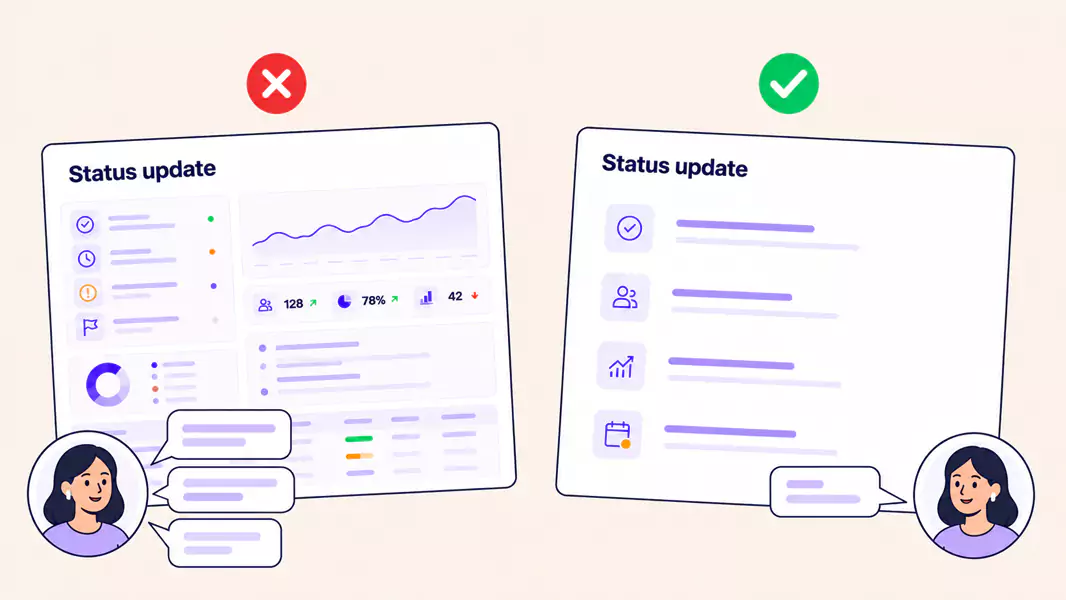
Der schnellste Weg, Ihr Publikum zu verlieren, ist das wortwörtliche Vorlesen Ihrer Folien. Das wirkt redundant und entzieht dem Raum sofort jegliche Energie. Eine weitere Falle? Überladene Folien. Wenn Ihre Zuschauer gleichzeitig lesen und zuhören müssen, tun sie am Ende wahrscheinlich beides nicht.
Überstürzen Sie den Vortrag nicht. Was für Sie „effizient“ wirkt, kann auf jemanden, der Ihre Ideen zum ersten Mal sieht, abrupt und überstürzt wirken.
Eine hervorragend vertonte Präsentation sollte nicht einfach nur statisch sein – sie muss leben. Nutzen Sie Ihre Stimme, um logisch durch die Inhalte zu führen, komplexe Punkte zu verdeutlichen und die Dynamik der Präsentation aufrechtzuerhalten.
Sind Sie bereit, Ihre erste Folie aufzunehmen?
Nutzen Sie Flashback Express, um Ihre Ideen jetzt in ein überzeugendes Video zu verwandeln.
Häufig gestellte Fragen
Wie vertonen Sie Folien, ohne abgelesen zu klingen?
Nutzen Sie Stichpunkte anstelle eines vollständigen Skripts. Konzentrieren Sie sich auf die Kernaussage jeder Folie, nicht auf jedes einzelne Wort. Das verleiht Ihrem Vortrag mehr Flexibilität und lässt Sie deutlich natürlicher wirken.
Was zeichnet ein überzeugenderes Pitch-Deck-Video aus?
Ein überzeugendes Pitch-Deck-Video basiert auf einer klaren Story, einfachen Folien, natürlichem Tempo, starker Narration und einem eindeutigen nächsten Schritt. Das Ziel ist nicht, mehr zu sagen. Es geht darum, die Botschaft leichter verständlich zu machen.
Sollten Sie Ihr Gesicht in einem Pitch-Deck-Video zeigen?
Manchmal schon. Eine Webcam kann helfen, wenn es auf Vertrauen, Persönlichkeit oder die Präsenz des Referenten ankommt. Wenn die Folien die Hauptbotschaft tragen, reichen Bildschirm und Stimme völlig aus.
Wie lang sollte ein vertontes Pitch-Deck-Video sein?
Lang genug, um das Thema klar zu erklären, aber so kurz wie möglich. In den meisten Fällen schlägt Kürze die Vollständigkeit. Wenn Ihre Präsentation lang ist, teilen Sie sie einfach in kleinere Abschnitte auf.
