

Envoyez vos réponses d'assistance en vidéo
Répondez plus rapidement aux questions d'assistance complexes grâce à de courtes vidéos que vos clients peuvent visionner, rejouer et suivre en toute autonomie.
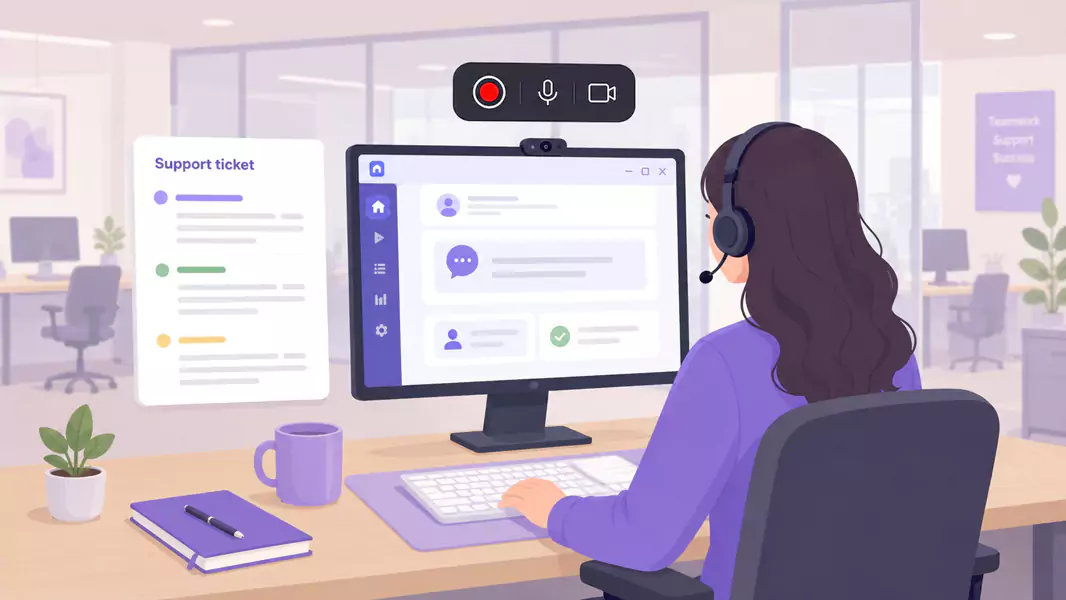
Certains problèmes d'assistance sont plus rapides à montrer qu'à expliquer par écrit. Une courte vidéo peut simplifier une longue discussion en montrant l'écran exact, ce qui permet au client de suivre la résolution sans avoir à deviner le sens de votre message.
C'est là que l'assistance vidéo s'avère la plus efficace. Plutôt que de décrire chaque clic par email, vous guidez le client pas à pas et lui fournissez un support qu'il peut rejouer à volonté. Pour les équipes qui développent un processus global de vidéo d'assistance client, il s'agit de l'un des cas d'usage personnalisés les plus concrets.
Sur Windows, le processus est simple. Ouvrez l'écran concerné, enregistrez la résolution avec des explications claires, coupez les passages inutiles et envoyez le tout accompagné d'un court message. Flashback Express s'intègre parfaitement dans cette démarche en tant qu'enregistreur d'écran gratuit doté d'une configuration rapide, sans limite de temps et sans filigrane sur vos vidéos.
Qu'est-ce qu'une réponse d'assistance vidéo ?
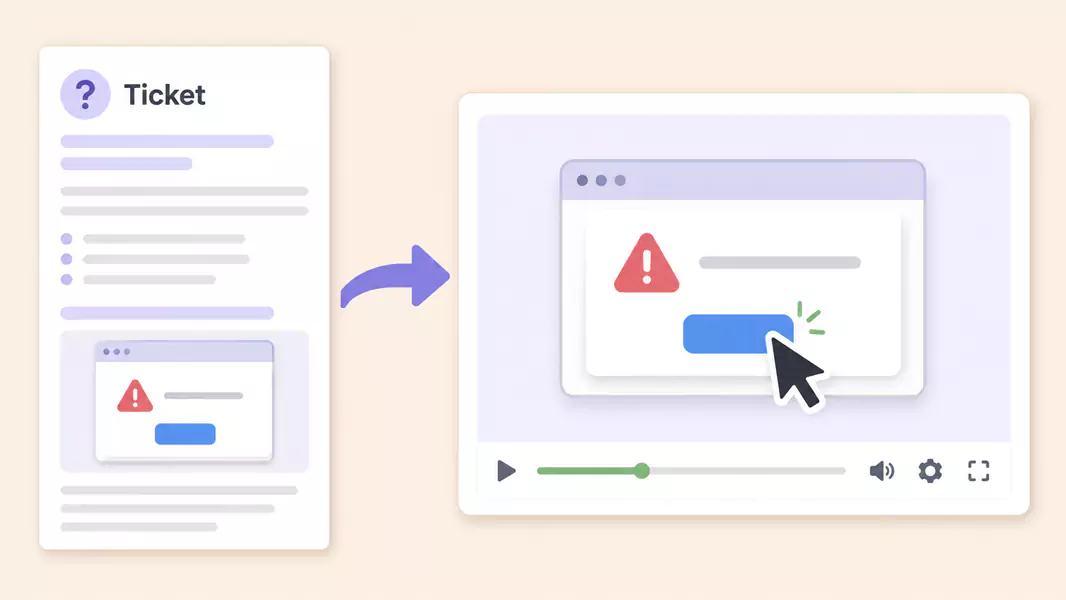
Les réponses d'assistance vidéo sont des explications personnalisées, enregistrées sur écran, pour aider un client à comprendre une correction, un flux de travail ou l'étape suivante.
Une bonne vidéo de support se veut pragmatique. Elle montre l'écran concerné, explique l'action précise et offre au client une solution bien plus claire qu'un long e-mail.
Contrairement aux vidéos du centre d'aide qui sont réutilisables, ces réponses vidéo s'adressent généralement à une question client unique ou à un ticket d'assistance spécifique.
Quand la vidéo est-elle plus efficace qu'un e-mail d'assistance ?
Utilisez la vidu00e9o lorsque le problu00e8me est plus facile u00e0 montrer qu'u00e0 expliquer.
Cette solution est idu00e9ale lorsque vous devez :
indiquer ou00f9 se trouve un paramu00e8tre
expliquer une ru00e9solution en plusieurs u00e9tapes
guider l'utilisateur u00e0 travers un flux de travail complexe
confirmer ce que le client doit voir u00e0 l'u00e9cran
ru00e9duire les nombreux u00e9changes sur un problu00e8me visuel
La vidu00e9o s'avu00e8re particuliu00e8rement utile lorsque le timing, le mouvement du curseur ou l'u00e9tat de l'u00e9cran sont du00e9terminants. Si la ru00e9ponse consiste u00e0 dire u00ab cliquez ici, puis cherchez ceci u00bb, une vidu00e9o d'assistance sera toujours plus claire qu'un e-mail.
Comment envoyer une réponse d'assistance vidéo ?
Pour envoyer une réponse d'assistance vidéo, ouvrez l'écran exact dont le client a besoin. Enregistrez ensuite une courte explication avec une narration claire, supprimez les temps morts et envoyez la vidéo accompagnée d'une brève note écrite. Les meilleures réponses vidéo sont courtes, ciblées et faciles à suivre.
Étape 1 : Commencez par la question réelle du client
Avant d'enregistrer, ciblez précisément le problème.
Ne présentez pas l'intégralité du produit. Répondez uniquement à la question posée dans le ticket.
Posez-vous ces questions :
Que cherche à accomplir le client ?
À quelle étape bloque-t-il ?
Quel écran doit-il visualiser ?
Quel résultat doit être atteint à la fin de la vidéo ?
Cette méthode garantit une réponse ciblée et efficace.
Étape 2 : Recréez le problème ou le parcours de résolution
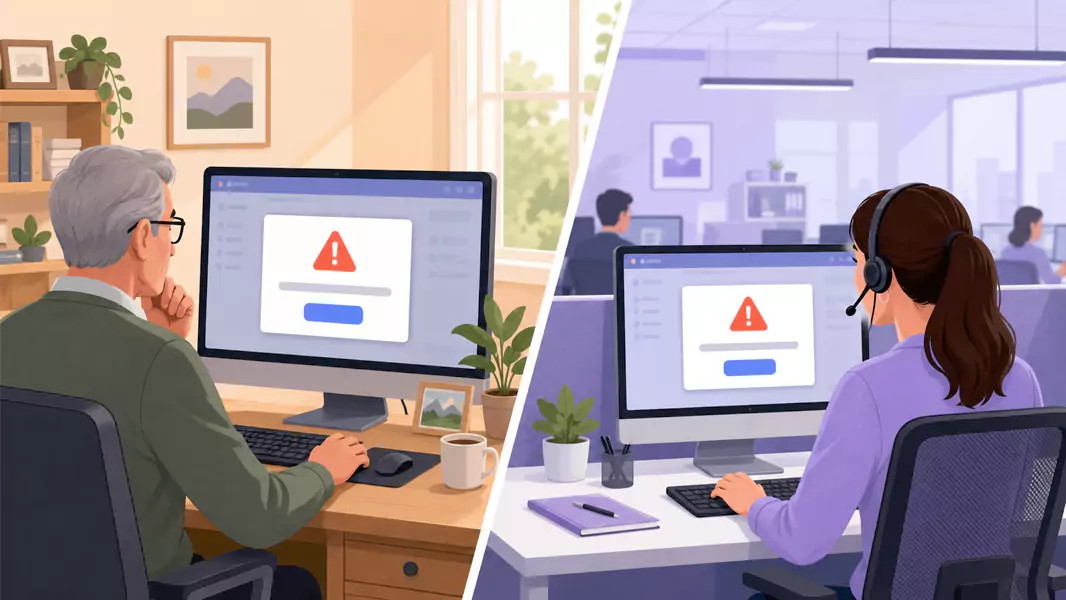
Ouvrez le produit à l'endroit exact dont le client a besoin.
Si possible, recréez l'état exact dans lequel il se trouve. Sinon, présentez la version propre la plus proche et expliquez la différence.
C'est ce qui rend une vidéo de support bien plus efficace qu'une réponse générique. Le client peut suivre le même parcours directement sur son propre écran.
Si le problème s'avère être un défaut du produit, cet enregistrement facilitera également la création de vidéos de reproduction de bugs pour votre équipe interne.
Étape 3 : Préparez la configuration d'enregistrement Windows
Nettoyez votre écran avant de lancer l'enregistrement.
Fermez les onglets inutiles, coupez les notifications et masquez les données personnelles ou de compte que vous n'avez pas besoin de montrer.
Utilisez un espace de travail d'assistance épuré + moins de distractions visuelles pour que le client puisse suivre la réponse facilement.
Optez pour une taille d'interface lisible + des détails de produit plus clairs afin que les boutons, champs et menus restent bien visibles.
Présentez le bon état du produit + moins de questions de suivi pour que le client voie exactement le moment clé.
Étape 4 : Enregistrez votre réponse à la manière d'un collègue prêt à aider
Commencez par une phrase courte qui cadre la réponse.
Par exemple :
« Voici le moyen le plus rapide de mettre à jour ce paramètre et de confirmer qu'il a bien été enregistré. »
Guidez ensuite l'utilisateur, étape par étape, vers la solution.
Expliquez :
l'écran sur lequel il se trouve
l'action qu'il doit effectuer
ce qui va s'afficher ensuite
comment confirmer que l'étape a réussi
C'est ainsi que l'assistance client vidéo se révèle véritablement utile et non précipitée.
Étape 5 : Soyez concis
Une vidéo de support client doit résoudre efficacement un seul problème à la fois.
Si la question se divise en plusieurs procédures différentes, divisez-la ou transformez la partie réutilisable en vidéos pour votre centre d'aide.
Plus les réponses sont courtes, plus elles sont faciles à regarder, simples à envoyer et aisées à suivre étape par étape pour le client.
Étape 6 : Révisez et ajustez l'enregistrement rapidement
Visionnez votre vidéo avant de l'envoyer.
Prêtez attention aux éléments suivants :
les temps morts
les explications redondantes
les démarrages hésitants
les onglets superflus à l'écran
les passages où le curseur se déplace trop rapidement
Supprimez tout ce qui ralentit la réponse. Si vous montez l'enregistrement, ne laissez pas entendre que les exports modifiés sont exempts de filigrane.
Utilisez Flashback Express pour transformer un ticket confus en une réponse vidéo claire, que votre client pourra consulter à tout moment.
Que doit contenir une vidéo de réponse d'assistance ?
Une réponse vidéo d'assistance efficace comprend généralement :
un bref rappel du problème
l'écran précis dont le client a besoin
la résolution ou le workflow dans l'ordre
le résultat attendu
la prochaine étape si le problème persiste
Pourquoi les réponses de support en vidéo sont-elles si efficaces ?
Les réponses d'assistance en vidéo sont d'une efficacité redoutable, car elles associent contexte visuel et explications orales.
C'est la solution idéale lorsque votre client doit :
trouver le bon paramètre
suivre une résolution comportant plusieurs étapes
visualiser le résultat d'une étape finalisée
recommencer la manipulation sans avoir à rappeler
résoudre son problème plus rapidement, en limitant les échanges
C'est pourquoi elles s'intègrent si naturellement dans des processus plus larges de support client en vidéo.
Quelles sont les erreurs courantes à éviter ?
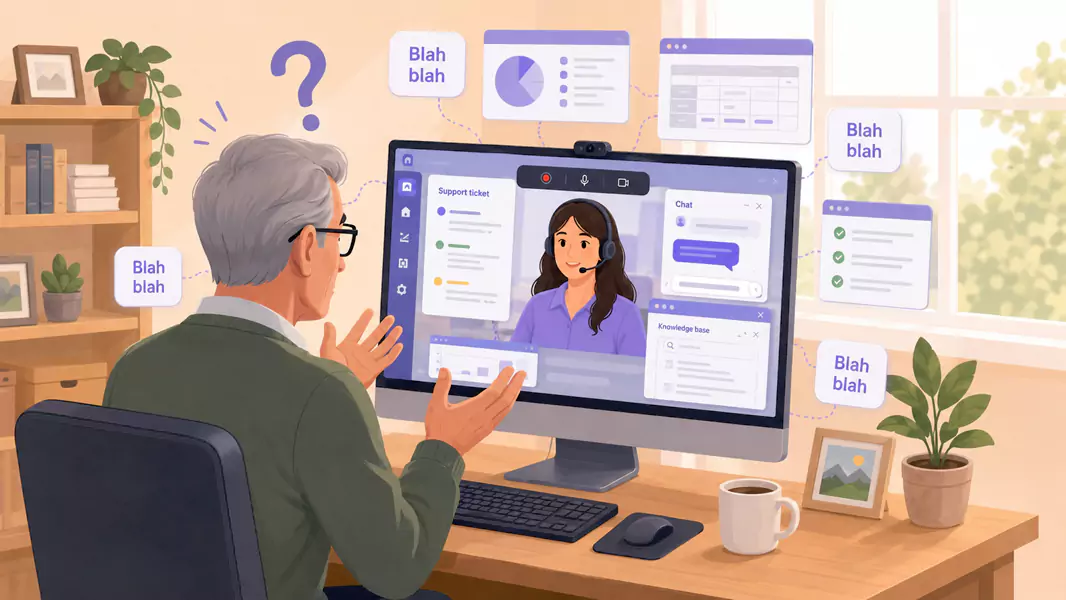
Évitez ces erreurs courantes :
répondre à trop de questions dans une seule vidéo
enregistrer alors que des données sensibles sont visibles
parler trop longtemps avant de partager l'écran
présenter la solution trop rapidement
envoyer la vidéo sans un court résumé écrit
Pourquoi choisir Flashback Express pour vos réponses vidéo de support client ?
Flashback Express est particulièrement adapté pour les réponses d'assistance vidéo sur Windows. Il vous permet d'enregistrer rapidement, de conserver un enregistrement sans filigrane et de montrer la solution sans configuration fastidieuse.
Les équipes d'assistance peuvent ainsi envoyer plus facilement des réponses claires et individuelles, limitant ainsi les interminables échanges d'e-mails. Cet outil complète parfaitement les vidéos de votre centre d'aide pour des réponses réutilisables, ainsi que les vidéos de reproduction de bugs lorsque l'assistance doit faire remonter un problème en interne.
Questions Fréquemment Posées
Comment envoyer une réponse d'assistance vidéo ?
Ouvrez précisément l'écran dont votre client a besoin. Enregistrez une courte explication de la résolution, ajustez les détails de la vidéo et envoyez-la avec un mot rapide directement dans le ticket.
Quand la vidéo est-elle plus efficace qu'un e-mail d'assistance ?
La vidéo s'impose lorsque le problème est visuel, comporte plusieurs étapes ou s'avère plus simple à montrer qu'à expliquer par écrit.
Que doit contenir une vidéo de réponse d'assistance ?
Une vidéo de support client efficace doit présenter le problème, l'écran concerné, les étapes de résolution et le résultat attendu.
Quelle doit être la durée d'une vidéo d'assistance client ?
Assez long pour résoudre un problème de manière claire, mais assez court pour être visionné sans effort. Dans la plupart des cas, la concision est votre meilleur atout.
Les équipes d'assistance ont-elles intérêt à réutiliser leurs vidéos de réponse ?
Absolument, dès lors que le problème devient récurrent. C'est précisément le moment de transformer des réponses individuelles en contenus d'aide structurés.
Utilisez Flashback Express (enregistrement gratuit et illimité) pour transformer un ticket d'assistance complexe en une réponse vidéo claire, que votre client pourra visionner dès qu'il en aura besoin.
