

Créez vos vidéos de centre d'aide
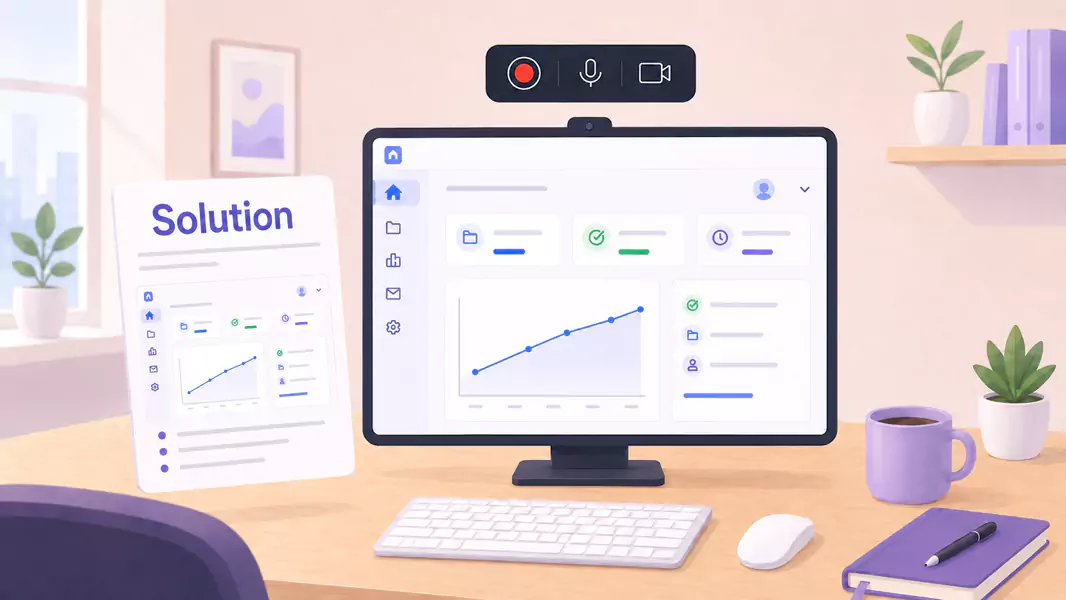
Certaines questions d'assistance ne doivent pas rester bloquées dans des tickets. Si vos clients demandent constamment comment trouver un paramètre, réaliser un workflow ou corriger la même erreur, il est bien plus judicieux de créer une seule vidéo d'aide percutante et de la réutiliser.
C'est là que les vidéos de support client révèlent toute leur valeur. Elles transforment une réponse individuelle en une ressource accessible à l'ensemble de vos utilisateurs. Au lieu de réécrire inlassablement les mêmes étapes, vous offrez à vos clients une vidéo claire qu'ils peuvent visionner, mettre en pause et suivre à leur propre rythme.
Sur Windows, le processus est simple. Choisissez une question récurrente, tracez le chemin le plus direct vers la solution, enregistrez votre écran et peaufinez le résultat avant publication. Flashback Express s'impose ici comme le choix idéal : c'est un enregistreur d'écran gratuit, rapide à installer, sans limite de temps et sans filigrane sur vos vidéos.
Qu'est-ce qu'une vidéo pour centre d'aide ?
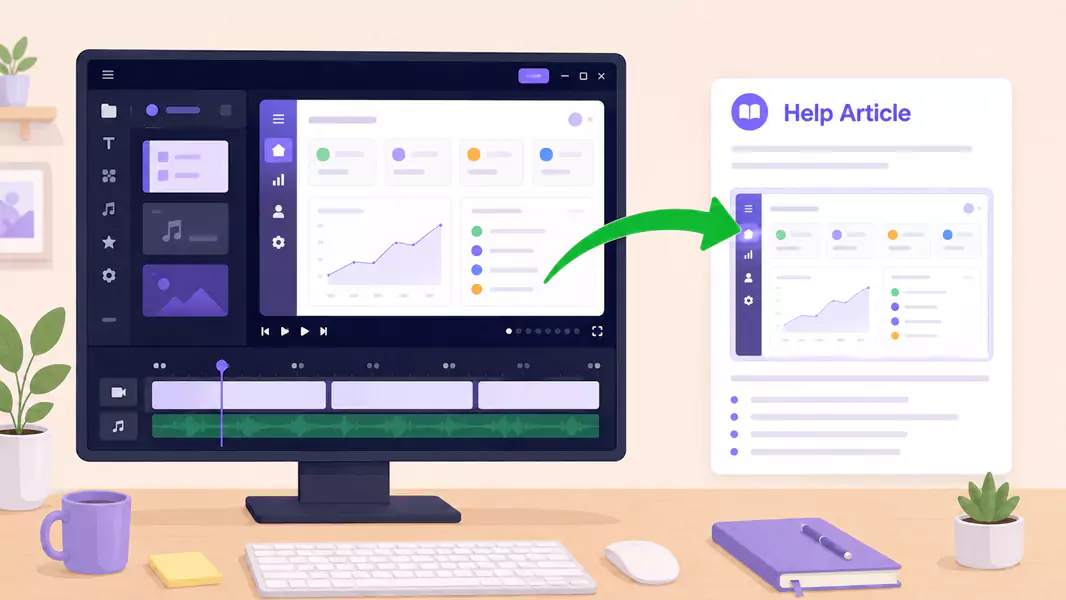
Les vidéos de centre d'assistance sont des contenus réutilisables, intégrés directement dans vos articles d'aide, vos bases de connaissances ou vos espaces de formation client.
Une vidéo de présentation produit efficace se veut avant tout pratique. Elle filme l'écran, détaille chaque étape et permet au client de résoudre un problème ou de maîtriser un processus en toute autonomie, sans avoir à ouvrir de ticket.
Contrairement aux réponses vidéo ponctuelles, les enregistrements d'écran pour centre d'aide sont conçus pour être consultés à volonté. Ils doivent résoudre un problème récurrent de manière suffisamment claire pour que de nombreux utilisateurs puissent en bénéficier de façon autonome.
Quand devez-vous créer des vidéos pour votre centre d'aide ?
Créez des vidéos pour votre centre d'aide lorsqu'une question d'assistance revient souvent et qu'il est plus simple de montrer la réponse que de l'expliquer par écrit.
Cette approche est idéale lorsque vous devez :
expliquer comment utiliser une fonctionnalité
indiquer où se trouve un paramètre
guider les clients à travers un processus récurrent
réduire le volume de tickets répétitifs sur un même sujet
transformer une réponse d'assistance courante en contenu réutilisable
Si le problème reste spécifique à un seul client, privilégiez d'abord les réponses vidéo personnalisées. Si la question devient récurrente, intégrez la vidéo directement dans votre centre d'aide.
Comment concevoir des vidéos de centre d'aide performantes ?
Pour envoyer une réponse d'assistance vidéo, ouvrez l'écran exact dont le client a besoin. Enregistrez ensuite une courte explication avec une narration claire, supprimez les temps morts et envoyez la vidéo accompagnée d'une brève note écrite. Les meilleures réponses vidéo sont courtes, ciblées et faciles à suivre.
Étape 1 : Commencez par la question réelle du client
Avant d'enregistrer, ciblez précisément votre sujet.
Ne cherchez pas à traiter l'ensemble du produit dans une seule vidéo. Concentrez-vous sur un seul problème client, une fonctionnalité ou une tâche d'assistance.
Posez-vous ces questions :
Quelle question revient constamment ?
De quel écran précis le client a-t-il besoin ?
Que doit-il être capable de faire après avoir visionné la vidéo ?
Quelle étape pose généralement problème ?
Votre vidéo aura ainsi un objectif clair et percutant.
Étape 2 : Recréez le problème ou le parcours de résolution
Choisissez le chemin le plus court entre la confusion et la résolution.
Un bon tutoriel vidéo d'assistance doit aller droit au but. Présentez uniquement les écrans et les actions nécessaires pour résoudre le problème.
En clair, cela signifie :
commencer par le bon écran
présenter un seul flux de travail, dans l'ordre
ignorer les options secondaires
terminer sur le message de réussite
Plus le parcours est direct, plus la vidéo est facile à réutiliser.
Étape 3 : Préparez la configuration d'enregistrement Windows
Nettoyez votre écran avant de commencer.
Fermez les onglets inutiles, coupez les notifications et masquez les détails de compte privé ou les données de démonstration que vous ne souhaitez pas voir apparaître dans le centre d'aide.
Privilégiez une vue produit épurée avec moins de distractions pour le client afin de faciliter la compréhension du processus.
Optez pour un niveau de zoom et une taille de fenêtre adaptés avec des détails à l'écran bien visibles pour que les boutons, étiquettes et menus restent parfaitement lisibles.
Présentez l'état exact de la fonctionnalité que vous souhaitez enseigner (ce qui réduit les demandes de support ultérieures) pour que vos clients visualisent la bonne version dès le départ.
Étape 4 : Enregistrez votre démonstration avec clarté.
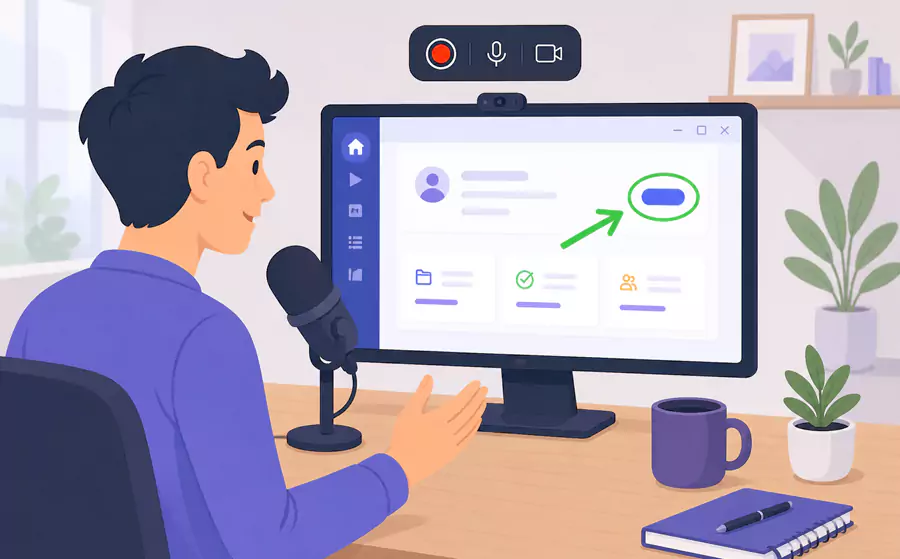
Commencez par nommer la tâche en termes simples.
Par exemple :
« Voici comment mettre à jour ce paramètre et vérifier que la modification a bien été enregistrée. »
Ensuite, détaillez la réponse étape par étape.
Expliquez :
quel écran s'affiche pour le client
quelle action effectuer
ce qu'il doit observer
comment confirmer que l'étape a réussi
C'est ainsi que les vidéos d'aide produit deviennent fluides et percutantes, et non purement mécaniques.
Étape 5 : Privilégiez un format vidéo vertical
Une vidéo de centre d'aide doit résoudre un problème précis avec efficacité.
Si vous tentez de répondre à trois questions connexes dans un seul enregistrement, vos clients auront du mal à trouver l'information recherchée. Mieux vaut privilégier plusieurs courtes captures vidéo de votre écran plutôt qu'un tutoriel unique et trop lourd.
Étape 6 : Révisez et découpez pour réutilisation
Visionnez votre vidéo avant de la publier.
Faites attention aux éléments suivants :
les silences prolongés
les explications redondantes
les fenêtres ou onglets superflus
les mouvements brusques du curseur
les passages qui méritent plus de clarté
Supprimez tout ce qui nuit au rythme. Si vous modifiez l'enregistrement, n'insinuez pas que les exports édités sont exempts de filigrane. Pour un rendu professionnel impeccable, un logiciel de montage vidéo vous permettra de peaufiner la version finale.
Utilisez Flashback Express pour enregistrer des vidéos d'aide claires. Vos clients pourront ainsi résoudre leurs problèmes en toute autonomie, sans ouvrir de nouveau ticket.
Que doit contenir une vidéo de présentation de fonctionnalité efficace ?
Une vidéo de démonstration efficace comprend généralement :
la question ou le problème résolu
l'écran exact dont le client a besoin
les étapes clés à suivre dans l'ordre
le résultat attendu
la démarche à suivre pour obtenir une aide supplémentaire
Cette structure garantit l'utilité de la vidéo au sein de votre centre d'aide, bien au-delà d'un simple ticket de support.
Pourquoi les vidéos de centre d'aide sont-elles si efficaces ?
Les vidéos de centre d'aide sont particulièrement efficaces, car elles associent contexte visuel et assistance reproductible.
Ce format permet à vos clients de :
résoudre leurs problèmes sans attendre de réponse
trouver le bon paramètre plus rapidement
suivre un processus étape par étape
vérifier qu'ils se trouvent au bon endroit
réessayer la procédure à leur propre rythme
C'est pourquoi elles s'intègrent naturellement dans une stratégie globale de vidéo de support client.
Quelles sont les erreurs courantes à éviter ?

Évitez ces erreurs courantes :
traiter trop de questions dans une seule vidéo
enregistrer en laissant apparaître des données privées ou désordonnées
parler trop longtemps avant de présenter la fonctionnalité
passer trop rapidement sur l'étape clé
publier la vidéo sans l'accompagner d'un court résumé écrit
Pourquoi choisir Flashback Express pour les vidéos de votre centre d'aide ?
Flashback Express est une solution pratique pour les vidéos de centre d'aide sur Windows. Il vous permet d'enregistrer rapidement, de conserver des enregistrements sans filigrane et de capturer des flux de travail complets en toute simplicité.
Ainsi, les équipes de support transforment plus facilement les réponses récurrentes en contenus réutilisables. Cet outil s'intègre également à merveille aux réponses vidéo personnalisées et aux démonstrations de bugs, facilitant ainsi la remontée interne des incidents produit.
Questions Fréquemment Posées
Comment créer des vidéos d'aide efficaces pour votre centre de support ?
Sélectionnez une question récurrente de vos clients. Enregistrez le processus précis à l'écran avec une narration claire. Éliminez les imperfections, puis publiez la vidéo accompagnée d'un court résumé écrit.
Que doit contenir une vidéo de présentation de fonctionnalité efficace ?
Une vidéo d'aide sur une fonctionnalité doit présenter la tâche à accomplir, l'écran approprié, les étapes à suivre dans l'ordre, ainsi que le résultat final attendu pour le client.
Comment créer des vidéos de support réutilisables ?
Gardez chaque vidéo centrée sur un seul sujet, utilisez un écran épuré, expliquez clairement les étapes et stockez la vidéo là où vos clients peuvent la trouver facilement.
Quelle est la durée idéale pour les vidéos d'un centre d'aide ?
Assez long pour résoudre un problème de manière claire, mais assez court pour être visionné sans effort. Dans la plupart des cas, la concision est votre meilleur atout.
Les vidéos d'aide doivent-elles remplacer les articles écrits ?
Pas toujours. Ils sont généralement plus efficaces lorsqu'ils sont associés à de brèves instructions écrites, permettant ainsi à vos clients de choisir leur mode d'apprentissage préféré.
Utilisez Flashback Express (enregistrement gratuit et illimité) pour transformer les questions récurrentes en vidéos d'aide claires. Vos clients résoudront ainsi leurs problèmes en autonomie, sans ouvrir de nouveau ticket.
