

Enregistrez des leçons vidéo pour vos élèves
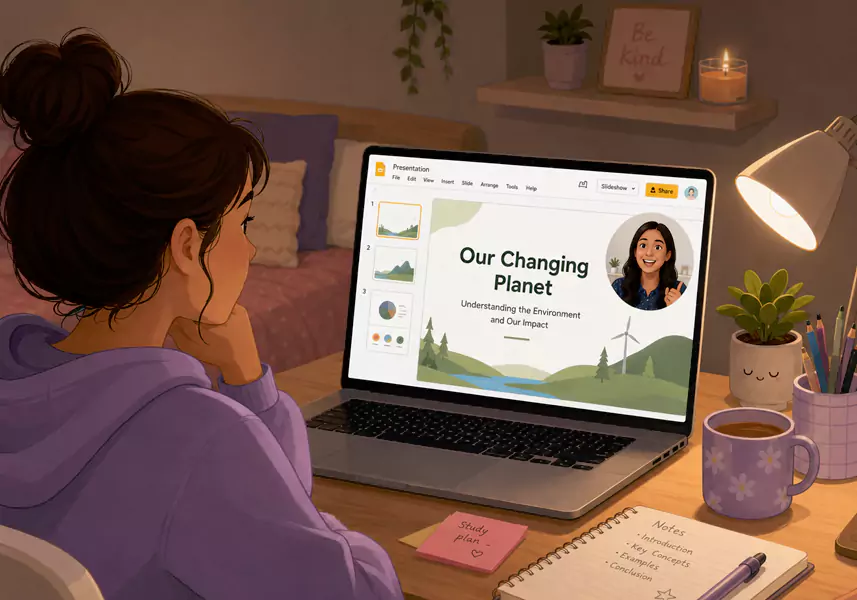
Enregistrer votre écran est le moyen le plus rapide de vous démultiplier en tant qu'enseignant. Que vous souhaitiez créer une bibliothèque complète de vidéos de classe inversée pour le semestre à venir ou simplement envoyer un récapitulatif de cours en vidéo aux élèves absents, inutile de passer votre week-end à maîtriser un logiciel de montage complexe.
Avec la bonne configuration, vous pouvez enregistrer vos cours directement depuis votre bureau. L'objectif est de capturer votre écran, votre voix et votre expertise, puis de transmettre directement ce fichier à vos élèves pour qu'ils apprennent à leur rythme. Ce guide vous explique exactement comment procéder, sans aucun casse-tête technique.
Pourquoi se constituer une bibliothèque de cours enregistrés ?
Les enseignants ont besoin d'une technologie qui sait se faire oublier. En enregistrant vos cours, vous évitez de devoir répéter les mêmes concepts fondamentaux heure après heure, année après année. À la place, vous créez une vidéo de révision permanente que vos élèves peuvent mettre en pause, reculer et visionner à nouveau juste avant un examen important.
Cela transforme radicalement l'utilisation du temps de classe en présentiel. Vous passez moins de temps à parler devant le tableau et plus de temps à circuler dans les rangs pour aider les élèves en difficulté sur leurs exercices. C'est la transition idéale du rôle de conférencier à celui de facilitateur.
Vous souhaitez savoir comment d'autres enseignants organisent leur classe virtuelle ? Découvrez les meilleurs cas d'usage d'un enregistreur d'écran pour l'éducation et adoptez des méthodes qui ont fait leurs preuves auprès des éducateurs d'aujourd'hui.
Comment enregistrer des cours pour vos élèves en 5 étapes
Pour envoyer une réponse d'assistance vidéo, ouvrez l'écran exact dont le client a besoin. Enregistrez ensuite une courte explication avec une narration claire, supprimez les temps morts et envoyez la vidéo accompagnée d'une brève note écrite. Les meilleures réponses vidéo sont courtes, ciblées et faciles à suivre.
Étape 1 : Préparez vos supports de cours
Ouvrez vos présentations Google Slides, vos diapositives PowerPoint, votre tableau blanc interactif ou les onglets web nécessaires à votre cours. Prenez un instant pour fermer votre messagerie et couper vos notifications de chat. Vous éviterez ainsi toute interruption inopportune en plein milieu d'une phrase.
Étape 2 : Définissez votre zone d'enregistrement
Ouvrez Flashback et choisissez ce que vos élèves doivent voir. Vous pouvez capturer la totalité de votre écran ou dessiner une zone personnalisée autour d'une fenêtre spécifique.
Configuration audio : activez l'option "Enregistrer le micro" pour que vos élèves entendent clairement vos explications lorsque vous faites défiler les diapositives.
Configuration vidéo : activez l'option "Incrustation webcam" pour afficher votre visage dans un angle de l'écran. Cela favorise l'engagement des élèves en leur permettant de lire vos expressions.
Étape 3 : Lancez l'enregistrement et commencez à enseigner
Respirez un grand coup et cliquez sur le grand bouton rouge. Parlez naturellement, comme si vous vous adressiez au premier rang de votre classe. Imaginez que vous expliquez ce concept à un seul élève, assis en face de vous. Si vous trébuchez sur un mot ou si vous vous trompez de diapositive, continuez ! Nul besoin de tout recommencer à chaque hésitation.
Étape 4 : Éliminez les imperfections
Une fois la leçon terminée, arrêtez l'enregistrement. Vous pouvez facilement le perfectionner avant de le partager grâce à notre enregistreur d'écran gratuit.
Configuration du montage : Utilisez la fonction de découpe pour supprimer les temps morts au tout début et à la fin du clip. Vos étudiants accéderont ainsi directement au contenu pédagogique [Human Benefit].
Étape 5 : Enregistrez et partagez avec votre classe
Exportez votre fichier au format MP4 standard. Vous pourrez ensuite le publier directement sur Google Classroom, Canvas, Blackboard ou sur toute autre plateforme où vos élèves consultent leurs devoirs quotidiens.
Outils et résolution de problèmes pour les enseignants
Les imprévus techniques arrivent, mais ils ne doivent pas perturber vos cours. Voici quelques solutions rapides pour garantir des enregistrements fluides et d'une qualité irréprochable.
Mes étudiants ne visualisent pas mes clics d'action.
Si vos diapositives sont chargées ou si vous présentez un problème de mathématiques complexe, votre curseur de souris blanc peut rapidement devenir invisible.
La solution : Activez l'option « Mettre le curseur en surbrillance » dans vos paramètres. Un halo jaune vif entourera votre souris, permettant à vos étudiants de suivre vos mouvements en un clin d'œil.
Le son de mon audio donne l'impression que j'enseigne dans une grotte.
Les microphones d'ordinateurs portables captent énormément l'écho de la pièce et le bruit du ventilateur.
La solution : Branchez un casque USB basique ou un microphone autonome avant d'ouvrir Flashback. Accédez à vos paramètres audio et sélectionnez ce microphone spécifique dans la liste déroulante. Effectuez toujours un enregistrement test rapide de 10 secondes avant de vous lancer dans une présentation de 20 minutes afin de vous assurer que le son soit parfaitement clair.
Le fichier vidéo est trop volumineux pour être chargé sur votre plateforme LMS.
Certains réseaux scolaires imposent des limites strictes sur la taille des fichiers, et les élèves disposant d'une connexion internet plus lente peuvent rencontrer des difficultés pour charger de gros fichiers.
La solution : Réduisez d'un cran le curseur "Qualité vidéo" avant l'exportation pour diminuer la taille du fichier final, sans pour autant rendre le texte de vos diapositives illisible.
Mise en lumière : La classe inversée
Si vous manquez constamment de temps pour les activités pratiques, le modèle de classe inversée est votre meilleur allié. Plutôt que de consacrer votre précieux temps de cours à un cours magistral, enregistrez-le chez vous sous forme de vidéo de classe inversée.
Les élèves étudient le contenu principal à la maison. Le lendemain, ils arrivent en classe avec les bases essentielles déjà acquises. Vous pouvez alors consacrer toute la séance aux activités stimulantes : projets de groupe, travaux pratiques ou tutorat individualisé. Ce modèle réorganise la charge de travail et place l'apprentissage actif au cœur de votre accompagnement.
Découvrez d'autres façons d'intégrer la vidéo dans vos salles de classe
Créer une bibliothèque de leçons vidéo n'est que la première étape. Une fois que vous maîtrisez l'enregistrement de votre écran, vous pouvez utiliser la vidéo pour surmonter d'autres défis pédagogiques courants.
Maîtrisez vos présentations : Vous devez expliquer un diaporama spécifique ? Découvrez comment enregistrer Google Slides pour vos cours afin que vos élèves profitent de vos explications audio sur chaque diapositive.
Offrez de meilleurs retours : Vous en avez assez d'écrire les mêmes commentaires dans la marge des devoirs ? Découvrez comment créer des retours vidéo pour vos étudiants afin de gagner du temps tout en leur offrant des conseils personnalisés et bien plus utiles.
Téléchargez Flashback Express et commencez dès aujourd'hui à créer votre bibliothèque de cours numériques.
Questions Fréquemment Posées
Comment enregistrer des cours pour vos élèves ?
Ouvrez Flashback, sélectionnez votre zone d'écran et assurez-vous que votre micro est activé. Lancez l'enregistrement, présentez votre cours, puis sauvegardez le fichier pour le partager avec votre classe.
Qu'est-ce qu'une vidéo de classe inversée ?
Il s'agit d'un cours préenregistré que les élèves visionnent chez eux, permettant ainsi de consacrer le temps en classe à un apprentissage interactif et à un accompagnement individualisé.
Comment créer une leçon que vos élèves pourront visionner à volonté ?
Misez sur la clarté. Créez des vidéos courtes, utilisez un micro de qualité et activez la fonction de surbrillance du curseur dans Flashback pour que vos élèves puissent suivre aisément vos mouvements à l'écran.
