

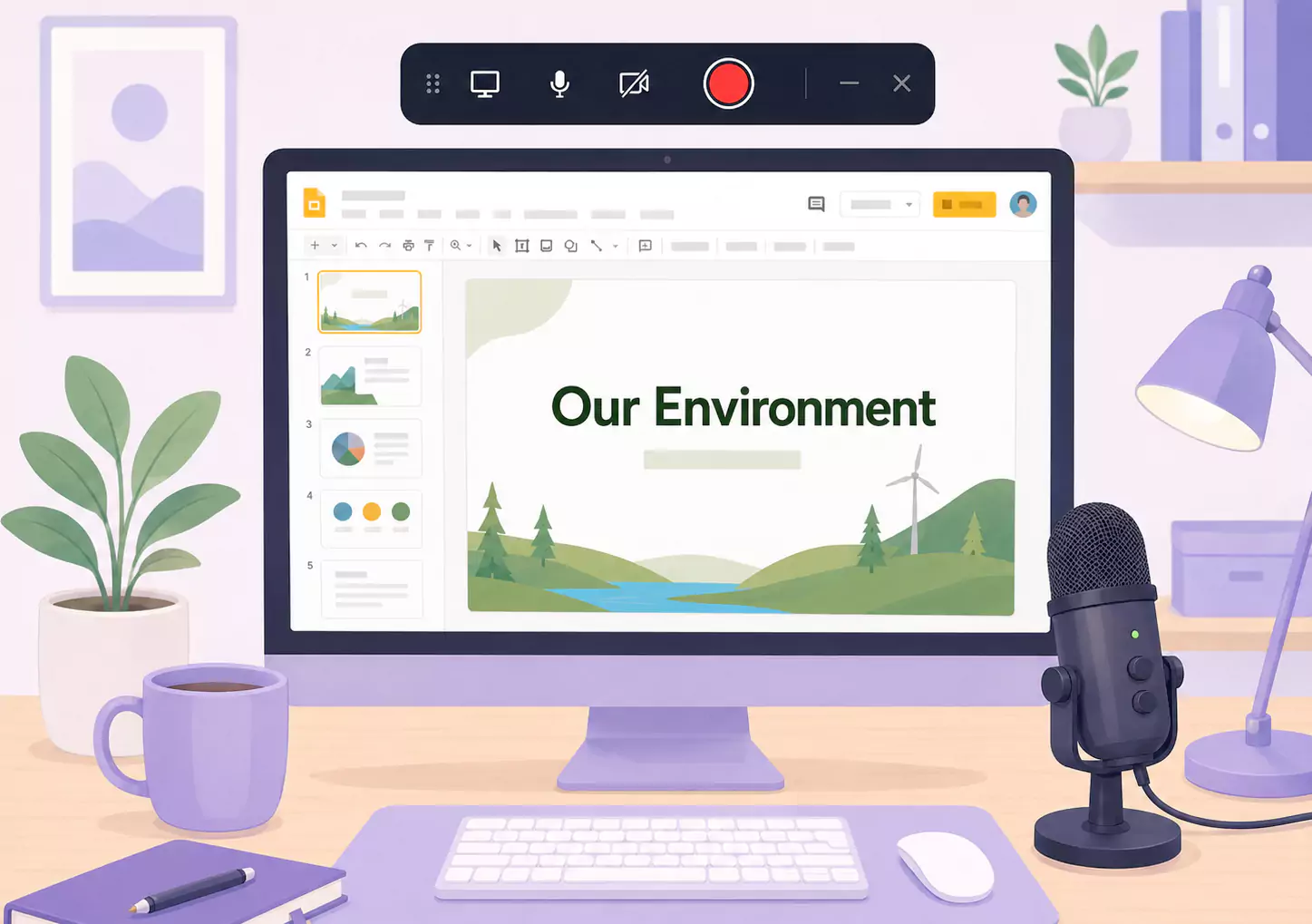
Google Slides est un excellent outil pédagogique car il donne une structure claire à vos leçons. Cependant, il y manque souvent l'explication orale. En enregistrant vos diapositives avec votre voix, vos élèves ne se contentent pas de voir le contenu : ils en comprennent la logique, les points clés et les étapes suivantes.
C'est ce qui rend les leçons sur diapositives si précieuses pour les enseignants utilisant des flux de travail basés sur un enregistreur d'écran pour l'éducation. Vous créez ainsi une explication réutilisable pour la préparation des devoirs, les élèves absents, les révisions ou la classe inversée, sans avoir à répéter la même présentation en direct.
Sur Windows, le processus est d'une grande simplicité. Ouvrez votre présentation, optimisez le déroulement de votre leçon, enregistrez simultanément les diapositives et votre voix, puis ajustez rapidement la vidéo avant de la partager. Flashback Express s'intègre parfaitement à cette méthode : c'est un enregistreur d'écran gratuit, rapide à installer, sans limite de temps et sans aucun filigrane.
Qu'est-ce qu'une vidéo de cours Google Slides ?
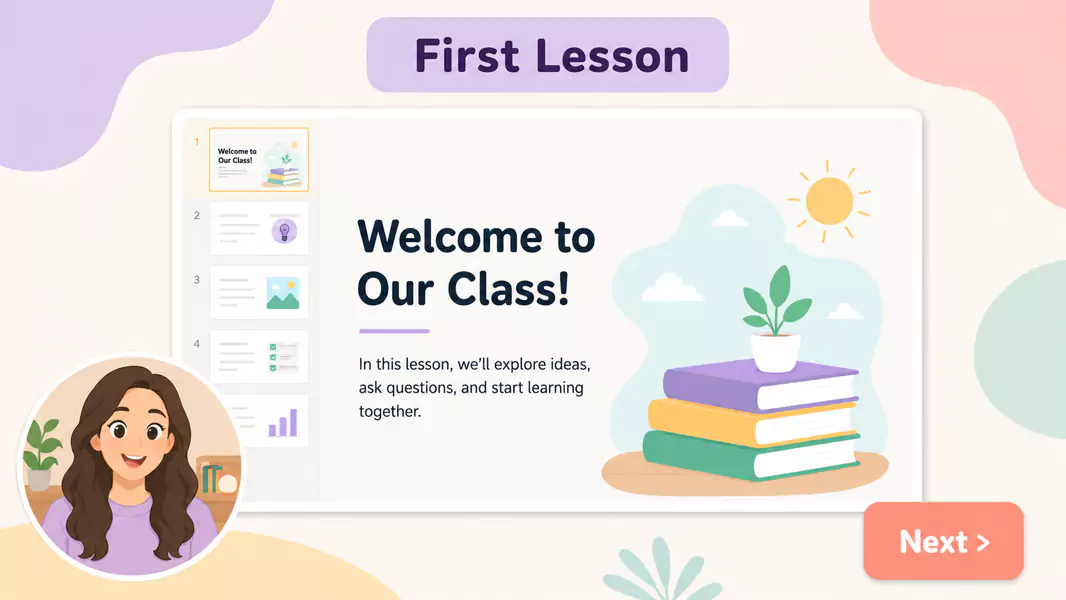
Une vidéo de leçon Google Slides est une version enregistrée de votre présentation, enrichie d'une explication orale superposée aux diapositives.
Une leçon sur diapositives réussie se veut pratique. Elle aide les étudiants à suivre la structure du sujet, à écouter les explications à un rythme adapté et à revenir vers le contenu dès qu'ils en ont besoin.
Contrairement au simple partage d'une présentation sans commentaire, une leçon enregistrée offre aux étudiants du contexte, met en valeur les points clés et trace un parcours d'apprentissage bien plus clair.
Quand devez-vous enregistrer vos présentations Google Slides pour vos cours ?
Enregistrez vos pru00e9sentations Google Slides pour vos cours lorsque votre support est pru00eat et que vos u00e9lu00e8ves bu00e9nu00e9ficieraient d'explications ru00e9pu00e9tu00e9es.
Cette mu00e9thode est idu00e9ale pour :
partager des diapositives commentu00e9es avant le cours
cru00e9er des vidu00e9os pour une classe inversu00e9e
envoyer un ru00e9capitulatif apru00e8s le cours
aider les u00e9lu00e8ves absents u00e0 rattraper leur retard
enregistrer des vidu00e9os de ru00e9vision avant un examen
Si le cours ne s'appuie pas sur des diapositives mais nu00e9cessite une du00e9monstration en direct, privilu00e9giez les cours en vidu00e9o pour les u00e9lu00e8ves.
Comment enregistrer une présentation Google Slides avec une narration ?
Pour enregistrer une présentation Google Slides avec narration, lancez votre leçon en mode présentation, préparez de courtes notes d'accompagnement, capturez simultanément votre écran et votre micro, puis éditez les blancs avant de partager. Les meilleures leçons vidéo sur Google Slides sont fluides, captivantes et faciles à visionner à volonté par vos étudiants.
Étape 1 : Commencez par un objectif de leçon unique
Avant d'enregistrer, déterminez ce que les étudiants doivent apprendre de ce diaporama spécifique.
Ne tentez pas de couvrir toute une unité en un seul enregistrement. Concentrez-vous sur un seul concept, une seule explication ou un objectif de révision précis.
Posez-vous ces questions :
Qu'est-ce que les étudiants doivent comprendre après le visionnage ?
Quelle diapositive est la plus importante ?
Où les étudiants rencontrent-ils habituellement des difficultés ?
Quelle est l'étape suivante pour eux ?
Cette approche garantit la clarté de votre leçon.
Étape 2 : Ajustez les diapositives avant de vous enregistrer
Une présentation efficace en classe n'est pas toujours adaptée à un enregistrement vidéo.
Des diapositives surchargées de texte, des titres vagues ou une accumulation d'idées peuvent alourdir votre vidéo. Épurez-les d'abord.
Concentrez-vous sur :
une seule idée principale par diapositive
des titres de diapositives plus percutants
un volume de texte réduit à l'écran
des transitions plus fluides d'une idée à l'autre
C'est ainsi que vous rendrez vos cours commentés bien plus captivants et faciles à suivre.
Étape 3 : Rédigez des points clés, pas un script rédigé
Rédigez des notes courtes pour chaque diapositive.
Un script complet peut rendre la narration rigide. Des points clés courts fonctionnent généralement mieux, car ils vous permettent de vous exprimer naturellement tout en gardant le fil.
Utilisez une structure simple :
ce que présente cette diapositive
pourquoi c'est important
ce que les étudiants doivent retenir
quelle est l'étape suivante
Cette méthode suffit généralement à enregistrer vos diapositives avec narration, tout en évitant un ton monotone.
Étape 4 : Préparez la configuration d'enregistrement sous Windows
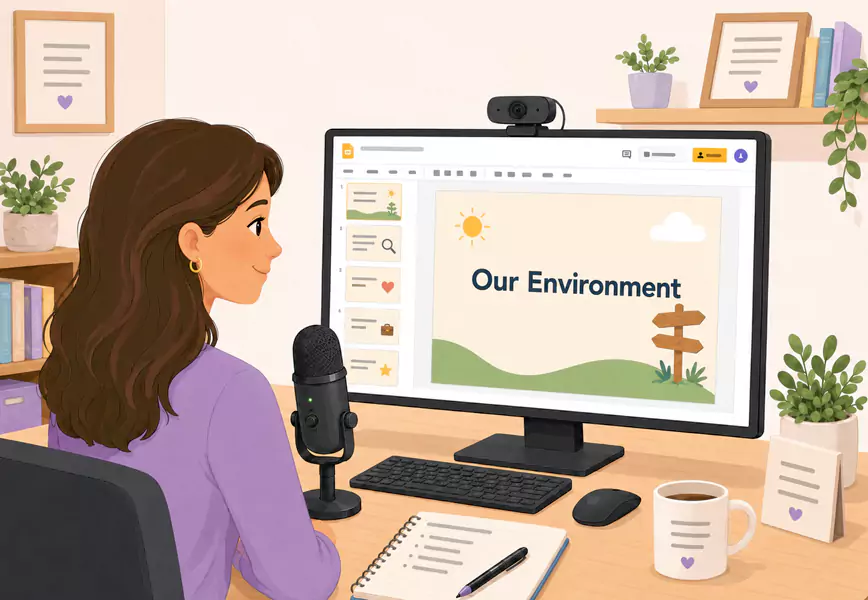
Nettoyez votre écran avant de commencer.
Fermez les onglets inutiles, masquez les notifications et n'ouvrez que votre présentation et les éléments indispensables à votre cours.
Utilisez le mode plein écran pour vos diapositives afin de garantir une présentation soignée.
Adaptez la taille des diapositives pour que les élèves puissent suivre facilement les légendes, les exemples et les schémas.
Vérifiez les paramètres de votre microphone pour offrir une qualité audio optimale à vos élèves.
Si vous souhaitez activer votre webcam, veillez à ce que l'image reste petite et n'empiète pas sur le contenu de la diapositive.
Étape 5 : Enregistrez simultanément vos diapositives et votre commentaire oralement
Lancez l'enregistrement et entrez rapidement dans le vif du sujet.
Commencez par une courte phrase qui cadre ce que les étudiants s'apprêtent à apprendre. Par exemple :
« Aujourd'hui, nous allons voir comment fonctionne ce processus, pourquoi il est important et ce que vous devez être capable de faire d'ici la fin du cours. »
Faites ensuite défiler les diapositives dans l'ordre.
Expliquez :
ce que les étudiants ont sous les yeux
pourquoi ce point est essentiel
quel détail mérite leur attention
ce qu'ils doivent retenir avant de poursuivre
C'est ce qui transforme une simple lecture de présentation Google Slides en une véritable leçon vidéo interactive.
Étape 6 : Maintenez un rythme régulier
Allez assez lentement pour être suivi, mais pas au point de faire retomber le rythme de la leçon.
Faites une pause lors des changements de sujet. Si une diapositive contient plusieurs éléments, mettez en valeur uniquement celui qui est pertinent à cet instant précis.
Si votre présentation est longue, divisez-la en plusieurs petites vidéos. Les apprenants assimilent généralement mieux l'information grâce à des enregistrements courts ciblés par sujet, d'autant plus lorsque ces vidéos s'intègrent dans un ensemble plus large de cours vidéo pour étudiants.
Étape 7 : Révisez et ajustez l'enregistrement
Visionnez votre vidéo avant de la partager.
Faites attention aux points suivants :
les explications répétitives
les démarrages hésitants
les temps morts
les diapositives qui restent figées trop longtemps sans justification
les moments où le curseur bouge avant que la narration ne reprenne
Supprimez tout ce qui freine le rythme de votre présentation. Si vous modifiez l'enregistrement, n'insinuez pas que les exports édités sont exempts de filigrane.
Utilisez Flashback Express pour enregistrer des présentations Google Slides commentées. Vos étudiants pourront les visionner à la demande pour réviser.
Qu'est-ce qui caractérise une présentation vidéo de cours efficace ?
Une bonne vidéo de cours sur diapositives est claire, ciblée et adaptée au rythme d'assimilation des étudiants.
Les présentations les plus percutantes respectent généralement ces principes :
enseigner un seul concept à la fois
expliquer la logique derrière chaque exemple
conserver des diapositives épurées
maintenir un rythme régulier
conclure par une prochaine étape claire
Pourquoi les présentations sonorisées sont-elles si efficaces ?
Les leçons sur diapositives commentées sont efficaces car elles associent une structure claire à des explications réutilisables.
Elles permettent aux élèves de :
revoir un concept avant le cours
rattraper un cours après une absence
réécouter une explication complexe
se préparer pour les devoirs ou les révisions
progresser dans la leçon à leur propre rythme
C'est pourquoi elles s'intègrent naturellement dans des flux de travail plus larges d'un enregistreur d'écran pour l'éducation.
Quelles sont les erreurs courantes à éviter ?
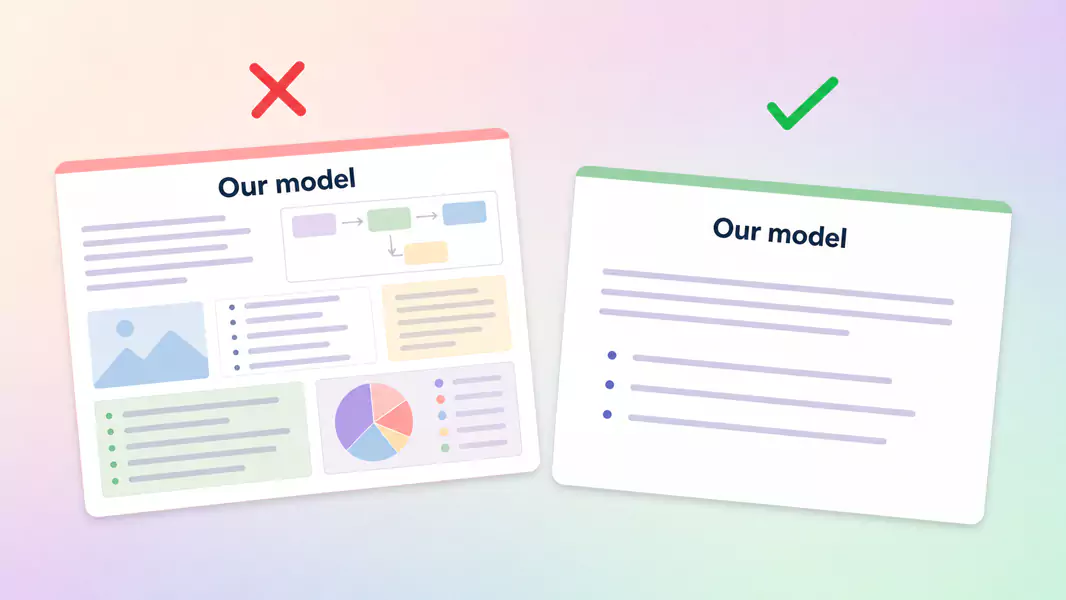
Évitez ces erreurs courantes :
lire la diapositive mot à mot
laisser trop de texte à l'écran
passer trop rapidement sur les diapositives clés
enregistrer avec des notifications ou des onglets distrayants visibles
terminer sans indiquer aux étudiants la marche à suivre
Pourquoi choisir Flashback Express pour vos présentations Google Slides ?
Flashback Express est particulièrement adapté pour enregistrer vos présentations Google Slides sur Windows, car il vous permet d'enregistrer sans limite de durée, de conserver une vidéo sans filigrane et de démarrer instantanément sans configuration complexe.
Vous créez ainsi facilement des vidéos de cours réutilisables pour les révisions, le rattrapage et la classe inversée, sans alourdir vos processus de production. Cette solution s'intègre parfaitement avec des cours en vidéo pour les élèves pour un apprentissage global, et des retours vidéo personnalisés pour un suivi plus individuel.
Questions Fréquemment Posées
Comment enregistrer une présentation Google Slides avec narration ?
Ouvrez votre présentation en mode plein écran, préparez quelques points clés, enregistrez simultanément votre écran et votre micro, puis ajustez la vidéo avant de la partager.
Puis-je ajouter une voix off à une diapositive ?
Oui. Enregistrez votre présentation tout en commentant votre cours, puis partagez la vidéo finale avec vos étudiants.
Quelle est la meilleure méthode pour partager vos diapositives enregistrées ?
Partagez-les directement là où vos élèves ont l'habitude de travailler. Ils retrouveront ainsi facilement leurs vidéos pour les devoirs ou les révisions.
Quelle est la durée idéale pour une vidéo de présentation ?
Assez longs pour enseigner clairement un concept, mais assez courts pour maintenir l'attention. Les enregistrements ciblés, centrés sur un sujet, sont généralement plus efficaces qu'une seule longue leçon.
Devriez-vous intégrer votre webcam dans une leçon Google Slides ?
Seulement lorsque cela est utile. L'utilisation de la webcam peut apporter une touche personnelle. Cependant, donner la priorité aux diapositives s'avère généralement plus efficace lorsque les étudiants doivent se concentrer sur le contenu du cours.
