

Comment enregistrer vos vidéos de formation
Concevez des vidéos de formation vraiment utiles, pas de longs enregistrements abandonnés en cours de route.
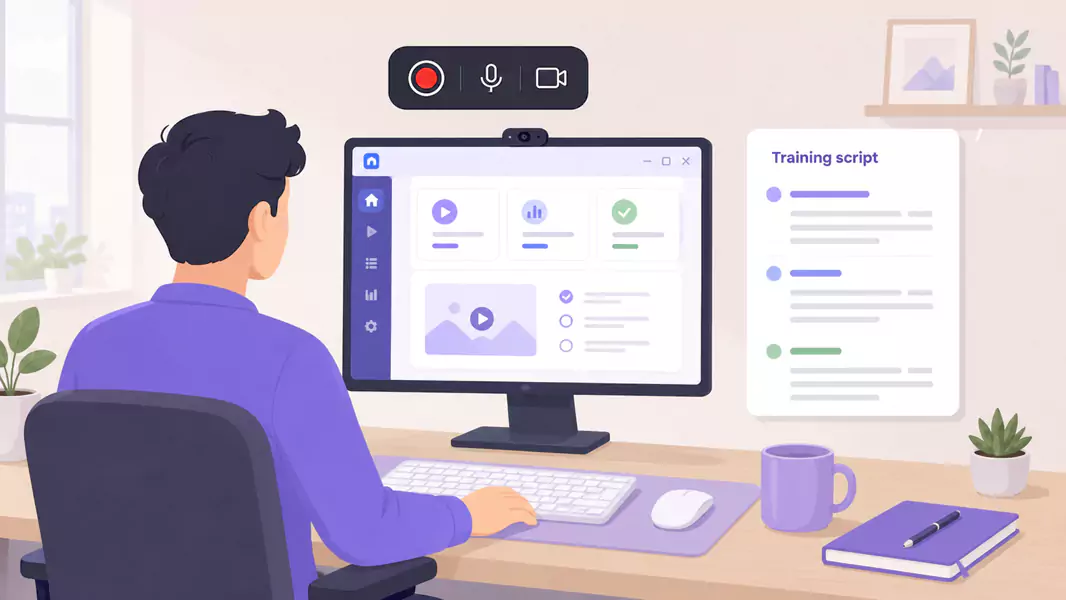
De bons tutoriels vidéo permettent d'assimiler clairement une notion pour l'appliquer immédiatement. Cela semble simple, mais les contenus de formation deviennent vite trop denses. En voulant trop en faire et en multipliant les digressions, on obtient une vidéo interminable que personne ne souhaite visionner à nouveau.
Une méthode plus efficace repose sur la concision. Choisissez une seule leçon, présentez précisément le processus, expliquez son importance et proposez une action claire à l'utilisateur. C'est ainsi que vous créerez des contenus de formation réellement réutilisables. Pour les équipes qui investissent dans un logiciel de vidéo de formation, cette page présente la méthodologie la plus complète de notre guide.
Sur Windows, la configuration est simple. Définissez l'objectif de la leçon, structurez les étapes, enregistrez votre écran avec des explications claires et éliminez les imperfections au montage avant de partager. Flashback Express s'impose naturellement pour cette tâche : ce logiciel d'enregistrement d'écran gratuit s'installe rapidement, n'impose aucune limite de temps et produit des vidéos sans filigrane.
Qu'est-ce qu'une vidéo de formation ?

Les vidu00e9os de formation sont des supports pu00e9dagogiques qui permettent d'assimiler une tu00e2che, un processus ou une su00e9quence de travail de maniu00e8re ru00e9pu00e9table.
Une vidu00e9o de formation efficace est ciblu00e9e. Elle enseigne une seule compu00e9tence de fau00e7on claire, illustre le processus u00e0 l'u00e9cran et propose au spectateur une application pratique du00e8s la fin de la diffusion.
u00c0 la diffu00e9rence d'un simple enregistrement de ru00e9union, une vidu00e9o de formation ru00e9utilisable est conu00e7ue pour u00eatre visionnu00e9e u00e0 volontu00e9.
Quand devez-vous enregistrer vos vidéos de formation ?
Enregistrez des vidéos de formation lorsqu'une leçon doit être répétée souvent, illustrée visuellement ou dispensée de manière cohérente au sein de vos équipes.
Cette méthode est idéale pour :
enseigner un flux de travail récurrent
soutenir l'apprentissage à distance ou asynchrone
créer des contenus de formation réutilisables
réduire le nombre de sessions en direct répétitives
concevoir des vidéos de micro-apprentissage pour des tâches spécifiques
Si votre objectif est d'accélérer l'intégration des nouveaux collaborateurs, commencez par des vidéos d'onboarding. Si vous visez la précision d'un processus reproductible, associez la formation à des vidéos de SOP.
Comment enregistrer vos vidéos de formation ?
Pour enregistrer vos vidéos de formation, choisissez une leçon et planifiez le parcours le plus court et le plus efficace. Enregistrez votre écran avec une narration claire, puis supprimez tout élément qui ralentit le rythme. Les meilleures vidéos de formation sont ciblées, réutilisables et faciles à consulter.
Étape 1 : Choisissez une leçon
Avant d'enregistrer, ciblez précisément votre leçon.
Une seule vidéo doit répondre à une question essentielle, enseigner une méthode de travail ou résoudre un problème récurrent. Cela rend le contenu plus simple à visionner et plus facile à réutiliser.
Étape 2 : Créez une structure simple
Structurez votre leçon avant de lancer l'enregistrement.
Un plan rapide vous évite de vous éparpiller et garantit une vidéo de formation percutante.
Adoptez une structure simple :
l'objectif de la leçon
son importance et sa valeur ajoutée
le processus ou la tâche à réaliser
une erreur courante à éviter
la prochaine étape pour l'apprenant
Étape 3 : Préparez l'environnement de formation
Configurez l'écran tel que vous souhaitez que les apprenants le visualisent.
Fermez les onglets inutiles, masquez les notifications et ouvrez uniquement les fenêtres requises pour la leçon.
Privilégiez une configuration d'enregistrement épurée + moins de distractions visuelles pour que l'apprenant puisse suivre le fil conducteur sans effort.
Optez pour un zoom lisible et un dimensionnement adapté des fenêtres + des détails pédagogiques simplifiés pour garantir la parfaite lisibilité des textes et des commandes.
Présentez le véritable workflow + une transition fluide vers la pratique pour que l'apprenant visualise le processus en conditions réelles.
Étape 4 : Enregistrez votre leçon avec clarté
Commencez par une brève phrase d'introduction, puis passez à la description du processus.
Expliquez :
ce que l'apprenant observe à l'écran
quelle est l'action suivante
l'importance et la finalité de cette étape
comment confirmer que l'étape est réussie
C'est précisément ici que de nombreuses vidéos de formation perdent leur public. Elles décrivent chaque clic, sans jamais en expliquer la raison.
Étape 5 : Divisez les grands sujets en vidéos plus courtes
Si la leçon devient trop volumineuse, divisez-la.
Les vidéos de micro-apprentissage sont généralement plus efficaces qu'un seul long enregistrement. Elles sont plus faciles à attribuer, plus simples à retrouver par la suite et plus rapides à mettre à jour en cas de modification de vos processus.
Étape 6 : Révisez et découpez pour réutilisation
Visionnez votre vidéo de formation avant de la publier.
Faites attention aux points suivants :
les explications répétitives
les introductions trop lentes
les temps morts
les écrans surchargés
les étapes qui méritent une explication plus claire
Supprimez tout ce qui n'apporte rien à l'apprenant.
Enregistrez des vidéos de formation nettes avec Flashback Express. Votre équipe pourra les mettre en pause, les visionner à nouveau et monter en compétences.
Qu'est-ce qui caractérise une vidéo de formation professionnelle efficace ?
Une bonne vidéo de formation professionnelle est facile à suivre, centrée sur un objectif précis, adaptée au rythme de l'apprenant et construite autour d'un processus réellement applicable au quotidien.
Les vidéos de formation les plus efficaces se distinguent généralement par ces qualités :
elles enseignent une seule notion à la fois
elles expliquent le pourquoi de chaque étape
elles montrent la tâche concrète à l'écran
elles restent suffisamment courtes pour être suivies jusqu'au bout
elles se terminent par un appel à l'action clair
Pourquoi les vidéos de formation sont-elles si efficaces ?
Les vidéos de formation sont efficaces car elles associent le contexte visuel aux explications orales.
Un atout indispensable pour l'apprenant qui doit :
visualiser le flux de travail
comprendre le pourquoi de chaque étape
revenir sur le processus plus tard
se former sans attendre une session en direct
gagner en assurance grâce à la répétition
Quelles sont les erreurs courantes à éviter ?

Évitez ces erreurs courantes :
Combiner trop de flux de travail dans une seule vidéo.
Ignorer les conditions de configuration préalables.
Passer trop rapidement sur l'étape essentielle.
Enregistrer alors que des données sensibles sont visibles.
Stocker la vidéo dans un endroit introuvable par la suite.
Pourquoi choisir Flashback Express pour vos vidéos de formation ?
Flashback Express est un choix idéal pour les vidéos de formation sur Windows, car il vous permet d'enregistrer sans limite de durée, de conserver un enregistrement sans filigrane et de corriger les imperfections évidentes avant le partage.
Cela facilite la création de contenus de formation réutilisables tout en limitant les coûts de production. Il s'intègre également parfaitement aux vidéos d'intégration pour un démarrage rapide ainsi qu'aux vidéos de procédures opérationnelles normalisées (SOP) pour capturer des processus reproductibles.
Questions Fréquemment Posées
Comment enregistrer vos vidéos de formation ?
Choisissez une leçon, définissez son déroulement et enregistrez votre écran avec une narration claire. Éliminez les temps morts, puis enregistrez la vidéo finale là où vos apprenants pourront la trouver.
Qu'est-ce qui caractérise une vidéo de formation professionnelle efficace ?
Une bonne vidéo de formation est ciblée, pratique, facile à suivre et liée à un objectif clair.
Comment rendre vos vidéos de formation réutilisables ?
Gardez chaque vidéo ciblée, nommez-la clairement, stockez-la au bon endroit et évitez de regrouper trop de sujets dans un seul enregistrement.
Devriez-vous privilégier les vidéos de micro-apprentissage aux leçons plus longues ?
Souvent, oui. Les vidéos courtes sont généralement plus simples à visionner, à attribuer et à mettre à jour.
Quelle est la durée idéale pour une vidéo de formation ?
Assez long pour enseigner une leçon avec clarté, mais assez court pour capter l'attention et rester réutilisable.
Utilisez Flashback Express pour transformer vos connaissances en tutoriels performants, partageables et exploitables au quotidien.
