

Comment enregistrer des vidéos de SOP
Documentez vos processus de manière claire pour que votre équipe puisse les suivre, les appliquer et s'y référer en toute confiance.
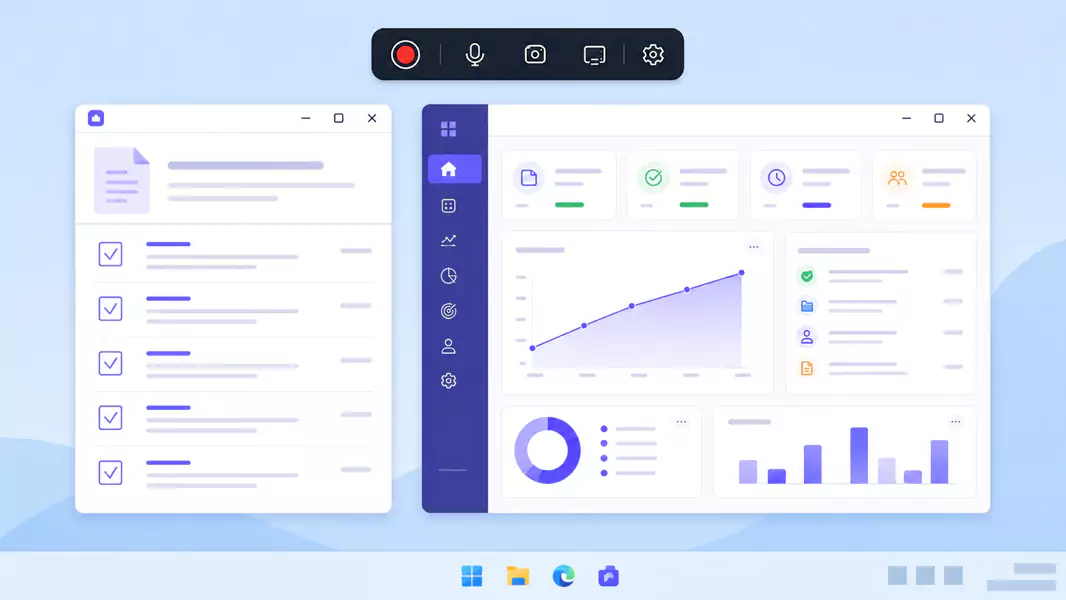
Les vidéos de modes opératoires (SOP) sont particulièrement efficaces lorsqu'elles éliminent toute incertitude. Au lieu de demander à un collaborateur de décoder un long document ou d'observer un collègue, vous lui présentez le flux de travail exact, dans le bon ordre et avec le bon contexte.
C'est ce qui rend la création de SOP si précieuse pour les équipes internes. Vous documentez un processus une seule fois, expliquez clairement les étapes clés et offrez à vos collaborateurs une ressource consultable à tout moment. C'est bien plus rapide que de répéter la même démonstration en direct, et bien plus simple à suivre qu'un bloc de texte compact. Pour les équipes qui développent une bibliothèque plus large de logiciels de vidéo de formation, il s'agit de l'un des formats réutilisables les plus performants.
Sur Windows, le processus est simplissime. Choisissez un processus, tracez le parcours le plus court et le plus clair, enregistrez l'écran et coupez les passages superflus. Flashback Express est ici la solution idéale : c'est un enregistreur d'écran gratuit rapide à installer, sans limite de temps d'enregistrement et sans filigrane sur vos vidéos.
Qu'est-ce qu'une vidéo de SOP ?
Les vidéos de mode opératoire normalisé (SOP) sont des vidéos de documentation de processus qui montrent, étape par étape, comment accomplir une tâche standard.
Une vidéo de SOP efficace est avant tout pratique. Elle présente les actions à réaliser, leur ordre d'exécution et le résultat attendu d'un travail bien fait.
Contrairement à une formation générale, une vidéo de SOP se concentre généralement sur un seul flux de travail reproductible. Il peut s'agir de soumettre une note de frais, de mettre à jour un dossier, d'approuver une demande ou de gérer un transfert d'assistance.
Quand devez-vous enregistrer vos vidéos de SOP ?
Enregistrez des vidéos de SOP lorsqu'un flux de travail est fréquemment répété, facile à rater ou trop visuel pour être expliqué clairement par écrit.
Cette méthode est idéale pour :
documenter un processus récurrent
réduire les erreurs de transmission
accompagner les changements de processus au sein de l'équipe
faciliter la réutilisation des formations internes
fournir une référence consultable à tout moment
Si votre objectif est l'intégration initiale, commencez par des vidéos d'onboarding. Si votre objectif est de couvrir un éventail plus large de compétences selon les rôles, développez des vidéos de formation autour de ce même groupe de processus.
Si votre objectif est l'intégration initiale, commencez par des vidéos d'onboarding. Si votre objectif est de couvrir un éventail plus large de compétences selon les rôles, développez des vidéos de formation autour de ce même groupe de processus.
.
Comment enregistrer une vidéo de procédure opérationnelle standard (SOP) ?
Pour enregistrer une vidéo de procédure standardisée (SOP), choisissez un processus reproductible, cadrez précisément les étapes, filmez votre écran avec une narration claire et éliminez les temps morts avant de la partager. Les meilleures vidéos de documentation sont simples, structurées et immédiatement réutilisables.
Étape 1 : Sélectionnez un processus.
Avant d'enregistrer, choisissez un seul flux de travail.
N'essayez pas d'intégrer tout le guide de procédures d'un service dans une seule vidéo. Un champ d'application plus ciblé rend la SOP plus fiable et plus facile à mettre à jour par la suite.
Étape 2 : Rédigez le processus en étapes simples.
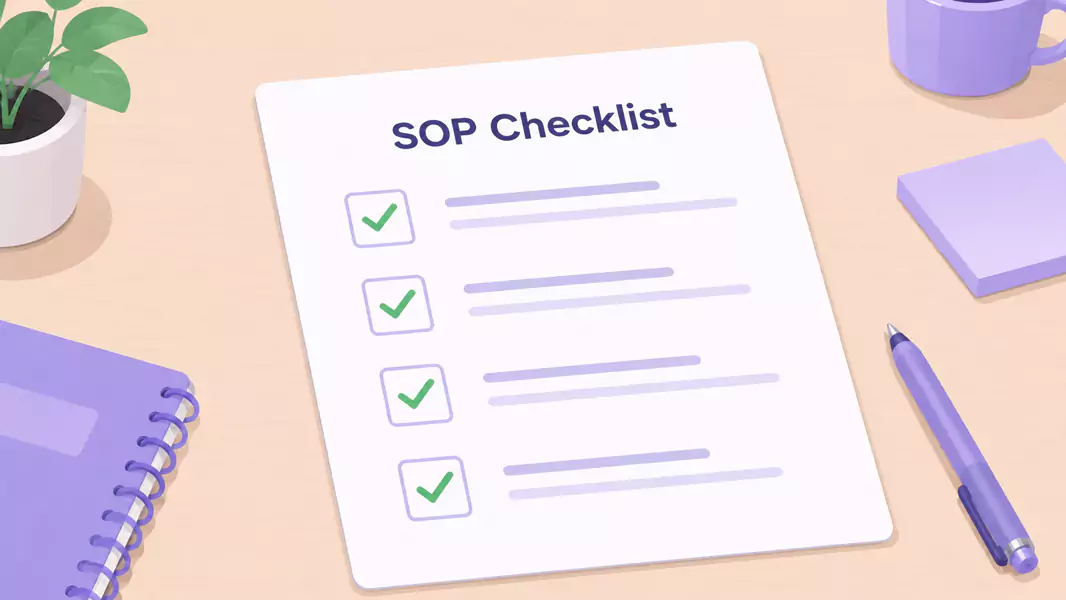
Listez les actions dans l'ordre avant de commencer l'enregistrement.
Cette étape vous permet d'identifier les configurations manquantes, les clics superflus ou les cas particuliers avant de lancer la vidéo.
Une structure simple reste la plus efficace :
L'étape initiale du processus.
La première action de l'utilisateur.
Les modifications visibles à l'écran.
La finalisation de la tâche.
L'action suivante si nécessaire.
Étape 3 : Préparez votre écran
Commencez par nettoyer votre espace de travail.
Fermez les onglets inutiles, masquez les données sensibles et n'ouvrez que les fenêtres indispensables au processus.
Optez pour une configuration de bureau mono-tâche + une concentration maximale du spectateur pour faciliter le suivi du flux de travail.
Choisissez une taille d'interface lisible + moins de fatigue visuelle lors de la lecture pour que les étiquettes et les champs restent parfaitement visibles.
Présentez l'état réel du processus + moins de questions de suivi par la suite pour que le spectateur visualise la tâche telle qu'il l'exécutera concrètement.
Étape 4 : Enregistrez l'intégralité de votre flux de travail
Enregistrez du véritable point de départ jusqu'à l'état final réel.
C'est essentiel. Une vidéo de processus perd de sa valeur si le spectateur doit deviner ce qui s'est passé juste avant que l'écran ne change.
Commentez le processus comme un collègue qui apporte son aide, et non comme un robot qui lit des étapes.
Expliquez :
Quel est cet écran.
Pourquoi cette étape est importante.
Ce qu'il faut surveiller.
Ce qui confirme que l'étape a réussi.
Étape 5 : Soyez concis dans vos explications
Ne surchargez pas la narration.
Les meilleures vidéos de formation interne expliquent l'essentiel et éliminent le superflu.
Étape 6 : Révisez et ajustez
Visionnez votre vidéo avant de l'envoyer ou de l'enregistrer.
Coupez :
les longs silences
les explications redondantes
les erreurs de parcours
les étapes de configuration inutiles
les premières secondes hésitantes
Utilisez Flashback Express pour transformer vos tâches répétitives en vidéos de SOP claires, prêtes à être réutilisées par votre équipe.
Que doit contenir une vidéo de processus ?
Une vidéo de documentation de processus efficace comprend généralement :
le nom du flux de travail
le point de départ de la tâche
chaque étape dans l'ordre
une ou deux erreurs courantes à éviter
le résultat final ou l'état de confirmation
Comment rendre vos vidéos de procédures opérationnelles normalisées plus faciles à réutiliser ?
Les meilleures vidéos de SOP se distinguent généralement par cinq qualités clés :
Elles restent ciblées.
Elles respectent l'ordre réel du processus.
Elles présentent la véritable interface.
Elles expliquent le pourquoi des étapes cruciales.
Elles restent faciles à mettre à jour.
Quelles sont les erreurs courantes à éviter ?

Évitez ces erreurs courantes :
Combiner trop de flux de travail dans une seule vidéo.
Ignorer les conditions de configuration préalables.
Passer trop rapidement sur l'étape essentielle.
Enregistrer alors que des données sensibles sont visibles.
Stocker la vidéo dans un endroit introuvable par la suite.
Pourquoi choisir Flashback Express pour vos vidéos de mode opératoire (SOP) ?
Flashback Express est idéal pour documenter vos procédures standard (SOP) sur Windows grâce à sa capacité d'enregistrement illimitée, l'absence de filigrane et un outil d'édition simple pour éliminer les temps morts avant le partage.
Ce fonctionnement simplifie la documentation de vos processus récurrents, évitant ainsi de transformer la capture d'écran en un lourd projet de production. Cet outil complète parfaitement vos vidéos d'intégration pour les nouveaux collaborateurs ainsi que vos vidéos de formation dédiées à l'apprentissage global.
Questions Fréquemment Posées
Comment enregistrer une vidéo de mode opératoire (SOP) ?
Sélectionnez un processus, décrivez les étapes dans l'ordre, enregistrez l'écran, supprimez les temps morts et stockez la vidéo finale pour votre équipe.
Que doit contenir une vidéo de processus ?
Une vidéo de processus efficace doit présenter la tâche, le point de départ, les étapes chronologiques, les erreurs fréquentes et le résultat final.
Comment documenter vos flux de travail grâce à l'enregistrement d'écran ?
Présentez la véritable interface, commentez les décisions clés et filmez l'intégralité du processus de bout en bout, sans faire l'impasse sur la configuration.
Quelle est la durée idéale pour une vidéo de SOP ?
Une durée idéale pour présenter clairement un processus, tout en restant simple à réviser et à mettre à jour.
Les vidéos de SOP doivent-elles remplacer la documentation écrite ?
Pas toujours. Ils sont généralement plus efficaces lorsqu'ils sont associés à de brèves notes écrites ou à des listes de contrôle.
Utilisez Flashback Express pour transformer vos processus quotidiens en guides clairs et partageables qui forment vos équipes à votre place.
