

Comment créer des vidéos d'onboarding efficaces
Aidez vos nouvelles recrues à réussir plus rapidement grâce à des vidéos d'Onboarding courtes et claires, à visionner à leur propre rythme.
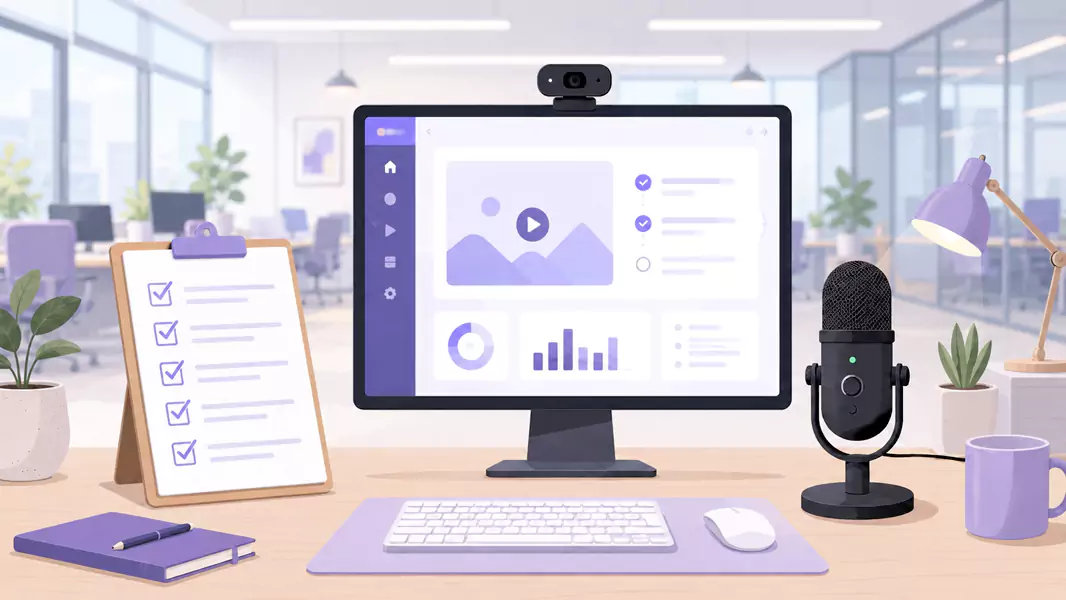
De bonnes vidéos d'intégration transforment les explications répétitives en guides réutilisables. Au lieu de vous reposer sur une unique session en direct et une pile de notes éparpillées, vous offrez aux nouvelles recrues un parcours clair qu'elles peuvent mettre en pause, rejouer et suivre à leur propre rythme.
C'est essentiel, car l'intégration échoue généralement toujours aux mêmes étapes. Trop d'informations sont transmises d'un coup. Des étapes clés sont oubliées. Les managers répètent la même présentation chaque semaine. La vidéo change la donne en offrant aux équipes équipées d'un logiciel de vidéo de formation un moyen d'enseigner la même tâche avec clarté, à chaque fois.
Sur Windows, le processus est simple. Nous choisissons un moment clé de l'intégration, traçons le chemin le plus court pour le réaliser, enregistrons l'écran et coupons les passages superflus. Flashback Express s'impose naturellement ici : c'est un enregistreur d'écran gratuit rapide à configurer, sans limite de temps d'enregistrement et sans filigrane sur vos vidéos.
Qu'est-ce qu'une vidéo d'onboarding ?
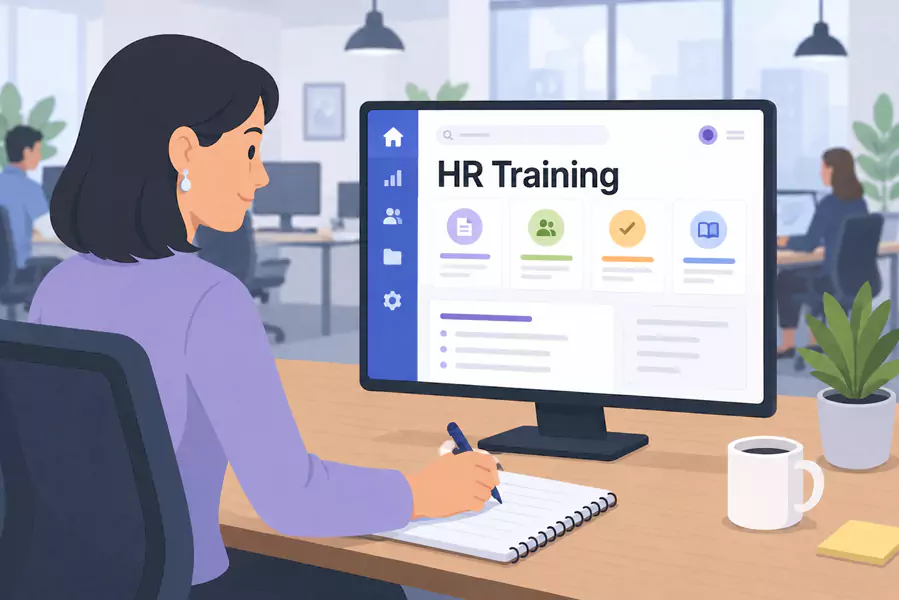
Les vidéos d'intégration sont de courtes vidéos de formation qui permettent aux nouvelles recrues de comprendre les outils, les flux de travail et les attentes, sans nécessiter de présentation en direct à chaque fois.
Une vidéo d'intégration efficace se doit d'être pragmatique. Elle présente la tâche, en explique l'importance et permet à l'apprenant de progresser à son propre rythme.
Contrairement aux vidéos de bienvenue globales de l'entreprise, une vidéo d'intégration se concentre généralement sur une mission concrète. Il peut s'agir de se connecter à un outil, de trouver les bons fichiers, d'utiliser une file d'attente ou de finaliser correctement un premier flux de travail.
Quand devez-vous créer des vidéos d'onboarding ?
Créez des vidéos d'intégration lorsqu'une tâche est souvent répétée, facile à manquer ou plus simple à montrer qu'à expliquer.
Cette méthode est particulièrement efficace pour :
montrer aux nouvelles recrues comment utiliser un outil
expliquer un processus récurrent étape par étape
réduire les sessions de formation en direct répétitives
faciliter l'intégration à distance ou de manière asynchrone
fournir aux managers un guide interactif réutilisable
Les guides vidéo enregistrés sont indispensables car ils éliminent toute pression. Les nouveaux collaborateurs peuvent mettre sur pause, revenir en arrière et réessayer la tâche sans se sentir bloqués.
Si votre équipe conçoit également des vidéos de formation, ce contenu d'intégration devient tout naturellement le premier pilier de votre bibliothèque.
Comment concevoir des vidéos d'onboarding efficaces ?
Pour créer des vidéos d'intégration efficaces, choisissez une tâche précise, scénarisez le parcours utilisateur le plus court, enregistrez votre écran avec une narration claire, puis éliminez les temps morts avant la diffusion. Les meilleures vidéos de formation pour les nouvelles recrues sont courtes, ciblées et faciles à réutiliser.
Étape 1 : Commencez avec un rôle et une tâche.
Avant d'enregistrer, définissez un objectif précis.
Ne créez pas une vidéo d'intégration unique et globale pour tout le monde. Elle sera généralement ignorée. Privilégiez plutôt un contenu ciblé sur un profil précis et une tâche bien définie.
Posez-vous ces questions :
À qui s'adresse cette vidéo ?
Que doivent-ils accomplir après l'avoir visionnée ?
Quels sont les points de blocage habituels ?
Quelle est la prochaine étape qu'ils doivent tester ?
Étape 2 : Choisissez le flux de travail, pas l'intégralité du système
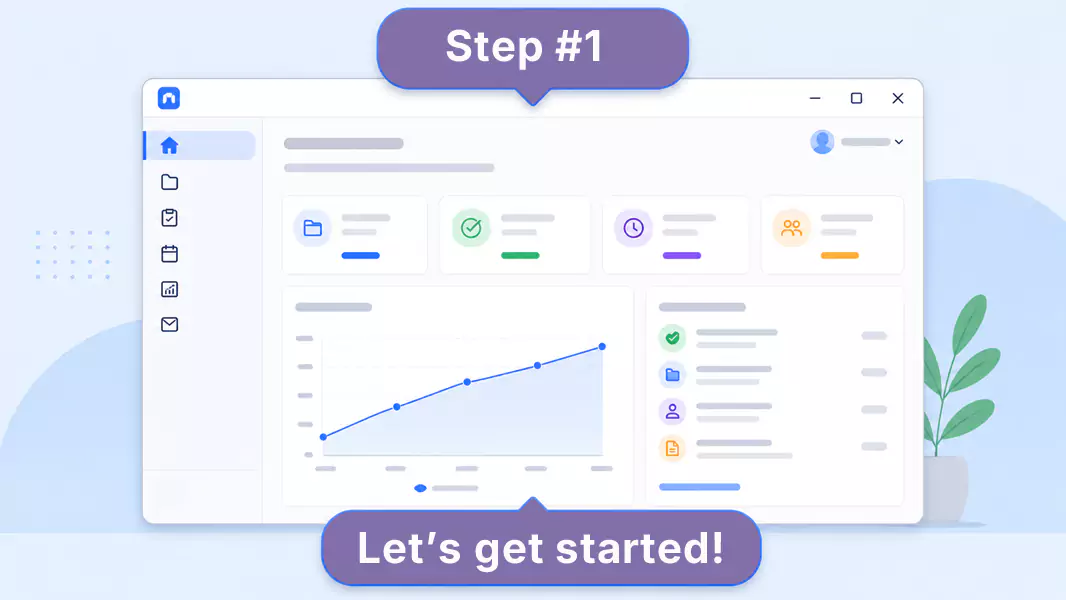
Les meilleures vidéos d'onboarding guident l'utilisateur tout au long d'un parcours unique et clair, du début à la fin.
Quelques exemples concrets :
Créer et configurer un compte.
Soumettre une première demande.
Trouver le bon tableau de bord.
Mettre à jour la fiche d'un client.
Suivre le premier circuit de validation.
Le but n'est pas d'enseigner l'ensemble de la plateforme, mais de permettre à l'utilisateur d'obtenir rapidement un premier succès. Lorsque l'objectif n'est plus la prise en main initiale mais la régularité et la précision des processus, les vidéos de procédures opérationnelles standard (SOP) prennent alors tout leur sens.
Étape 3 : Préparez votre écran avant d'enregistrer
Nettoyez votre écran avant de commencer.
Fermez les onglets inutiles, masquez les notifications et n'ouvrez que les fenêtres indispensables. Si votre tâche implique des données confidentielles, masquez-les avant de lancer l'enregistrement.
Misez sur un bureau épuré pour éliminer les distractions et permettre aux nouvelles recrues de se concentrer sur l'essentiel.
Optez pour un zoom lisible et une taille de fenêtre adaptée afin de faciliter la lecture de chaque étape.
Configurez l'application exactement telle que vous souhaitez l'enseigner pour éviter toute confusion ultérieure.
Étape 4 : Expliquez le pourquoi, pas seulement les clics
Lors de l'enregistrement, évitez de commenter chaque mouvement de la souris.
Expliquez plutôt :
Ce que le spectateur a sous les yeux.
Pourquoi cette étape est essentielle.
Les points d'attention majeurs.
Le résultat attendu avant de passer à la suite.
C'est précisément ce qui rend vos vidéos d'intégration captivantes et humaines, loin de tout ton mécanique.
Étape 5 : Maintenez un rythme calme et régulier
Projetez un rythme de démonstration clair et posé, tout en maintenant l'intérêt de votre public.
Marquez une pause à chaque changement d'étape pour guider efficacement le spectateur. Si de nombreuses options s'affichent à l'écran, mettez uniquement l'accent sur l'élément clé du moment.
Les vidéos d'intégration courtes s'avèrent bien plus percutantes. Pour expliquer un processus complexe, privilégiez un format découpé en plusieurs étapes courtes.
Étape 6 : Révisez et ajustez l'enregistrement rapidement
Prenez le temps de visionner votre vidéo avant de la partager.
Faites attention aux points suivants :
Des transitions trop rapides.
Des explications redondantes.
Des temps morts.
Des onglets inutiles ou un curseur qui s'égare.
Des étapes qui méritent une introduction plus claire.
Si nécessaire, supprimez les secondes superflues au début ou à la fin. Assurez-vous d'obtenir un rendu impeccable.
Utilisez Flashback Express pour transformer des documents de formation rébarbatifs en guides conviviaux et faciles à partager.
Que doit contenir une vidéo d'intégration des nouveaux collaborateurs ?
Une formation d'intégration vidéo réussie comprend généralement cinq éléments :
Un sujet ou une tâche clairement défini.
Une brève explication de son importance.
Le flux de travail exact présenté à l'écran.
Une ou deux erreurs courantes à éviter.
La prochaine étape à suivre après la vidéo.
Comment rendre vos vidéos d'intégration plus simples à suivre ?
Les meilleures vidu00e9os d'onboarding ru00e9ussissent gu00e9nu00e9ralement sur cinq aspects prioritairesu00a0:
Elles restent focalisu00e9es sur l'essentiel.
Elles adoptent un ton humain.
Elles pru00e9sentent le flux de travail ru00e9el.
Elles expliquent le pourquoi.
Elles se terminent par un appel u00e0 l'action.
Quelles sont les erreurs courantes à éviter ?
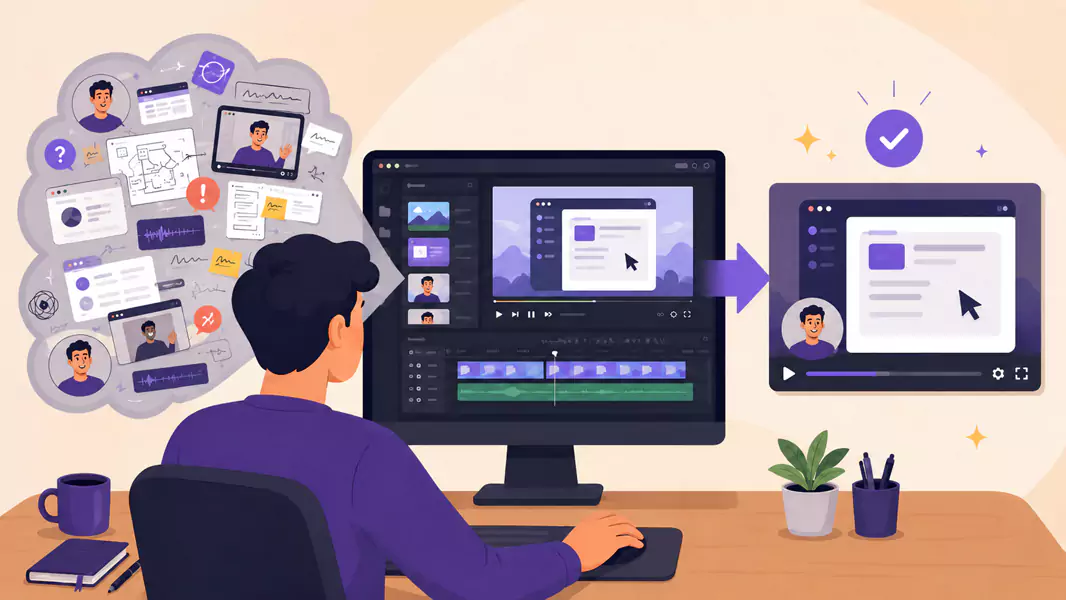
Évitez ces erreurs courantes :
Créer une seule vidéo de bienvenue géante.
Montrer trop d'informations à la fois.
Expliquer des clics sans contexte.
S'enregistrer sans script ni plan.
Terminer sans proposer d'étape suivante.
Pourquoi choisir Flashback Express pour vos vidéos d'intégration ?
Flashback Express vous permet d'enregistrer rapidement des vidéos d'intégration sur Windows, sans limite de temps d'enregistrement. La capture reste exempte de filigrane, un atout majeur pour obtenir un contenu de formation propre et sans distractions.
C'est l'outil idéal pour les guides d'intégration : vous capturez l'écran, commentez le processus au micro et supprimez les temps morts avant de partager. Il s'intègre aussi parfaitement aux vidéos de formation générale ainsi qu'aux vidéos de procédures opérationnelles (SOP) pour documenter vos processus récurrents.
Questions Fréquemment Posées
Comment créer des vidéos d'intégration efficaces ?
Commencez par un rôle et une tâche unique. Cartographiez le flux de travail le plus direct, puis enregistrez votre écran avec une narration claire. Éliminez les imperfections au montage et stockez la vidéo là où vos nouvelles recrues la trouveront facilement.
Que doit contenir une vidéo d'intégration des nouveaux collaborateurs ?
Une vidéo d'intégration doit présenter la tâche à accomplir, son importance, les étapes précises à l'écran, les erreurs courantes à éviter et la prochaine action attendue du spectateur.
Quelle est la durée idéale pour vos vidéos d'intégration ?
Une durée idéale pour enseigner une tâche avec clarté, sans risquer de perdre l'attention de votre audience. Les formats courts se révèlent bien plus efficaces qu'un seul enregistrement interminable.
Quelle est la différence entre les vidéos d'onboarding et les vidéos de formation ?
Les vidéos d'onboarding facilitent la prise en main d'un produit. Les vidéos de formation, quant à elles, permettent d'approfondir les compétences à long terme.
Devriez-vous utiliser la webcam pour votre parcours d'intégration ?
Seulement lorsque cela est vraiment utile. L'approche axée sur l'écran est généralement la plus efficace lorsque le flux de travail exige une attention totale.
Utilisez Flashback Express pour transformer des documents de formation arides en un accueil chaleureux et personnalisé qui marquera durablement votre équipe.
