

Comment enregistrer des vidéos de présentation produit percutantes
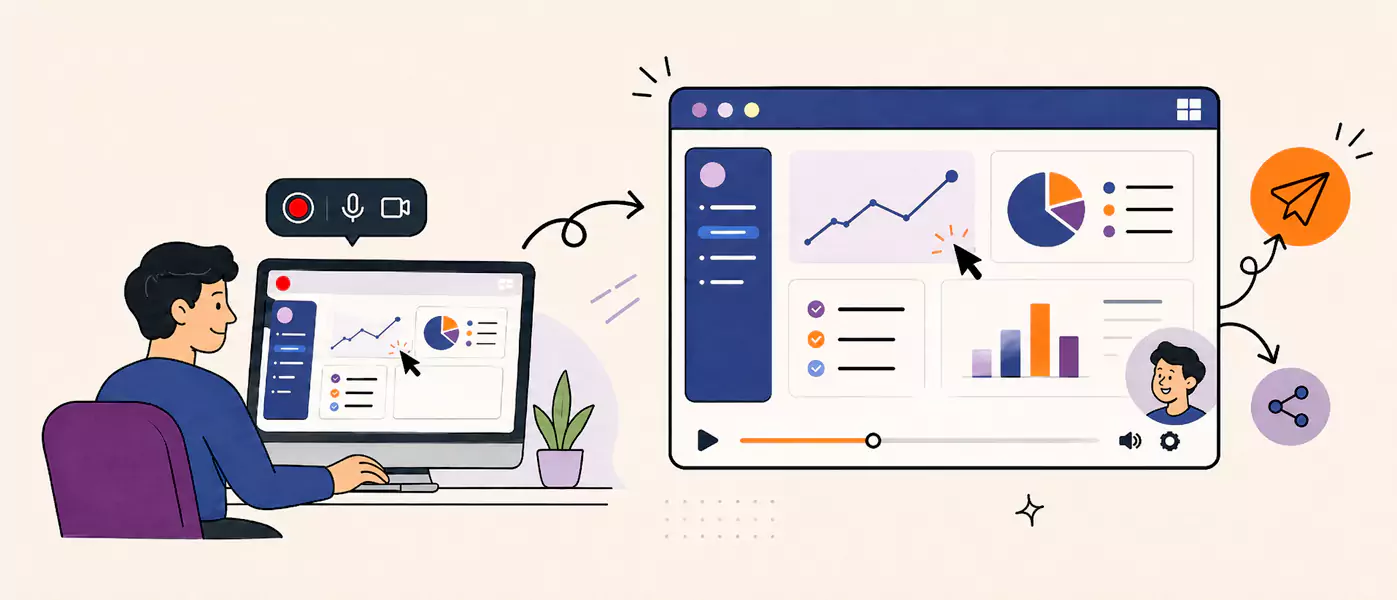
Une bonne vidéo de présentation produit montre ce que fait votre produit, pourquoi il est important et ce que l'utilisateur doit retenir. Si vous cherchez un moyen rapide d'enregistrer votre écran sur Windows, un enregistreur d'écran gratuit vous permet de capturer votre démonstration, de supprimer les imperfections et de partager une explication claire, en toute simplicité.
Découvrez en poursuivant votre lecture :
Qu'est-ce qu'une vidéo de présentation produit ?
Quand utiliser une vidéo de présentation de fonctionnalité
Comment enregistrer une vidéo de présentation produit sur Windows
Comment rendre une vidéo de présentation plus simple à suivre
Les erreurs qui nuisent à la crédibilité d'une vidéo de présentation
Qu'est-ce qu'une vidéo de présentation produit ?
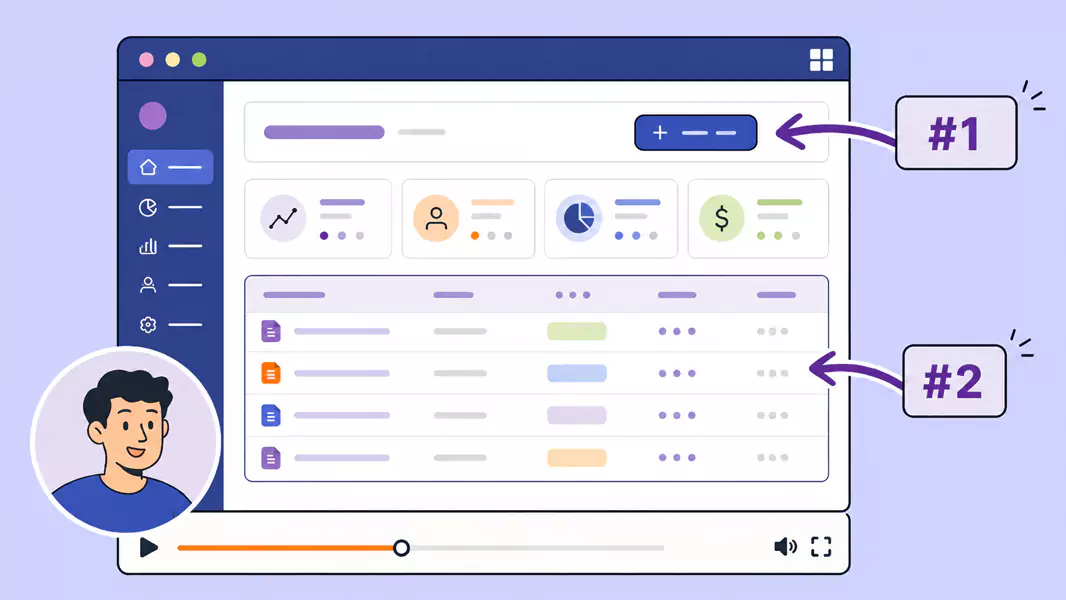
Une vidu00e9o de pru00e9sentation de produit est une du00e9monstration enregistru00e9e de son fonctionnement, gu00e9nu00e9ralement capturu00e9e u00e0 l'u00e9cran avec des commentaires audio. Elle permet d'expliquer une fonctionnalitu00e9, de du00e9tailler un processus ou d'aider le spectateur u00e0 comprendre le produit en situation ru00e9elle.
Contrairement u00e0 une simple vidu00e9o promotionnelle, la vidu00e9o de pru00e9sentation est ultra-pratique. Elle permet u00e0 l'utilisateur de du00e9couvrir l'interface, de suivre les u00e9tapes clu00e9s et de percevoir immu00e9diatement la valeur de votre solution.
Les u00e9quipes utilisent gu00e9nu00e9ralement ces vidu00e9os pour :
Le suivi commercial (sales follow-up)
Les revues de projet avec les parties prenantes
La communication lors des lancements de produit
L'onboarding et la formation interne
La pru00e9sentation de nouvelles fonctionnalitu00e9s
Si votre équipe utilise la vidéo pour présenter vos produits à des prospects ou clients, cette page s'intègre dans un ensemble plus large de flux de travail liés aux logiciels vidéo de vente et de marketing.
Quand devez-vous enregistrer une vidéo de présentation produit ?
Enregistrez une vidéo de présentation d'une fonctionnalité lorsqu'une explication concrète s'impose, mais qu'une réunion n'est pas nécessaire.
Cette méthode est idéale pour :
Présenter une nouvelle fonctionnalité sans planifier d'appel
Guider un prospect à travers un cas d'usage pertinent
Expliquer un flux de travail aux parties prenantes
Partager une vidéo de lancement en interne ou en externe
Fournir aux clients une explication réutilisable qu'ils peuvent visionner à tout moment
Les démonstrations enregistrées sont particulièrement utiles lorsque l'interlocuteur a besoin de temps pour assimiler les informations. Plutôt que de précipiter une démonstration en direct, offrez-leur une présentation claire qu'ils peuvent mettre sur pause, rejouer et partager facilement.
Comment enregistrer une vidéo de présentation produit efficace ?
Pour enregistrer une vidéo de démonstration produit efficace, déterminez d'abord les éléments clés à montrer. Structurez votre flux de présentation de manière fluide. Enregistrez ensuite votre écran avec une narration claire et professionnelle. Enfin, ajustez votre montage vidéo avant de la partager.
Étape 1 : commencez avec un seul spectateur et un objectif unique.
Avant de lancer l'enregistrement, déterminez à qui s'adresse cette présentation produit.
Pour un prospect, votre présentation doit adopter un ton différent de celui utilisé pour un collaborateur interne ou un client existant. Pour garantir l'efficacité de vos explications, ciblez précisément votre public.
Posez-vous les questions suivantes :
Qu'est-ce qui intéresse le plus ce spectateur ?
Sur quelle fonctionnalité ou quel flux de travail dois-je me concentrer ?
Quelle action doit-il entreprendre après avoir visionné la vidéo ?
Si vous tentez de tout expliquer, votre présentation perdra en clarté. Un ciblage précis renforcera l'impact et la force de persuasion de votre vidéo.
Étape 2 : Choisissez le workflow, pas le produit dans son intégralité
Les meilleures vidéos de présentation de produit évitent la visite guidée fastidieuse de chaque bouton. Elles se concentrent plutôt sur un parcours unique à forte valeur ajoutée. En guidant l'utilisateur à travers un seul workflow, du début à la fin, vous rendez votre contenu plus captivant et mémorable. Pour votre prochaine vidéo, concentrez-vous sur :
la création d'un rapport
la configuration d'une fonctionnalité
la résolution d'un problème courant
la réalisation d'une tâche essentielle
Cette approche permet de lier directement votre démonstration à des résultats concrets.
Étape 3 : Préparez votre écran avant d'enregistrer
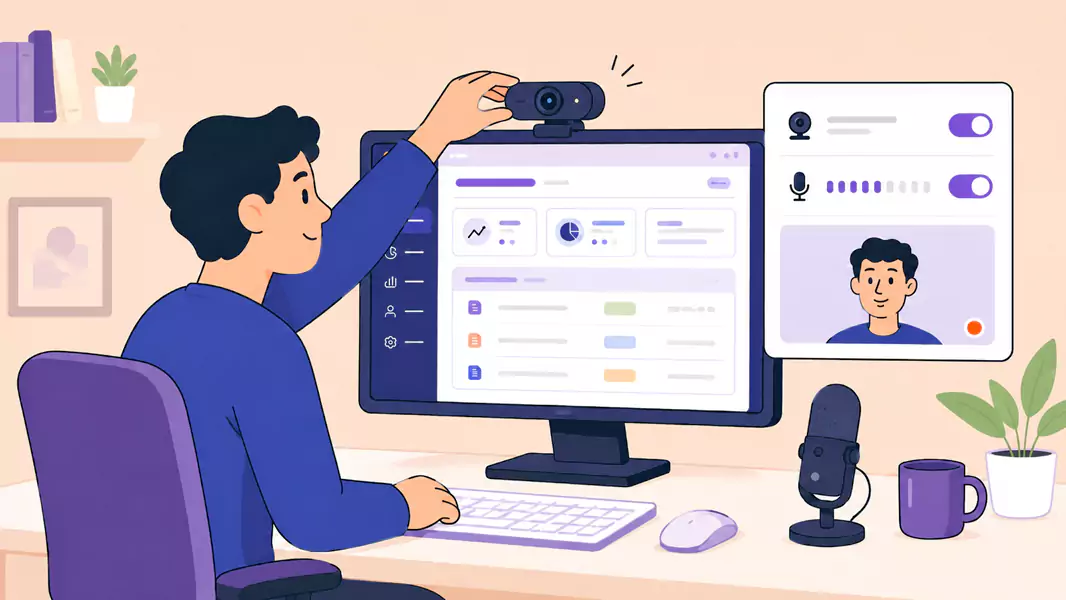
Nettoyez votre écran avant de commencer.
Fermez les onglets inutiles, coupez les notifications et n'ouvrez que les fenêtres indispensables. Si vous présentez une vidéo de démonstration d'une fonctionnalité, assurez-vous que les données à l'écran sont pertinentes et faciles à comprendre.
Une check-list de configuration rapide :
agrandir la fenêtre du navigateur ou de l'application
masquer les informations privées ou distrayantes
tester votre microphone
décider d'inclure ou non la webcam
ouvrir précisément les écrans que vous prévoyez de montrer
Pour rendre votre démonstration plus personnelle, nous vous conseillons d'ajouter votre webcam.
Étape 4 : Expliquez le « pourquoi », pas seulement les clics
Lorsque vous enregistrez, ne commentez pas chaque mouvement de souris.
Expliquez plutôt :
Ce que le spectateur a sous les yeux
Pourquoi cette étape est importante
Quel résultat cette action permet d'obtenir
Ce qu'il faut retenir avant de passer à la suite
C’est précisément ce qui rend une vidéo de présentation produit captivante et humaine, plutôt que mécanique.
Étape 5 : Maintenez un rythme régulier
Gardez un rythme assez régulier pour être suivi, mais assez rapide pour maintenir la dynamique. Marquez une pause lors des moments clés. Si une fonctionnalité propose plusieurs options, ne présentez que ce qui compte pour votre audience : l'objectif est la clarté, pas l'exhaustivité. Les présentations courtes sont généralement les plus percutantes.
Étape 6 : Révisez et ajustez l'enregistrement rapidement
Consultez votre vidéo avant de l'envoyer.
Faites attention aux points suivants :
Transitions trop rapides
Explications redondantes
Temps morts
Débuts hésitants
Décalages entre le mouvement du curseur et la narration
Si vous devez resserrer l'introduction ou couper quelques secondes à la fin, utilisez un éditeur vidéo pour obtenir un rendu parfaitement fluide.
Pour bénéficier de fonctionnalités de montage avancées et d'un contrôle total sur l'exportation, découvrez les tarifs de Flashback.
Utilisez Flashback Express pour transformer vos processus complexes en guides clairs et faciles à partager.
Qu'est-ce qui caractérise une excellente vidéo de démonstration produit ?
Une bonne vidéo de démonstration de fonctionnalité est simple à suivre, centrée sur un objectif unique et rythmée selon la compréhension du spectateur.
Les meilleures démonstrations reposent généralement sur cinq piliers essentiels :
Elles commencent par du contexte : le spectateur comprend immédiatement quel problème ou quelle tâche la vidéo aborde.
Elles restent ciblées : une démonstration doit expliquer clairement un seul flux de travail.
Elles adoptent un ton humain : une narration naturelle instaure la confiance bien plus rapidement qu'un discours trop scripté.
Elles montrent le produit en situation : le spectateur découvre comment la fonctionnalité l'aide concrètement, et pas seulement sa place dans l'interface.
Elles se terminent par un appel à l'action clair : le spectateur sait exactement ce qu'il doit tester, partager ou faire ensuite.
Pourquoi les vidéos de démonstration produit sont-elles aussi efficaces ?
Les utilisateurs comprennent mieux un produit gru00e2ce aux vidu00e9os de pru00e9sentation, car elles associent un contexte visuel u00e0 des explications orales.
C'est essentiel lorsqu'un prospect u00e9value une fonctionnalitu00e9, du00e9couvre un lancement ou cherche u00e0 comprendre un flux de travail sans avoir u00e0 ru00e9server un rendez-vous.
Une pru00e9sentation percutante vous permet de :
ru00e9duire les questions de suivi
expliquer plus clairement la valeur de votre produit
soutenir les discussions commerciales apru00e8s la ru00e9union
partager le contexte de lancement entre toutes vos u00e9quipes
offrir u00e0 vos clients un guide de ru00e9fu00e9rence durable
Si votre u00e9quipe enregistre u00e9galement des du00e9mos individuelles, du00e9couvrez nos vidu00e9os de du00e9mo commerciale personnalisu00e9es.
Quelles sont les erreurs courantes à éviter ?
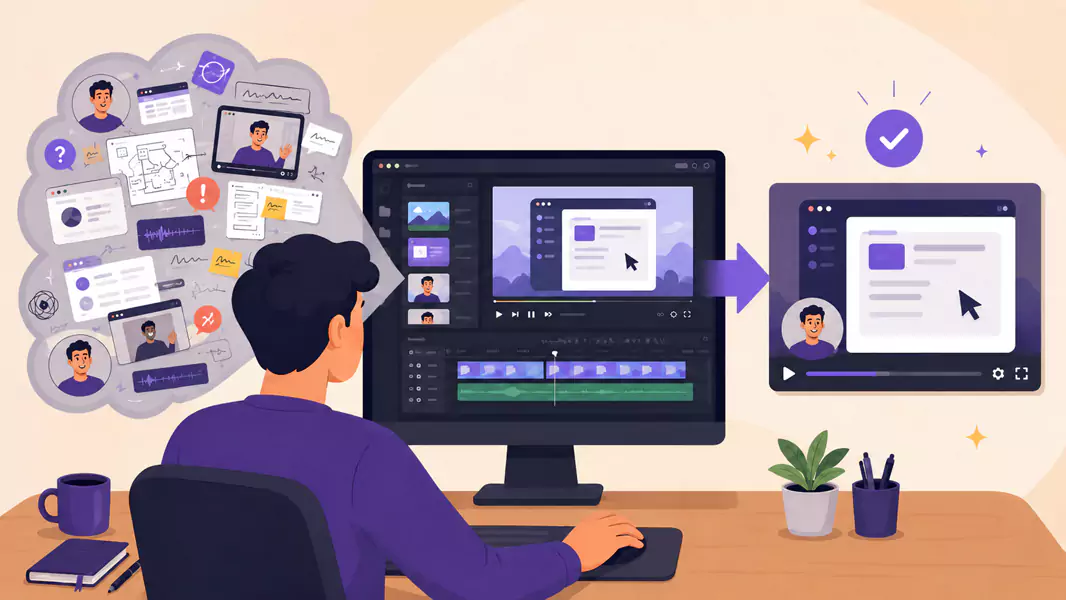
Le moyen le plus rapide de gu00e2cher une pru00e9sentation guidu00e9e est de vouloir trop en faire.
u00c9vitez ces piu00e8ges courants :
Tout pru00e9senter : Une du00e9mo est bien plus efficace lorsqu'elle se concentre sur un seul cas d'usage ou une seule fonctionnalitu00e9.
Expliquer chaque clic : Votre public s'intu00e9resse u00e0 la valeur ajoutu00e9e, pas u00e0 une description action par action.
Aller trop vite : Si l'u00e9cran change avant que le message ne soit assimilu00e9, votre du00e9monstration perd en cru00e9dibilitu00e9.
Enregistrer sans script : Mu00eame une simple trame rendra votre pru00e9sentation beaucoup plus fluide.
Nu00e9gliger le montage : Quelques secondes coupu00e9es suffisent u00e0 rendre l'ensemble de votre vidu00e9o bien plus percutant.
Une autre erreur fru00e9quente est d'adopter le ton d'un exposu00e9 classique. Une bonne vidu00e9o de lancement ou de pru00e9sentation projet doit ressembler u00e0 un u00e9change direct, ou00f9 vous guidez personnellement l'utilisateur vers l'essentiel.
Pourquoi choisir Flashback Express pour vos vidéos de démonstration produit ?
Flashback Express vous permet d'enregistrer rapidement une démonstration sur Windows, sans contrainte de filigrane ni limite de temps.
C'est la solution idéale pour :
enregistrer votre écran aussi longtemps que nécessaire
capturer le son du micro pour ajouter vos commentaires
intégrer votre webcam pour enrichir vos explications
rogner l'enregistrement avant de le partager
Cette simplicité en fait l'outil parfait pour vos vidéos de démonstration produit, de présentation de fonctionnalités ou vos comptes-rendus destinés aux parties prenantes, ainsi que pour tout processus rapide exigeant clarté et réactivité.
Prêt à propulser votre prochaine démo vers de nouveaux sommets ?
Découvrez d'autres flux de travail avec nos logiciels vidéo de vente et marketing, ou lancez-vous
dès maintenant en téléchargeant un enregistreur d'écran gratuit pour créer votre premier guide.
Questions Fréquemment Posées
Quelle est la durée idéale d'une vidéo de présentation produit ?
Cette durée est idéale pour expliquer un flux de travail avec clarté, tout en garantissant un impact maximal. Un guide vidéo court est toujours plus simple à visionner et plus facile à partager.
Quelle est la différence entre une vidéo de présentation produit et une démo ?
Une démonstration cherche souvent à convaincre. Une vidéo de présentation produit se veut généralement plus pédagogique. En pratique, de nombreuses équipes utilisent ces formats de manière interchangeable. Cependant, les présentations produit restent particulièrement adaptées pour montrer concrètement le fonctionnement d'une solution.
Devriez-vous intégrer votre webcam dans une vidéo de présentation produit ?
Parfois, l'usage de la webcam humanise la vidéo, particulièrement pour vos ventes ou la communication avec vos parties prenantes. Elle n'est cependant pas indispensable pour chaque présentation.
Puis-je enregistrer une vidéo de lancement de la même manière ?
Absolument. Une vidéo de lancement adopte généralement la même structure : présentation de la fonctionnalité, démonstration du flux de travail, explication de la valeur ajoutée et appel à l'action final.
Comment mener avec brio votre présentation devant les parties prenantes ?
Concentrez-vous sur les changements, leur importance et les enseignements clés pour le spectateur. Liez vos explications aux résultats concrets, au-delà des simples détails de l'interface.
