

Comment enregistrer des vidéos de démo de vente personnalisées
Une du00e9mo de vente personnalisu00e9e permet d'aller u00e0 l'essentiel en pru00e9sentant ce qui compte vraiment pour votre acheteur. Oubliez les enregistrements standards et incertains. Proposez du00e9sormais une vidu00e9o percutante qui ru00e9pond u00e0 une question pru00e9cise ou du00e9bloque un cas d'usage unique.
Si vous utilisez Windows et devez agir vite, un enregistreur d'u00e9cran gratuit est la solution la plus simple pour capturer votre u00e9cran, u00e9liminer les hu00e9sitations et partager une du00e9monstration sur mesure.
Découvrez en poursuivant votre lecture :
Qu'est-ce qu'une démo commerciale personnalisée ?
Quand utiliser les vidéos de démonstration individuelles
Comment enregistrer une démo commerciale personnalisée sur Windows
Ce qu'il faut inclure dans vos vidéos de suivi de démo
Les erreurs courantes à éviter
Qu'est-ce qu'une démonstration de vente personnalisée ?
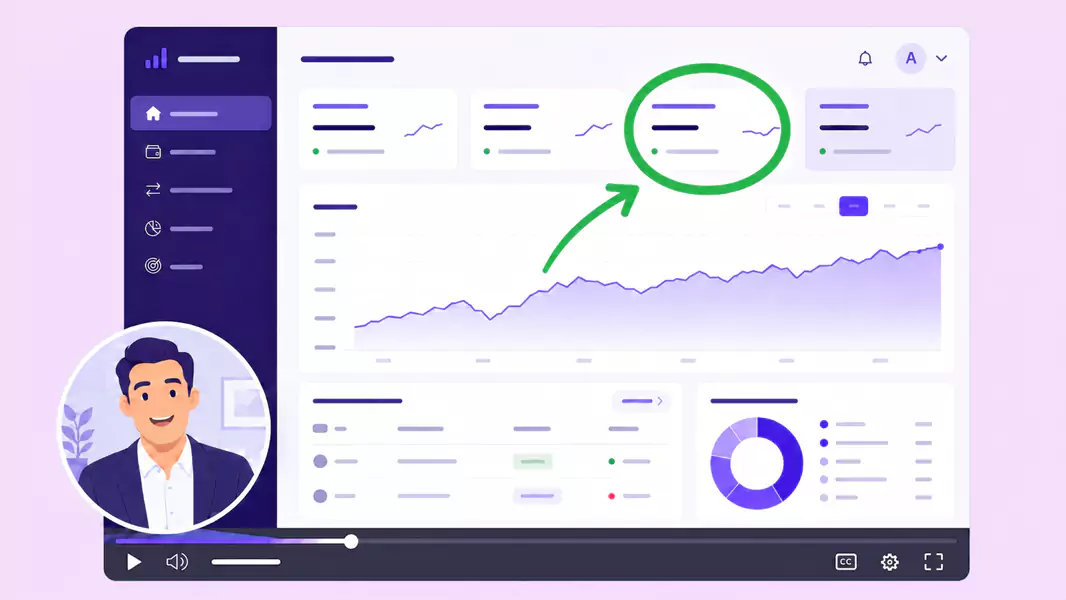
Une démo de vente personnalisée est une vidéo conçue spécifiquement pour un prospect, un compte ou une situation d'achat particulière.
Plutôt que de présenter l'intégralité du produit, elle se concentre sur le flux de travail, la fonctionnalité ou le résultat qui compte le plus pour ce spectateur. Une bonne démo produit personnalisée s'avère pertinente dès les premières secondes.
Les équipes utilisent généralement les démos de vente personnalisées pour :
le suivi après un appel
le partage avec les parties prenantes
le traitement des objections
les présentations spécifiques à un compte
la progression des opportunités commerciales
Si cette démarche s'inscrit dans un processus commercial plus large, elle s'intègre parfaitement dans un logiciel vidéo de vente et marketing.
Quand devez-vous enregistrer une démo de vente personnalisée ?
Enregistrez des vidéos de démo personnalisées lorsque l'acheteur a besoin d'une réponse claire, sans pour autant multiplier les réunions.
Cette approche est particulièrement efficace pour :
résumer un échange en direct
présenter une fonctionnalité précise en contexte
répondre à une question technique spécifique
expliquer un workflow à de nouveaux décideurs
maintenir la dynamique entre deux rendez-vous
Une démo personnalisée offre à votre acheteur un support concret qu'il peut visionner à nouveau et partager en interne. C'est l'outil idéal lorsque plusieurs parties prenantes doivent évaluer le produit avant de faire progresser l'opportunité commerciale.
Comment enregistrer une démo de vente personnalisée ?
Pour enregistrer une démo de vente personnalisée, ciblez un public unique, présentez un flux de travail pertinent et reliez directement vos explications à la situation de l'acheteur.
Étape 1 : Partez du contexte de l'acheteur
Avant d'enregistrer, identifiez clairement le destinataire de votre vidéo.
Posez-vous ces questions :
Qu'est-ce qui importe le plus pour cet acheteur ?
Quel cas d'usage est prioritaire en ce moment ?
À quelle question suis-je en train de répondre ?
Quelle action doivent-ils entreprendre après le visionnage ?
Cette approche garantit une démo ciblée. Elle évite également de transformer votre vidéo en une simple présentation générique du produit.
Étape 2 : Présentez un cas d'usage concret
Les meilleures démos de vente personnalisées vont droit au but.
Choisissez un seul flux de travail, un seul point de blocage ou un seul résultat à présenter. Par exemple :
une fonctionnalité liée aux processus de leur équipe
un flux de travail qui résout un problème qu'ils ont évoqué
un cas d'usage précis issu de vos échanges commerciaux
une réponse rapide à une objection
Si vous essayez de trop en montrer, votre démo perdra en clarté.
Étape 3 : Préparez votre écran avant d'enregistrer
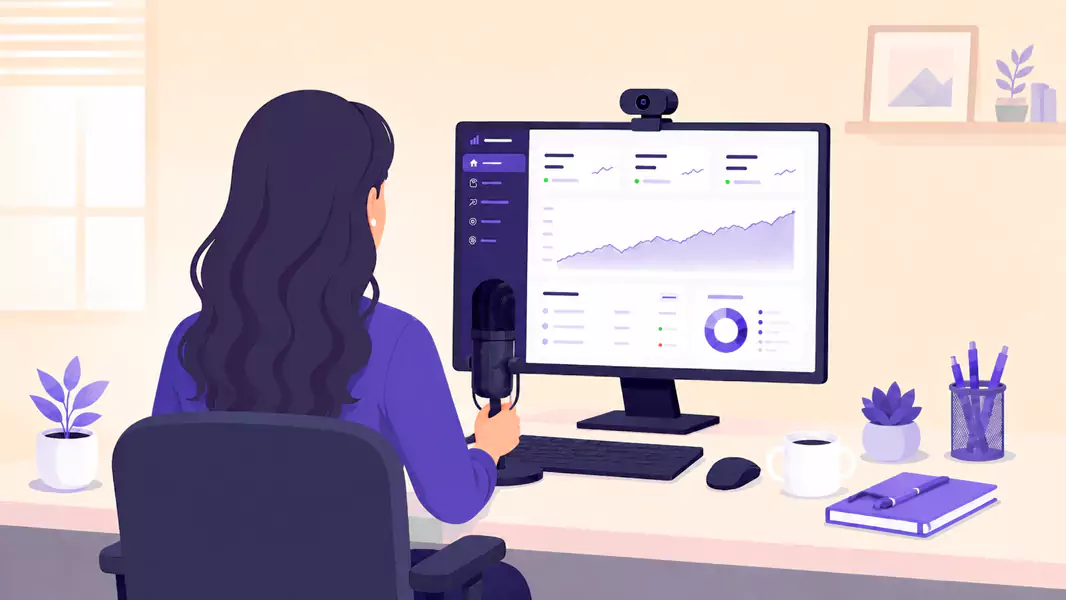
Nettoyez votre écran avant de commencer.
Fermez les onglets inutiles, éliminez les distractions et n'ouvrez que les fenêtres requises. Si vous utilisez des données de démonstration, assurez-vous qu'elles appuient la démonstration que vous souhaitez faire.
Aperçu rapide :
Ouvrez précisément les écrans que vous prévoyez de présenter
Testez votre microphone
Masquez tout contenu privé ou non pertinent
Évaluez si l'activation de votre webcam est pertinente
Notez les deux ou trois points clés à retenir
Pour donner une dimension plus humaine à votre vidéo, utilisez un enregistreur d'écran intégrant la webcam.
Étape 4 : Personnalisez l'expérience
La personnalisation ne se limite pas à ajouter le nom du prospect.
Elle consiste à présenter le bon workflow, à utiliser le bon contexte et à expliquer pourquoi cela est essentiel pour cet acheteur.
Lors de votre enregistrement :
Faites référence à leur cas d'usage
Montrez la partie la plus pertinente du produit
Expliquez le résultat obtenu, pas seulement les clics
Gardez l'histoire centrée sur leur situation
C'est ce qui rend une démonstration de vente personnalisée véritablement pertinente plutôt que générique.
Étape 5 : Soyez concis
Une vidéo de démonstration de suivi doit être facile à visionner et à partager.
Gardez un rythme régulier. Supprimez tout ce qui n'aide pas l'acheteur à comprendre votre propos. Dans la plupart des cas, une vidéo plus courte est plus efficace, car elle respecte le temps de votre interlocuteur.
Si vous devez expliquer plusieurs idées, enregistrez des vidéos distinctes au lieu de vouloir tout condenser en une seule.
Étape 6 : Révisez et ajustez avant l'envoi
Visionnez votre enregistrement une première fois avant de l'envoyer.
Faites attention aux points suivants :
Les introductions trop longues
Les répétitions inutilement lourdes
Les silences ou pauses gênantes
Les passages hors sujet
Les décalages entre la narration et l'écran
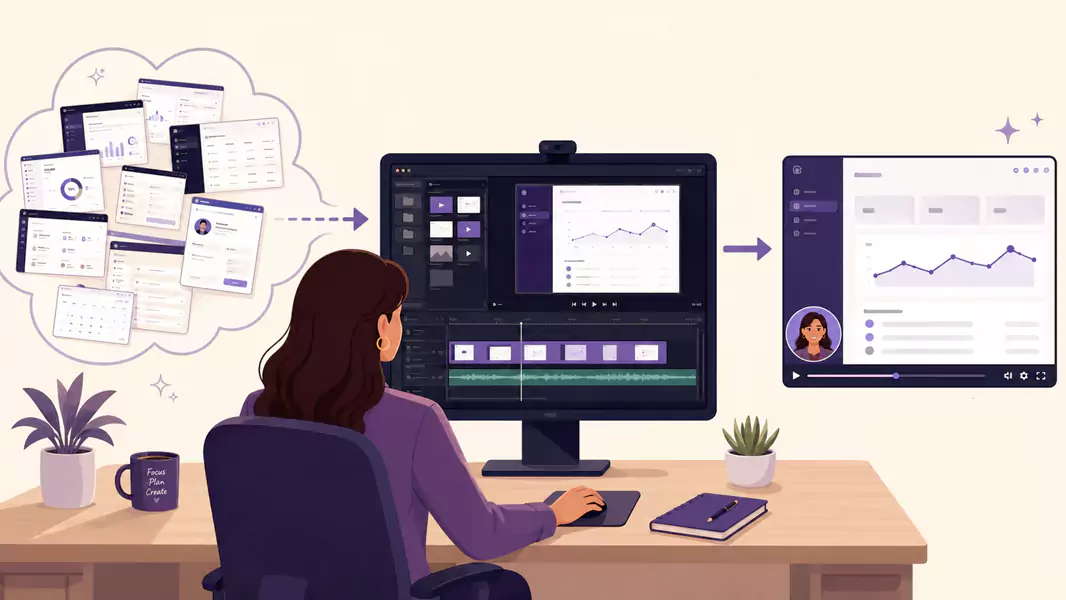
Un montage rapide rendra votre démonstration bien plus percutante. Si nécessaire, utilisez un éditeur vidéo pour peaufiner l'enregistrement avant de le partager.
Pour accéder à des fonctionnalités de montage avancées et contrôler vos exports, découvrez les tarifs de Flashback.
Que doit contenir une vidéo de démonstration de suivi ?
Les vidéos de démonstration de suivi doivent répondre à la question suivante de l'acheteur de manière claire et rapide.
Dans la plupart des cas, cela implique d'inclure :
Une courte introduction contextuelle
Un flux de travail ou une fonctionnalité pertinente
Une explication claire de son importance
Une prochaine étape simple
Nul besoin de présenter l'intégralité du produit. Concentrez-vous sur la partie qui permet à l'acheteur de progresser.
Pourquoi les démos de vente personnalisées sont-elles si efficaces ?
Les démo de vente personnalisées sont efficaces car elles éliminent le superflu.
Au lieu d'imposer au prospect une présentation globale, vous le guidez à travers les fonctionnalités du produit qui l'intéressent directement. La démo devient ainsi plus simple à comprendre et plus facile à partager avec les autres décideurs.
Une démo de vente personnalisée et percutante vous permet de :
Maintenir la dynamique entre les réunions
Rendre le produit plus concret et pertinent
Répondre aux objections de manière contextuelle
Aider votre interlocuteur clé à convaincre en interne
Fournir au prospect un support réutilisable
Si votre équipe enregistre également des présentations plus générales, découvrez nos vidéos de présentation de produit.
Quelles sont les erreurs courantes à éviter ?
La plus grande erreur est de proposer une démo générique.
À éviter :
Présenter le produit de manière trop exhaustive
Répéter l'intégralité de l'appel en direct
Mettre en avant les fonctionnalités plutôt que le contexte de l'acheteur
Faire une vidéo trop longue
Envoyer la vidéo sans l'avoir coupée au préalable
Une autre erreur fréquente consiste à trop scénariser la narration. Une démo produit personnalisée doit être claire et directe, pas rigide.
Pourquoi choisir Flashback Express pour vos vidéos personnalisées de démonstration de vente ?
Flashback Express est idéal pour enregistrer rapidement une démonstration commerciale sur Windows, sans filigrane ni limite de temps.
C'est la solution concrète pour :
Enregistrer votre écran sans aucune restriction de durée
Capturer vos commentaires audio au micro
Intégrer votre webcam pour personnaliser l'échange
Découper votre vidéo avant de la partager
Cet outil s'adapte parfaitement à vos vidéos de suivi, vos démos personnalisées et tous vos processus de vente rapides.
Pour aller plus loin, découvrez notre logiciel vidéo pour les ventes et le marketing ou essayez directement notre enregistreur d'écran gratuit.
Questions Fréquemment Posées
Quelle est la durée idéale d'une démonstration de vente personnalisée ?
Assez long pour répondre à une question précise, mais assez court pour capter l'attention. Dans la plupart des cas, la concision est votre meilleur atout.
Quelle est la différence entre une démonstration de vente personnalisée et une démo standard ?
Une démonstration standard est généraliste. Une démonstration de vente personnalisée est conçue sur mesure pour un acheteur, un compte ou un cas d'usage précis.
Faut-il inclure la webcam dans vos vidéos de démonstration personnalisées ?
Parfois. La webcam peut rendre la vidéo plus personnelle, mais elle doit soutenir votre message et non en distraire.
Que devez-vous dire dans vos vidéos de démonstration de suivi ?
Concentrez-vous sur le cas d'usage de l'acheteur, sur le workflow le plus adapté et sur la prochaine étape. Soyez précis.
Puis-je envoyer une démo produit personnalisée plutôt que de planifier une autre réunion ?
Absolument. Dans bien des cas, c'est le moyen le plus rapide de répondre aux questions, de maintenir la dynamique commerciale et de fournir à l'acheteur un contenu facile à partager en interne.
