

Comment commenter une vidéo de présentation de projet
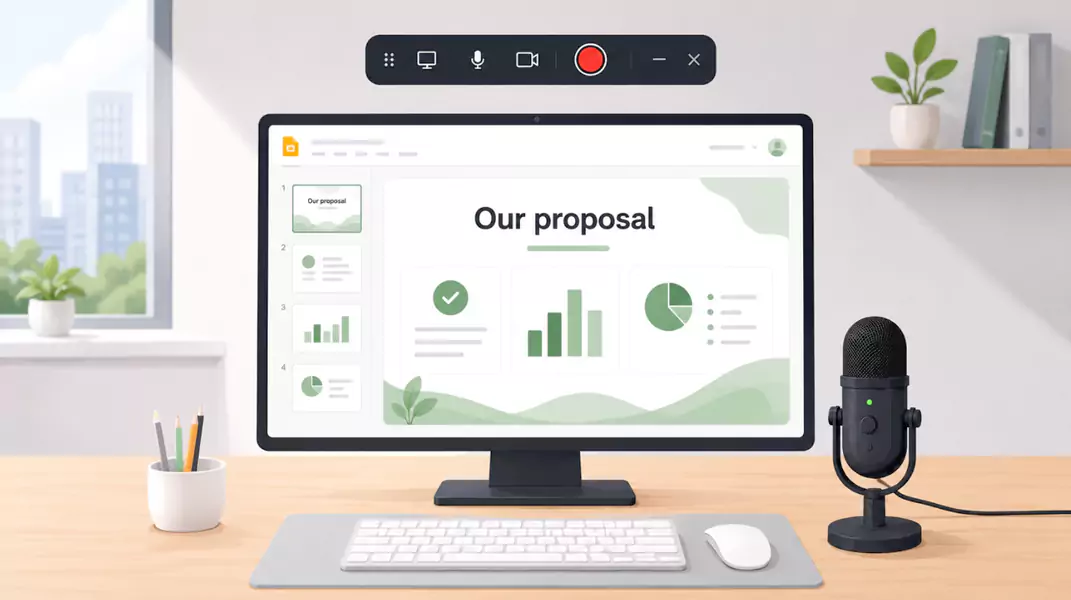
Les présentations commentées vous permettent d'expliquer l'histoire qui se cache derrière vos diapositives, et pas seulement de les montrer. En enregistrant votre voix off sur Windows, vous conservez un rythme naturel et guidez votre audience pas à pas pour que vos prospects, parties prenantes et collaborateurs comprennent parfaitement votre message.
Ce flux de travail change la donne pour les équipes qui utilisent un logiciel vidéo de vente et de marketing afin de concrétiser leurs idées plus rapidement. Plutôt que d'envoyer un fichier statique en croisant les doigts, vous accompagnez votre public à travers votre présentation avec votre propre voix. C'est le meilleur moyen de vous assurer que chaque point clé est perçu exactement comme vous l'avez prévu.
Découvrez en poursuivant votre lecture :
Qu'est-ce qu'une présentation de pitch commentée en vidéo ?
Pourquoi cette approche est plus performante que de simples diapositives statiques
Cinq étapes pour enregistrer votre présentation sous Windows
Les clés de l'impact d'une présentation vidéo réussie
Conseils d'experts pour rendre votre démonstration plus claire et convaincante
Qu'est-ce qu'une présentation enregistrée et commentée ?
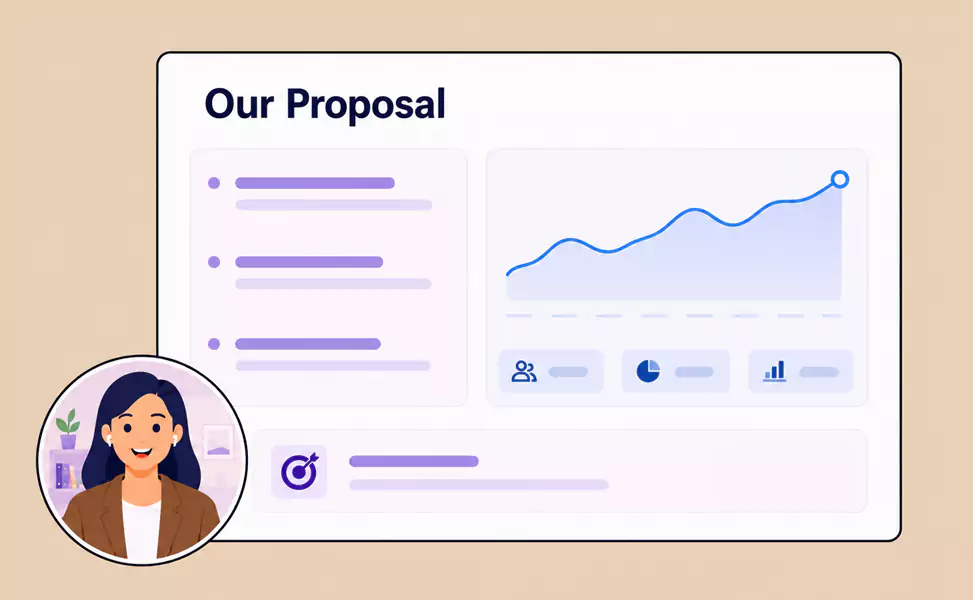
Une vidéo de présentation de projet commentée est le meilleur allié de votre diaporama. Ce pitch enregistré vous permet de superposer des explications orales à vos diapositives pour guider votre public et lui faire comprendre la vision derrière les données. Voici ce que vous pouvez enregistrer :
Diaporamas et voix uniquement : captez toute l'attention sur vos visuels tout en narrant votre présentation.
Diaporamas, voix et webcam : humanisez votre présentation en permettant à votre public de voir votre visage pendant que vous parlez.
Une brève présentation asynchrone : Idéal pour un suivi rapide ou une révision sans pression, à visionner par vos collaborateurs dès qu’ils le souhaitent.
Un fichier de présentation affiche des titres, des graphiques et une structure. Une présentation commentée révèle à votre public ce qui compte le plus, pourquoi cela est essentiel et comment chaque idée s'articule avec la suivante.
Pourquoi devriez-vous commenter votre pitch deck à l'oral ?
La narration transforme une présentation statique en une expérience guidée. Plutôt que de laisser votre public interpréter les diapositives seul, elle apporte le ton, le rythme, l'impact et l'assurance d'une présentation en direct. Pour les équipes chargées, cela se traduit par moins de questions de suivi, des validations asynchrones plus rapides et des idées immédiatement plus faciles à comprendre.
Comment commenter la vidéo de votre pitch deck sur Windows ?
Enregistrer votre présentation sur Windows ne doit pas être un casse-tête technique. Que vous utilisiez Flashback Express pour une démonstration rapide ou pour obtenir un rendu final parfaitement soigné, l'objectif est de maintenir le rythme.
Étape 1 : Finalisez votre présentation avant d'enregistrer
Commencez par simplifier vos diapositives. Éliminez tout élément répétitif, trop détaillé ou dépendant d'une explication orale que l'auditeur n'entendra pas. Chaque diapositive doit exprimer une seule idée claire. Votre public pourra ainsi vous écouter et vous suivre sans effort. Lorsqu'une diapositive est trop chargée, la narration devient plus difficile. Des diapositives épurées rendent votre enregistrement plus simple à comprendre, plus agréable à regarder et plus convaincant.
Conseil de pro :
Si vous ne pouvez pas expliquer une diapositive en une ou deux phrases simples, elle est probablement surchargée.
Étape 2 : Rédigez des points clés plutôt qu'un script complet
Une présentation commentée doit paraître fluide et naturelle, pas rigide. Plutôt que de rédiger un script à lire mot à mot, préparez de brèves notes pour chaque diapositive. Maîtrisez votre message clé, sachez sur quoi attirer l'attention de l'auditeur, comment lier chaque slide à la précédente, et identifiez les moments clés pour marquer une pause ou insister.
Étape 3 : Préparez votre environnement d'enregistrement
Avant d'enregistrer, soignez la présentation de votre écran et la qualité audio. Fermez les onglets et applications inutiles, désactivez les notifications, testez votre microphone et évaluez la pertinence de votre webcam. Si votre présence apporte de la valeur, la webcam rendra la présentation plus humaine. Si les diapositives suffisent, l'enregistrement de l'écran avec votre voix sera parfait.
Un court enregistrement test ne prend qu'une minute et s'avère indispensable : il vous permet de détecter immédiatement un mauvais son, un écran encombré ou un rythme inadapté avant de vous lancer.
Conseil de pro :
Enregistrez d'abord un test de 20 secondes. C'est le moyen le plus rapide d'éviter les contretemps.
Étape 4 : Enregistrez votre présentation
Ne vous contentez pas de lire les diapositives : donnez-leur vie. Progressez slide par slide, en mettant l'accent sur la logique derrière les données. Positionnez-vous comme un guide qui oriente le spectateur à travers votre démonstration, et non comme un simple narrateur qui lit un script.
Maintenez un rythme naturel. Laissez à votre public le temps d'assimiler les visuels avant de poursuivre. Si vous trébuchez sur un mot, faites une pause et reprenez la phrase. Une prise propre est toujours plus facile à couper au montage qu'une hésitation confuse.
Étape 5 : Révisez et ajustez votre vidéo
Visionnez votre présentation avant de l'envoyer. Repérez les passages trop rapides, répétitifs ou imprécis. Supprimez les hésitations flagrantes et ajustez le rythme pour que votre voix reste parfaitement synchronisée avec vos diapositives. Ne vous lancez pas dans un montage complexe : de simples retouches suffisent généralement pour obtenir une vidéo soignée et prête à être partagée avec votre équipe.
Enregistrez votre vidéo de pitch avec Flashback Express
Flashback Express transforme facilement vos présentations statiques en présentations gagnantes.
Quels sont les avantages d'ajouter une voix hors champ à une présentation client ?
Une présentation commentée donne vie à vos idées bien après la fin de la réunion. Plutôt que de laisser votre équipe déchiffrer un document statique, vous guidez vous-même leur réflexion.
Pourquoi commenter votre présentation ? Bien plus qu'une simple narration, c'est l'assurance que votre message marque les esprits.
Une logique implacable : permettez à votre public de comprendre instantanément le fond de votre pensée pour éviter toute mauvaise interprétation.
Une cohérence parfaite : garantissez à chaque spectateur un niveau identique de cadrage, de dynamisme et d'impact, quel que soit le moment du visionnage.
Un travail fluide : offrez à vos équipes la liberté de visionner la présentation selon leur propre emploi du temps, tout en conservant la dimension humaine d'une intervention en direct.
Un atout réutilisable : concevez un outil puissant pour vos relances, votre prospection ou votre alignement interne, doté d'une force d'impact bien supérieure à celle d'un simple PDF.
Diaporamas et voix uniquement : captez toute l'attention sur vos visuels tout en narrant votre présentation.
Diaporamas, voix et webcam : humanisez votre présentation en permettant à votre public de voir votre visage pendant que vous parlez.
Une brève présentation asynchrone : Idéal pour un suivi rapide ou une révision sans pression, à visionner par vos collaborateurs dès qu’ils le souhaitent.
Une brève présentation asynchrone : Idéal pour un suivi rapide ou une révision sans pression, à visionner par vos collaborateurs dès qu’ils le souhaitent.
Quels conseils d'expert pour optimiser votre présentation de pitch sonorisée ?
Diaporamas et voix uniquement : captez toute l'attention sur vos visuels tout en narrant votre présentation.
Diaporamas, voix et webcam : humanisez votre présentation en permettant à votre public de voir votre visage pendant que vous parlez.
Une brève présentation asynchrone : Idéal pour un suivi rapide ou une révision sans pression, à visionner par vos collaborateurs dès qu’ils le souhaitent.
Quelles sont les erreurs courantes à éviter ?
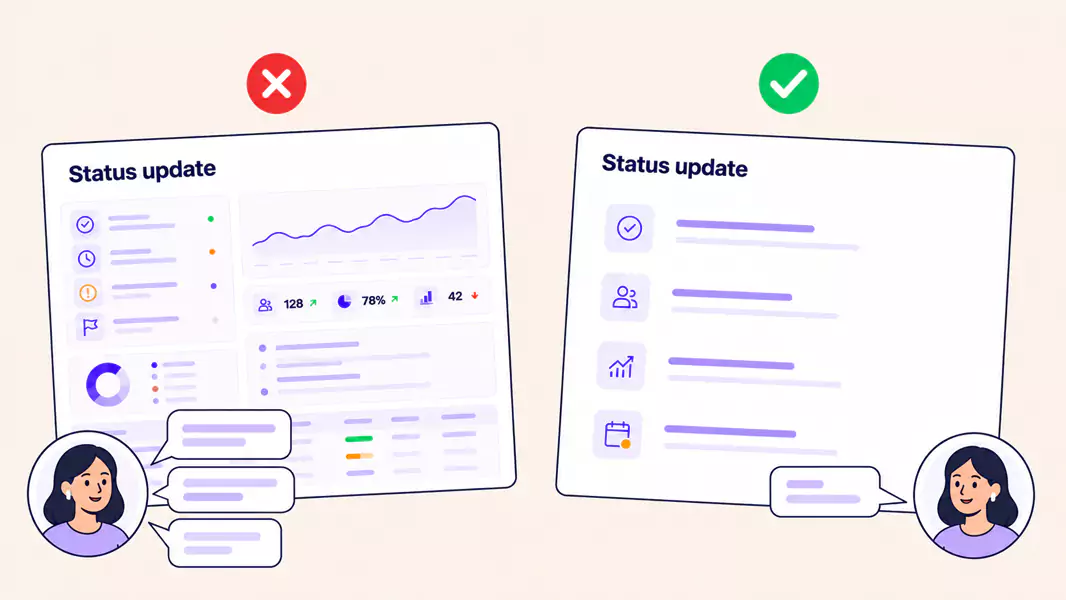
Le meilleur moyen de perdre votre public est de lire vos diapositives mot à mot. C'est redondant et cela vide instantanément la pièce de toute énergie. Un autre piège ? Surcharger vos slides de texte. Si votre spectateur doit lire et écouter en même temps, il ne fera probablement ni l'un ni l'autre.
Ne précipitez pas votre présentation. Ce qui vous semble "efficace" peut paraître abrupt pour quelqu'un qui découvre vos idées pour la première fois.
Une excellente présentation commentée ne doit pas être statique, elle doit être dynamique. Utilisez votre voix pour guider la logique, clarifier les points complexes et maintenir le fil de l'histoire.
Prêt à enregistrer votre première diapo ?
Maintenant que vous connaissez les étapes, utilisez Flashback Express pour transformer vos idées en une vidéo captivante.
Questions Fréquemment Posées
Comment commenter vos diapositives de manière naturelle, sans avoir l'air de lire un texte ?
Privilégiez les points clés plutôt qu'un script rédigé en entier. Concentrez-vous sur le sens de chaque diapositive, pas sur chaque mot. Votre présentation sera plus flexible et votre ton beaucoup plus naturel.
Comment concevoir une vidéo de pitch deck plus percutante ?
Une vidéo de présentation réussie repose sur un récit clair, des diapositives simples, un rythme naturel, une narration percutante et un appel à l'action précis. Le but n'est pas d'en dire plus. Il s'agit de rendre votre message plus facile à comprendre.
Faut-il montrer son visage dans la vidéo d'un pitch deck ?
Parfois, la webcam s'impose. Elle est indispensable lorsque la confiance, la personnalité ou la présence du présentateur sont clés. Si vos diapositives portent l'essentiel du message, l'écran et la voix peuvent suffire.
Quelle est la durée idéale pour une présentation de pitch deck vidéo commentée ?
Assez long pour expliquer clairement votre concept, mais sans longueur inutile. Dans la plupart des cas, la concision l'emporte sur l'exhaustivité. Si votre présentation est longue, divisez-la en sections plus courtes.
